PC Network Problems: The Settings Most Users Ignore
8 min read • 1,622 words
Table of Contents
TogglePC Network Problems: The Settings Most Users Ignore
In today’s digital age, having a stable and fast internet connection is crucial for both work and leisure. However, many users face persistent PC network problems that stem from overlooked settings. Understanding these settings is essential for optimizing your network performance and ensuring a seamless online experience. This article will delve into the common pitfalls that users often neglect, such as DNS settings, IP address configurations, firewall settings, network drivers, and Wi-Fi channel adjustments.
By addressing these often-ignored aspects, you can significantly enhance your internet speed and connectivity. For instance, incorrect DNS settings can slow down browsing, while default firewall configurations may leave your network vulnerable. Additionally, outdated network drivers can lead to performance issues, and failing to adjust Wi-Fi channels can result in interference. By learning about these critical settings, you can troubleshoot and resolve many PC network problems effectively.
Common Network Configuration Issues
When it comes to PC network problems, many users often overlook critical settings that can lead to significant connectivity issues. Understanding these common configuration problems can help users troubleshoot and resolve their network issues more effectively.
One of the most frequent issues arises from incorrect IP address settings. Each device on a network requires a unique IP address to communicate effectively. If two devices share the same IP address, it can result in a conflict, causing one or both devices to lose connectivity. To check your IP address settings, you can use the following command:
ipconfigAnother common misconfiguration involves the subnet mask. The subnet mask is essential for determining which portion of the IP address identifies the network and which part identifies the device. If the subnet mask is incorrectly set, devices may be unable to communicate with each other, even if they are on the same network. For instance, if a device is set to a subnet mask of 255.255.255.0 while another is set to 255.255.0.0, they may not recognize each other as being on the same local network.
Default gateway settings are another area often overlooked by users. The default gateway is the device that routes traffic from the local network to external networks, such as the internet. If this setting is incorrect, users may find themselves unable to access the internet. To view your current default gateway, you can use:
ipconfigLastly, DNS settings can also contribute to network problems. DNS (Domain Name System) translates human-readable domain names into IP addresses. If the DNS settings are misconfigured, users may be able to connect to the internet but unable to access specific websites. It’s important to ensure that the DNS server addresses are correctly set, either to your ISP’s DNS or a public DNS service like Google DNS (8.8.8.8).
By paying attention to these often-ignored settings, users can significantly reduce the likelihood of encountering PC network problems and improve their overall connectivity experience.
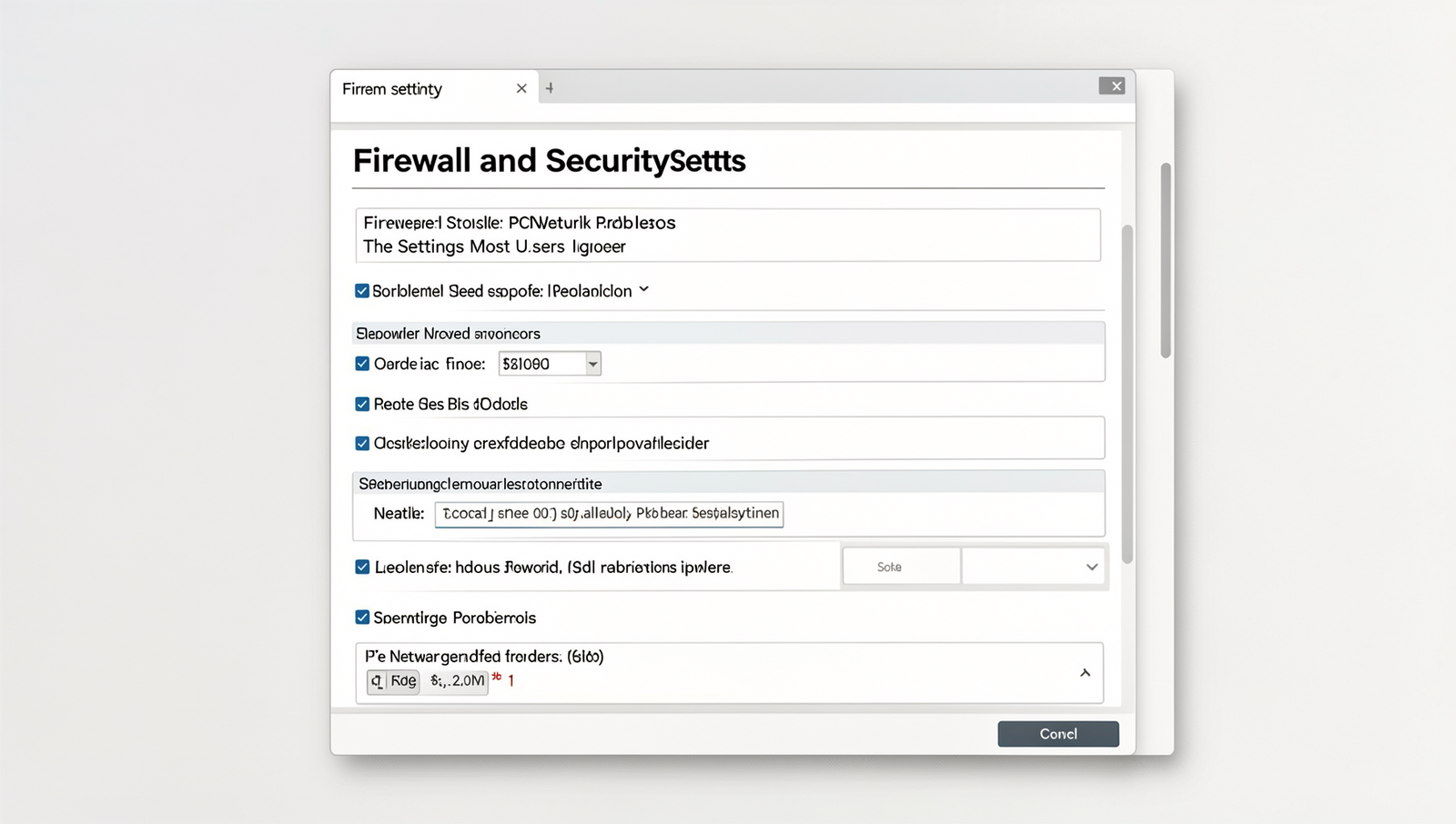
Firewall and Security Settings
When troubleshooting PC network problems, many users overlook the significance of firewall and security settings. These settings play a crucial role in managing network traffic and can often lead to connectivity issues if not configured properly. Overly restrictive firewall settings can inadvertently block legitimate traffic, preventing applications from accessing the internet or communicating with other devices on the network.
For instance, if you are trying to use a gaming application or a video conferencing tool, the firewall may block these programs if they are not explicitly allowed. To check and modify your Windows Firewall settings, you can follow these steps:
- Open the Control Panel.
- Select “System and Security.”
- Click on “Windows Defender Firewall.”
- Choose “Allow an app or feature through Windows Defender Firewall.”
- Find the application you want to allow and check both the Private and Public boxes.
Another common issue arises from antivirus software, which may interfere with network connections. Many antivirus programs include their own firewalls that can conflict with Windows Firewall, leading to unexpected network problems. If you suspect your antivirus is causing issues, consider temporarily disabling it to see if your network connectivity improves. You can disable your antivirus software by navigating to its settings and selecting the option to turn it off. Remember to re-enable it after testing.
Windows Firewall settings often default to restrictive modes, which can be beneficial for security but detrimental for usability. Users should regularly review these settings to ensure that they are not hindering legitimate network traffic. Additionally, network security settings can also impact connectivity. For example, if your router has MAC address filtering enabled, it may block devices that are not recognized, leading to connection failures.
In summary, understanding and adjusting firewall and security settings is essential for resolving PC network problems. Regularly reviewing these configurations can help maintain a balance between security and connectivity.
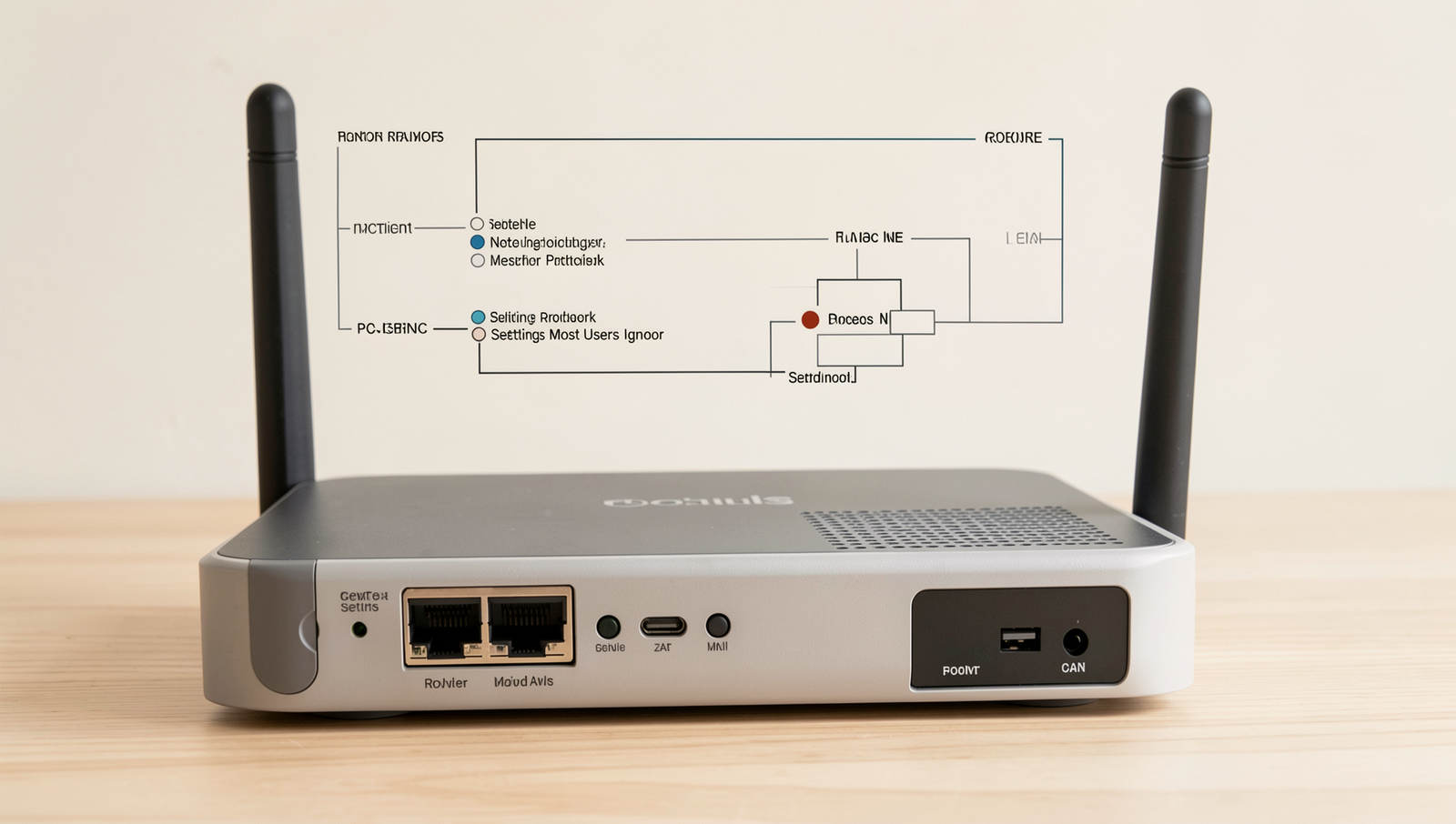
Router and Modem Settings
When it comes to PC network problems, many users overlook the critical settings on their routers and modems. Default configurations provided by manufacturers are often not optimized for individual home networks, which can lead to subpar performance. For instance, the default channel settings may cause interference with neighboring networks, resulting in slower speeds and dropped connections.
One of the most significant issues is that users frequently ignore firmware updates for their routers. These updates are essential for maintaining stability and security. Outdated firmware can leave your network vulnerable to attacks and bugs that may cause connectivity issues. To check for firmware updates, you can typically access your router’s settings through a web browser. The command to access the router is usually:
http://192.168.1.1Once logged in, look for a section labeled “Firmware Update” or “Router Upgrade” to see if a new version is available.
Another common oversight is the Quality of Service (QoS) settings. QoS allows users to prioritize certain types of traffic, such as video streaming or gaming, over others. However, if configured incorrectly, it can lead to a bottleneck in the network, affecting the performance of applications that require high bandwidth. For example, if a user prioritizes downloads over streaming, they may experience buffering during video playback.
Wireless settings are equally important. Many users do not change the default wireless channel, which can lead to interference from other networks. To optimize wireless performance, consider using a less congested channel. You can use tools like Wi-Fi Analyzer to identify the best channel for your network.
- Check for firmware updates regularly.
- Adjust QoS settings based on your usage needs.
- Change the wireless channel to reduce interference.
By paying attention to these often-ignored settings, users can significantly improve their network performance and reduce PC network problems.
Network Adapter Settings
When troubleshooting PC network problems, many users overlook critical settings related to their network adapters. These settings can significantly impact network performance and connectivity. Understanding and adjusting these configurations can resolve many common issues.
One of the primary concerns is outdated drivers. Network adapter drivers are essential for the proper functioning of your hardware. If these drivers are not updated, they can lead to poor network performance, including slow speeds and frequent disconnections. To check for updates, you can navigate to the Device Manager in Windows. Right-click on your network adapter and select “Update driver.” This simple step can often resolve connectivity issues.
Another setting that users often ignore is the power management configuration. Windows has a feature that allows the system to turn off the network adapter during periods of inactivity to save power. While this can be beneficial for laptops, it may cause connectivity problems on desktops or when the device is in use. To adjust this setting, go to the Device Manager, right-click on your network adapter, select “Properties,” and then navigate to the “Power Management” tab. Uncheck the option that allows the computer to turn off the device to save power.
Advanced settings, such as speed and duplex, can also affect connectivity. These settings determine how data is transmitted over the network. If set incorrectly, they can lead to network instability. To access these settings, go to the “Advanced” tab in the network adapter properties. Here, you can adjust the “Speed & Duplex” option to match your network’s capabilities, which can enhance performance.
Lastly, if you continue to experience issues, consider using the network reset option. This feature reinstalls network adapters and resets networking components to their default settings. To perform a network reset, open the command prompt and enter the following command:
netsh int ip resetAfter executing this command, restart your PC to apply the changes. By addressing these often-ignored settings, you can significantly improve your PC’s network performance and reliability.
Conclusion
In summary, addressing PC network problems often involves examining settings that many users overlook. By ensuring that your network adapter settings are correctly configured, updating drivers, and checking firewall settings, you can significantly enhance your network performance. These adjustments not only improve connectivity but also reduce the likelihood of encountering frustrating issues in the future. Understanding the importance of DNS settings and IP configurations can also lead to a more stable and efficient network environment.
As you move forward, consider regularly reviewing your network settings and keeping your software up to date. Implementing these practices will not only help you troubleshoot existing PC network problems but also prevent new ones from arising. By taking proactive steps, you can enjoy a seamless online experience, whether for work or leisure, and ensure that your PC remains a reliable tool in your daily activities.
Frequently Asked Questions
What is the first setting to check for network issues?
The first setting to check when facing network issues is the network adapter settings. Ensure that the adapter is enabled and properly configured. Additionally, verify that the correct
Related Posts
Bluetooth on PC: Common Problems and Their Real Causes
About The Author
