Bluetooth on PC: Common Problems and Their Real Causes
techpcalex@gmail.com September 1, 2026 0
Troubleshooting Bluetooth issues on PC.
8 min read • 1,627 words
Table of Contents
ToggleBluetooth on PC: Common Problems and Their Real Causes
Bluetooth on PC has become an essential feature for many users, enabling seamless connectivity with various devices such as headphones, keyboards, and mice. However, users often encounter frustrating connectivity issues that can hinder their experience. Understanding the common problems associated with Bluetooth on PC is crucial for troubleshooting and ensuring smooth operation. In this article, we will explore the primary causes of these issues, providing insights that can help users resolve them effectively.
From outdated drivers to interference from other wireless devices, several factors can disrupt Bluetooth connectivity. Additionally, power management settings may lead to frequent disconnections, while distance and obstacles can further complicate the situation. Lastly, incompatible Bluetooth versions between devices can result in connection failures. By identifying these common problems and their real causes, readers will gain valuable knowledge to enhance their Bluetooth experience on PC.
Understanding Bluetooth Technology on PC
Bluetooth technology has become an essential feature for many PC users, allowing for wireless communication between devices. It enables users to connect peripherals such as keyboards, mice, headphones, and printers without the need for cumbersome cables. The convenience of Bluetooth on PC enhances productivity and provides a cleaner workspace, making it a popular choice for both personal and professional use.
Bluetooth technology has evolved over the years, with various versions offering different capabilities. The most common versions include Bluetooth 4.0, 4.1, 4.2, 5.0, and 5.1. Each version brings improvements in speed, range, and energy efficiency. For instance, Bluetooth 5.0 can transmit data at speeds up to 2 Mbps and has a range of up to 240 meters in open spaces. However, compatibility can be an issue; older devices may not support the latest Bluetooth versions, which can lead to connectivity problems.
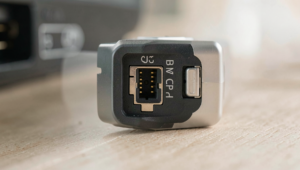
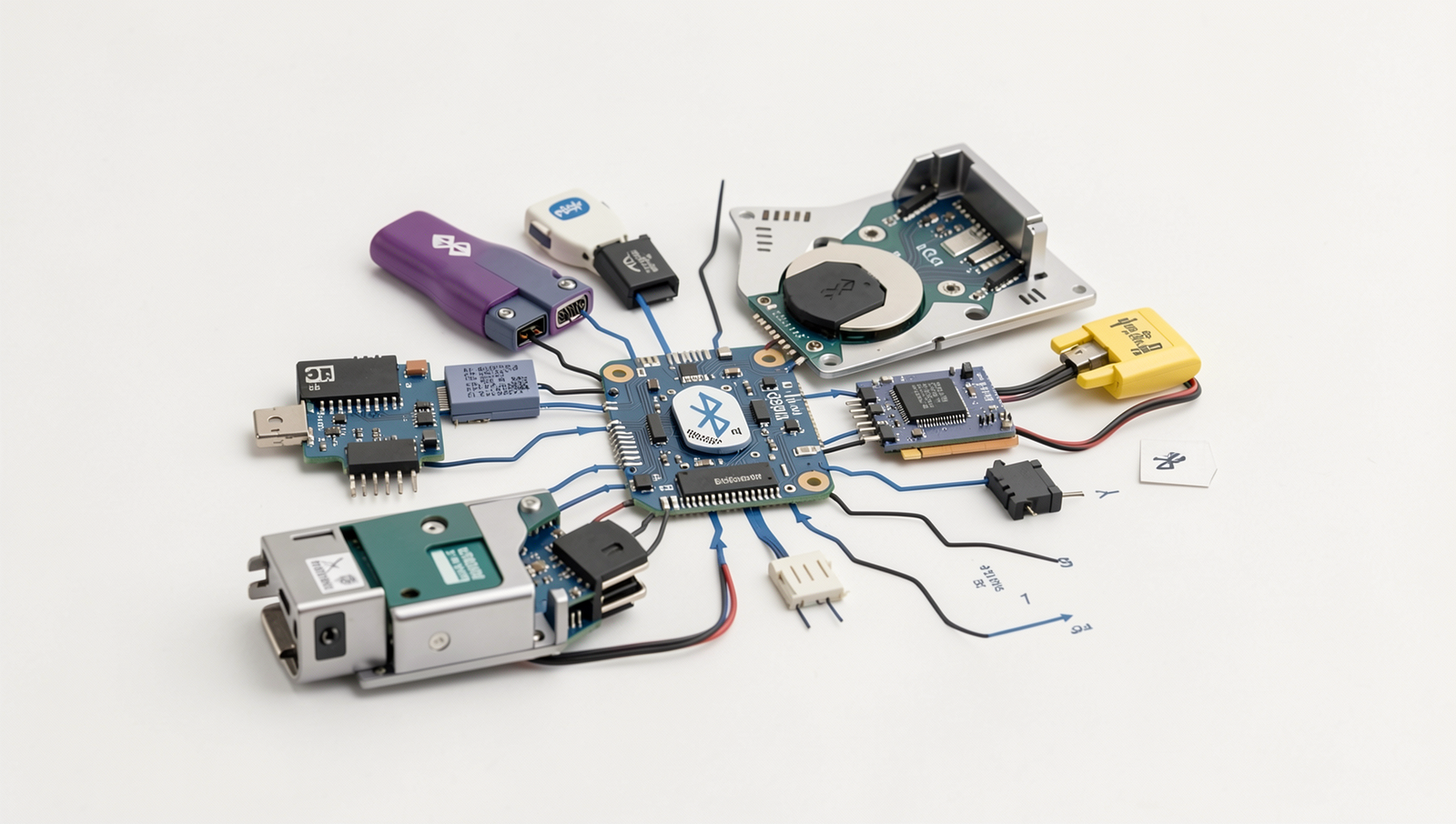
Several hardware components are crucial for Bluetooth connectivity on a PC. These include the Bluetooth adapter, which can be built into the motherboard or added as a USB dongle. Additionally, drivers play a significant role in ensuring that the Bluetooth hardware communicates effectively with the operating system. Without the correct drivers, users may experience issues connecting devices.
If you encounter problems with Bluetooth on PC, here are some basic troubleshooting steps:
- Ensure that Bluetooth is enabled in the PC settings.
- Check if the device you are trying to connect is in pairing mode.
- Update the Bluetooth drivers through the Device Manager.
- Restart both the PC and the Bluetooth device.
- Remove and re-add the device in the Bluetooth settings.
By understanding these aspects of Bluetooth technology, users can better navigate common issues and enhance their experience with Bluetooth on PC.
Common Bluetooth Issues on PC
Bluetooth on PC can significantly enhance your computing experience by allowing you to connect various devices wirelessly. However, users often encounter several common issues that can hinder functionality. Understanding these problems and their underlying causes can help you troubleshoot effectively.
One prevalent issue is devices not pairing or connecting properly. This can occur due to several reasons, such as outdated drivers or interference from other wireless devices. To resolve this, ensure that your Bluetooth drivers are up to date. You can check for updates by navigating to the Device Manager and selecting the Bluetooth section. If necessary, you can update the driver by right-clicking on the device and selecting Update driver.
Another common problem is intermittent connection drops and instability. This can be frustrating, especially during important tasks. Often, this is caused by a weak signal or interference from other electronic devices. To improve stability, try moving your PC closer to the Bluetooth device or removing other wireless devices that may cause interference.
Audio quality issues during Bluetooth audio playback are also frequently reported. Users may experience choppy sound or delays. This can be due to a low-quality Bluetooth codec or a poor connection. To enhance audio quality, consider using devices that support higher-quality codecs like aptX or AAC.
Lastly, sometimes a Bluetooth device may not be recognized by the PC at all. This can happen if the device is not in pairing mode or if there are compatibility issues. Ensure that the device is discoverable and check the manufacturer’s website for compatibility information.
Troubleshooting and Solutions
When experiencing issues with Bluetooth on PC, there are several common problems that can often be resolved with a few straightforward troubleshooting steps. Below are some effective solutions to enhance your Bluetooth experience.
First, ensure that your Bluetooth drivers and software are up to date. Outdated drivers can lead to connectivity issues and reduced performance. To update your Bluetooth drivers, follow these steps:
- Open
Device Managerby right-clicking the Start button. - Locate and expand the
Bluetoothsection. - Right-click on your Bluetooth device and select
Update driver. - Choose
Search automatically for updated driver software.
Next, adjusting the power management settings for Bluetooth devices can also improve functionality. Windows may turn off Bluetooth devices to save power, which can disrupt connections. To change these settings:
- In
Device Manager, right-click your Bluetooth device. - Select
Properties, then navigate to thePower Managementtab. - Uncheck the box that says
Allow the computer to turn off this device to save power.
Interference from other devices can also affect Bluetooth performance. If you experience connectivity issues, try relocating your Bluetooth devices away from potential sources of interference, such as microwaves or Wi-Fi routers.
Lastly, utilizing the built-in Windows troubleshooting tool can help identify and fix Bluetooth problems. To access this tool, go to Settings, select Update & Security, and then click on Troubleshoot. From there, select Additional troubleshooters and choose Bluetooth to run the troubleshooter.
By following these steps, you can resolve many common Bluetooth issues on your PC, ensuring a smoother and more reliable connection.
Conclusion
In summary, while Bluetooth on PC offers significant convenience and flexibility for connecting various devices, it is not without its challenges. Common problems such as connectivity issues, driver conflicts, and interference can hinder the user experience. Understanding the real causes behind these issues is essential for effective troubleshooting. By keeping drivers updated, ensuring compatibility, and managing device settings, users can enhance their Bluetooth experience on PC significantly.
Moving forward, it is beneficial for users to familiarize themselves with the settings and features of their Bluetooth devices. Regular maintenance, such as checking for updates and removing unused devices, can prevent many common problems. By taking these proactive steps, users can enjoy the full advantages of Bluetooth technology, making their PC a more versatile and connected hub for all their devices. Embracing these practices will lead to a smoother and more efficient Bluetooth experience on PC.
Real-World Examples
Understanding the common problems associated with Bluetooth on PC can be greatly enhanced by examining real-world scenarios. Users often encounter a variety of issues that can disrupt their experience, and these examples illustrate the range of challenges faced.
One common problem is the inability to connect Bluetooth devices. For instance, a user may attempt to connect their Bluetooth headphones to their PC, only to find that the headphones are not recognized. This can stem from several causes, such as outdated drivers or interference from other wireless devices. In such cases, users can resolve the issue by updating their Bluetooth drivers through the Device Manager or ensuring that their headphones are in pairing mode.
Another scenario involves audio quality issues when using Bluetooth speakers. A user might notice that the sound is choppy or distorted. This can often be attributed to a weak Bluetooth signal, which may be caused by physical obstructions or distance from the PC. To improve audio quality, users can try moving closer to the speakers or removing any barriers that may interfere with the signal.
- Device Compatibility: A user may find that their Bluetooth mouse works perfectly fine with one PC but fails to connect with another. This could be due to differences in Bluetooth versions or profiles supported by the devices.
- Battery Issues: Users often overlook the importance of battery levels in Bluetooth devices. A Bluetooth keyboard may stop functioning if its batteries are low, leading to frustration during critical tasks.
- Software Conflicts: Sometimes, background applications can interfere with Bluetooth connectivity. For example, a user might have a third-party application that manages Bluetooth connections, which can conflict with the native Windows Bluetooth settings.
These examples highlight the importance of troubleshooting and understanding the underlying causes of Bluetooth issues on PCs. By addressing these common problems with practical solutions, users can enhance their overall experience and make the most of their Bluetooth devices.
Frequently Asked Questions
What should I do if my Bluetooth device is not pairing with my PC?
If your Bluetooth device isn’t pairing, first ensure that both the device and PC have Bluetooth enabled. Restart both devices, check for updates, and remove any previously paired devices. If issues persist, consider resetting the Bluetooth settings on your PC.
Why does my Bluetooth connection keep dropping?
Bluetooth connections may drop due to interference from other wireless devices, low battery levels on the Bluetooth device, or outdated drivers. Ensure your device is within range and try updating your Bluetooth drivers to enhance stability and performance.
How can I fix Bluetooth audio lag on my PC?
To fix audio lag, ensure your Bluetooth drivers are up to date and check for any software updates on your audio device. Reducing the distance between the devices and minimizing interference from other electronics can also help reduce lag.
What are the common reasons for Bluetooth not showing up on my PC?
Bluetooth may not show up due to disabled settings, outdated drivers, or hardware issues. Ensure Bluetooth is enabled in your PC