Windows Defender: What It Can Actually Protect Your PC From
techpcalex@gmail.com September 1, 2026 0
Exploring the protective features of Windows Defender.
8 min read • 1,636 words
Table of Contents
ToggleWindows Defender: What It Can Actually Protect Your PC From
cviruses, and phishing attacks, having a reliable security solution is essential. Windows Defender protection offers a comprehensive suite of tools designed to safeguard your device from various online dangers. This article will explore the capabilities of Windows Defender, detailing how it can effectively shield your computer from potential threats.
Readers will learn about the various features of Windows Defender, including its ability to scan files and applications for malware, its built-in firewall that blocks unauthorized access, and its proactive measures against phishing attacks. Additionally, we will discuss how Windows Defender employs cloud-based protection and machine learning to identify new threats and how it can secure your device against ransomware through controlled folder access. Understanding these features will empower you to make informed decisions about your PC’s security.
Introduction to Windows Defender
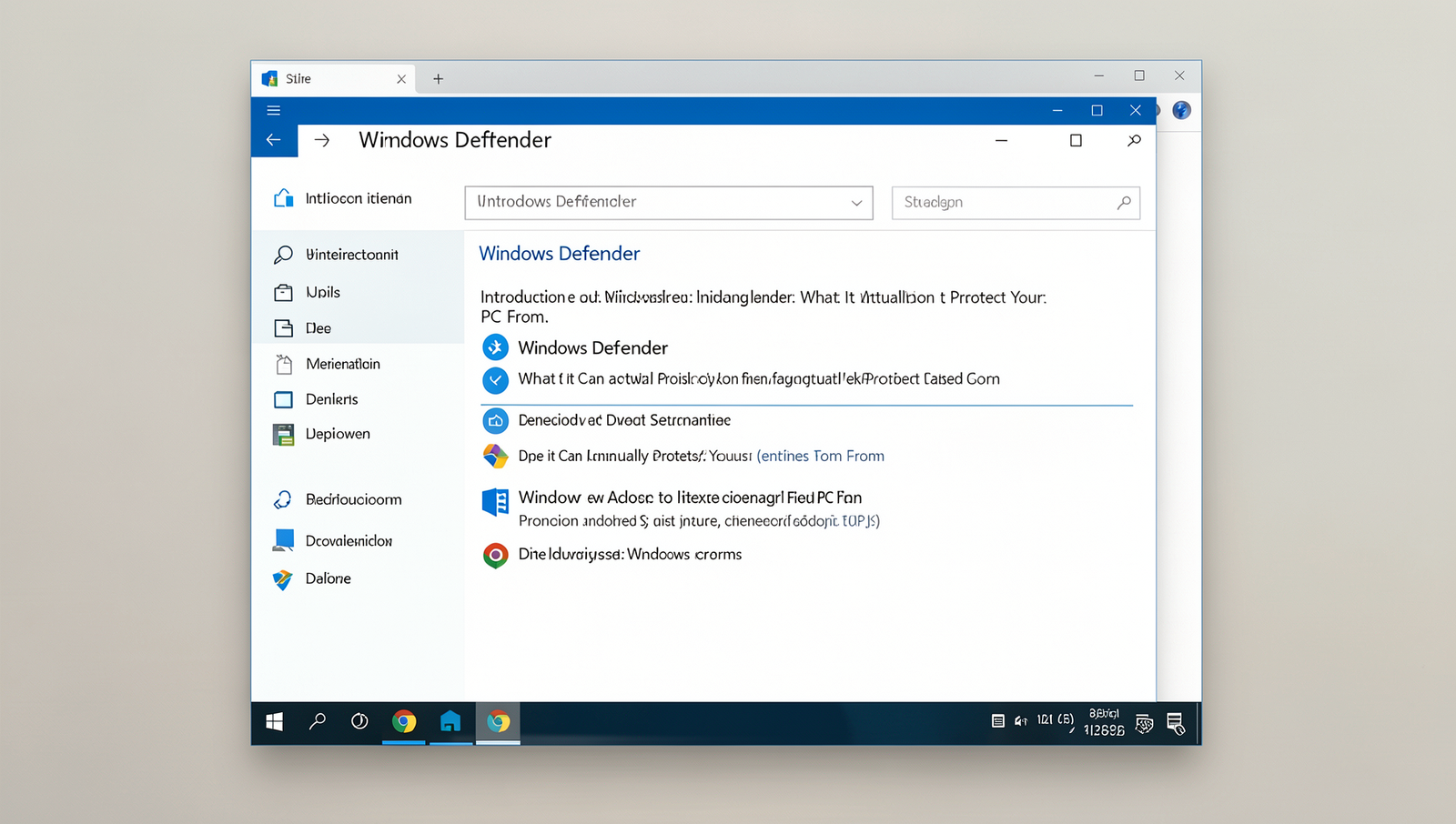
Windows Defender is a built-in antivirus solution that comes pre-installed with Microsoft Windows operating systems. It serves as a first line of defense against various types of malware, including viruses, spyware, and ransomware. With the increasing number of cyber threats, having a reliable antivirus solution like Windows Defender is essential for maintaining the security and integrity of your PC.
The importance of antivirus protection cannot be overstated. Cyber threats can lead to data loss, identity theft, and significant financial damage. By utilizing Windows Defender, users can benefit from real-time protection, which continuously scans for potential threats and takes action to neutralize them before they can cause harm. This proactive approach is crucial in today’s digital landscape, where threats are constantly evolving.
Windows Defender has undergone significant changes since its inception. Originally launched as a simple antispyware tool in Windows XP, it has evolved into a comprehensive security suite. With each new version of Windows, Microsoft has enhanced its capabilities, integrating features such as firewall protection, network protection, and cloud-based threat detection. This evolution reflects the growing need for robust security measures in an increasingly connected world.
Windows Defender fits seamlessly into the Windows security ecosystem. It works alongside other security features, such as Windows Firewall and SmartScreen, to provide a multi-layered defense strategy. Users can easily access Windows Defender through the Windows Security app, where they can run quick scans, full scans, or custom scans based on their preferences.
- Real-time protection against malware
- Regular updates to combat new threats
- Integration with Windows Firewall for enhanced security
- User-friendly interface for easy navigation
In conclusion, Windows Defender offers essential protection for your PC, making it a valuable tool in safeguarding your digital life. Its continuous evolution and integration with other security features ensure that users remain protected against emerging threats.

Types of Threats Windows Defender Can Protect Against
Windows Defender is a built-in security solution for Windows operating systems, designed to provide comprehensive protection against various types of threats. Understanding the types of threats it can defend against is crucial for maintaining the security of your PC.
Viruses are malicious programs that can replicate themselves and spread from one computer to another. They often infect systems through email attachments, downloads, or removable media. Once a virus infects a system, it can corrupt files, steal personal information, or even render the system unusable. Windows Defender protection includes real-time scanning and automatic updates to detect and eliminate viruses before they can cause significant damage.
Malware is a broad category that encompasses various harmful software types, including:
- Spyware: This type of malware secretly monitors user activity and collects sensitive information, such as passwords and credit card numbers.
- Ransomware: A particularly dangerous form of malware that encrypts files on a victim’s computer and demands payment for their release.
- Trojans: These disguise themselves as legitimate software but can create backdoors for other malicious programs.
Windows Defender offers robust malware detection and removal capabilities, helping users stay safe from these threats.
Phishing attacks are attempts to trick users into revealing personal information, often through deceptive emails or websites. Windows Defender helps identify and block these phishing attempts by analyzing the content of emails and web pages for known malicious patterns. This proactive approach helps users avoid falling victim to scams that could compromise their sensitive data.
Lastly, adware and potentially unwanted programs (PUPs) can clutter your system and compromise your privacy. Windows Defender protection includes features to detect and remove these unwanted applications, ensuring a cleaner and more secure computing experience.
Key Features of Windows Defender
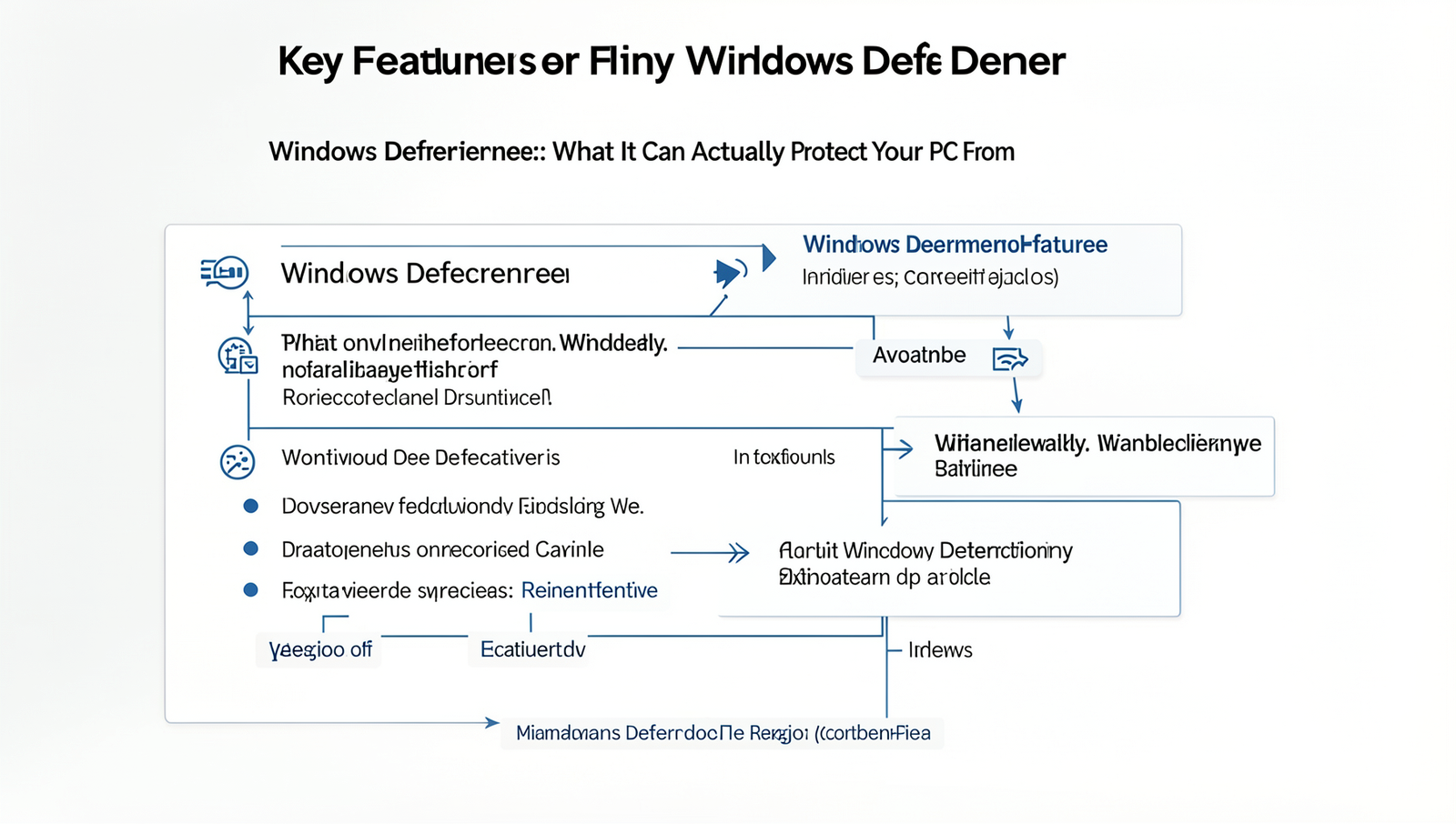
Windows Defender protection offers a comprehensive suite of features designed to safeguard your PC from various threats. One of its standout capabilities is real-time protection, which continuously monitors your system for suspicious activity. This feature works in the background, scanning files and applications as they are accessed, ensuring that any potential threats are detected and neutralized before they can cause harm. For instance, if you download a file from the internet, Windows Defender will automatically scan it for malware, providing immediate feedback on its safety.
Another significant aspect of Windows Defender is its cloud-based protection. By utilizing cloud intelligence, Windows Defender can analyze threats in real-time, leveraging vast amounts of data from other users to identify new and emerging threats quickly. This means that if a new type of malware is detected on one machine, it can be flagged and blocked on your PC almost instantaneously. The benefits of this approach include faster updates and a more robust defense against zero-day attacks, which are vulnerabilities that have not yet been patched by software developers.
Periodic scanning is also a crucial feature of Windows Defender protection. Regular system checks help ensure that any hidden threats are identified and dealt with promptly. Users can schedule scans at their convenience, allowing for a thorough examination of the system without disrupting daily activities. This proactive approach helps maintain system integrity and performance over time.
Lastly, controlled folder access is an essential feature that protects sensitive data from unauthorized changes. By restricting access to specific folders, Windows Defender ensures that only trusted applications can modify files in those locations. This is particularly useful for safeguarding important documents and personal information from ransomware attacks.
- Real-time protection: Continuous monitoring for threats.
- Cloud-based protection: Quick identification of new malware.
- Periodic scanning: Regular checks for hidden threats.
- Controlled folder access: Safeguarding sensitive data.
Best Practices for Maximizing Windows Defender’s Protection
To ensure that you are getting the most out of Windows Defender protection, it is essential to follow certain best practices. These practices not only enhance the effectiveness of Windows Defender but also contribute to the overall security of your PC.
First and foremost, keeping Windows and Windows Defender updated is crucial. Microsoft frequently releases updates that patch vulnerabilities and improve security features. You can check for updates by navigating to Settings > Update & Security > Windows Update and clicking on Check for updates. Regular updates help protect your system from the latest threats.
Next, configuring Windows Defender settings can significantly enhance its protection capabilities. You can access these settings by going to Settings > Update & Security > Windows Security > Virus & threat protection. Here are some settings to consider:
- Enable Real-time protection to continuously monitor your system for threats.
- Turn on Cloud-delivered protection for faster detection of new malware.
- Schedule regular full scans to ensure all files are checked for potential threats.
While Windows Defender provides robust protection, using it alongside other security measures can create a layered defense. Consider employing additional tools such as a firewall, VPN, or anti-malware software for comprehensive security. However, ensure that these tools do not conflict with Windows Defender, as this can lead to performance issues.
Lastly, regularly reviewing security reports and alerts is vital. Windows Defender generates security reports that provide insights into detected threats and actions taken. You can access these reports through the Security Center. By staying informed about potential risks, you can take proactive measures to safeguard your PC.
Conclusion
In summary, Windows Defender offers robust protection for your PC against a variety of threats, including malware, viruses, and ransomware. Its real-time scanning capabilities ensure that potential threats are detected and neutralized before they can cause harm. Additionally, the integration with Windows operating systems allows for seamless updates and user-friendly management, making it an accessible choice for many users. The built-in firewall further enhances security by monitoring incoming and outgoing traffic, providing an extra layer of defense.
To maximize Windows Defender protection, it is essential to keep the software updated and regularly run scans to identify any vulnerabilities. Users should also consider complementing Windows Defender with safe browsing practices and additional security tools for enhanced protection. By understanding its capabilities and limitations, you can effectively safeguard your PC and enjoy a secure computing experience. Embracing Windows Defender as part of your security strategy is a proactive step towards maintaining your digital safety.
Frequently Asked Questions
What is Windows Defender?
Windows Defender is a built-in antivirus and anti-malware solution provided by Microsoft for Windows operating systems. It offers real-time protection against various threats, including viruses, spyware, and other malicious software, ensuring a safer computing experience for users.
What types of threats can Windows Defender protect against?
Windows Defender is designed to protect against a wide range of threats, including viruses, worms, trojans, ransomware, and spyware. It also provides protection against phishing attempts and other online threats, helping to secure your personal information and data.
Is Windows Defender sufficient for complete protection?
While Windows Defender offers robust protection for everyday users, it may not be sufficient for those with advanced security