USB Port Problems: Data Speed, Charging and Compatibility Explained
techpcalex@gmail.com September 1, 2026 0
Exploring USB port challenges in data speed and compatibility.
8 min read • 1,637 words
Table of Contents
ToggleUSB Port Problems: Data Speed, Charging and Compatibility Explained
USB port problems can be frustrating and often lead to confusion regarding data transfer speeds, charging capabilities, and compatibility issues. Understanding these challenges is essential for anyone who relies on USB connections for their devices. This article delves into the nuances of USB technology, highlighting the differences between USB versions and the impact of cable quality on performance. For instance, USB 3.0 offers impressive data transfer speeds of up to 5 Gbps, a stark contrast to USB 2.0’s maximum of 480 Mbps.
Moreover, charging speeds can vary significantly depending on the cable and charger used. With USB Power Delivery technology, users can achieve charging rates of up to 100W. However, not all USB ports are created equal, and compatibility issues may arise, especially with USB-C connections. By the end of this article, readers will gain a comprehensive understanding of USB port problems and how to address them effectively.
Understanding USB Data Speeds
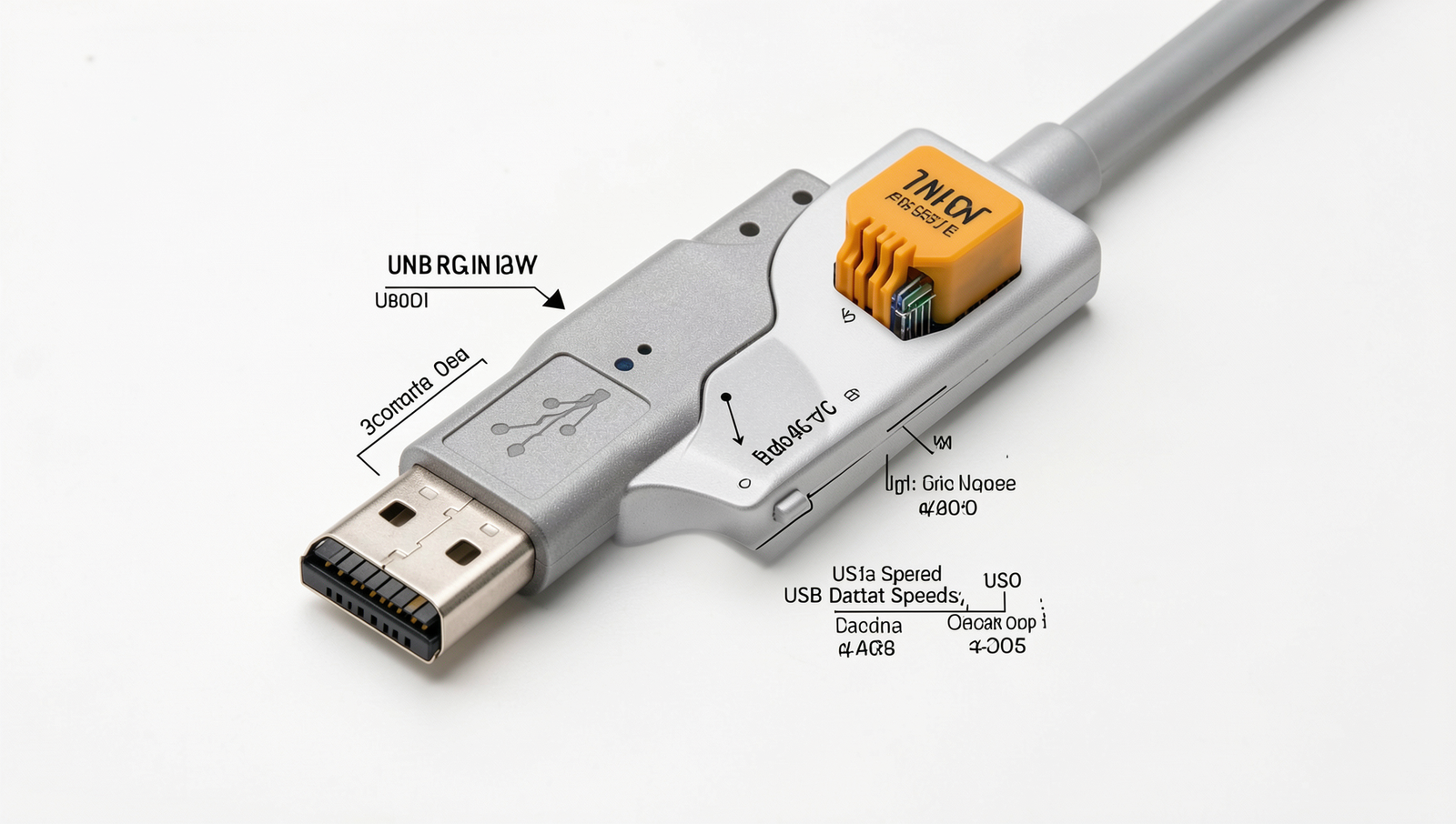
USB (Universal Serial Bus) has evolved significantly since its inception, with various standards that dictate data transfer speeds. The most common standards include USB 2.0, USB 3.0, USB 3.1, and USB 3.2. USB 2.0, introduced in 2000, offers a maximum data transfer rate of 480 Mbps. In contrast, USB 3.0, released in 2008, dramatically increased this rate to 5 Gbps. USB 3.1 further enhanced speeds to 10 Gbps, while USB 3.2 can achieve up to 20 Gbps, depending on the configuration and cable used.
Several factors can affect the actual data transfer rates experienced by users. One of the primary factors is the quality of the USB cable being used. A low-quality or damaged cable can significantly hinder performance. Additionally, device compatibility plays a crucial role; for instance, if a USB 3.0 device is connected to a USB 2.0 port, the transfer speed will be limited to the slower standard. Other factors include the type of data being transferred and the performance of the connected devices.
- Real-world examples:
- Transferring a large file (e.g., a 1 GB video) from a USB 3.0 flash drive to a USB 3.1 port can take approximately 10 seconds.
- Using a USB 2.0 connection for the same file may take over 30 seconds.
To test and measure USB data speeds, users can utilize various software tools. Programs like CrystalDiskMark or USBDeview can provide insights into the performance of USB ports and devices. Running these tools will give you a clear understanding of the data transfer rates, helping identify any potential USB port problems.
Charging Capabilities of USB Ports
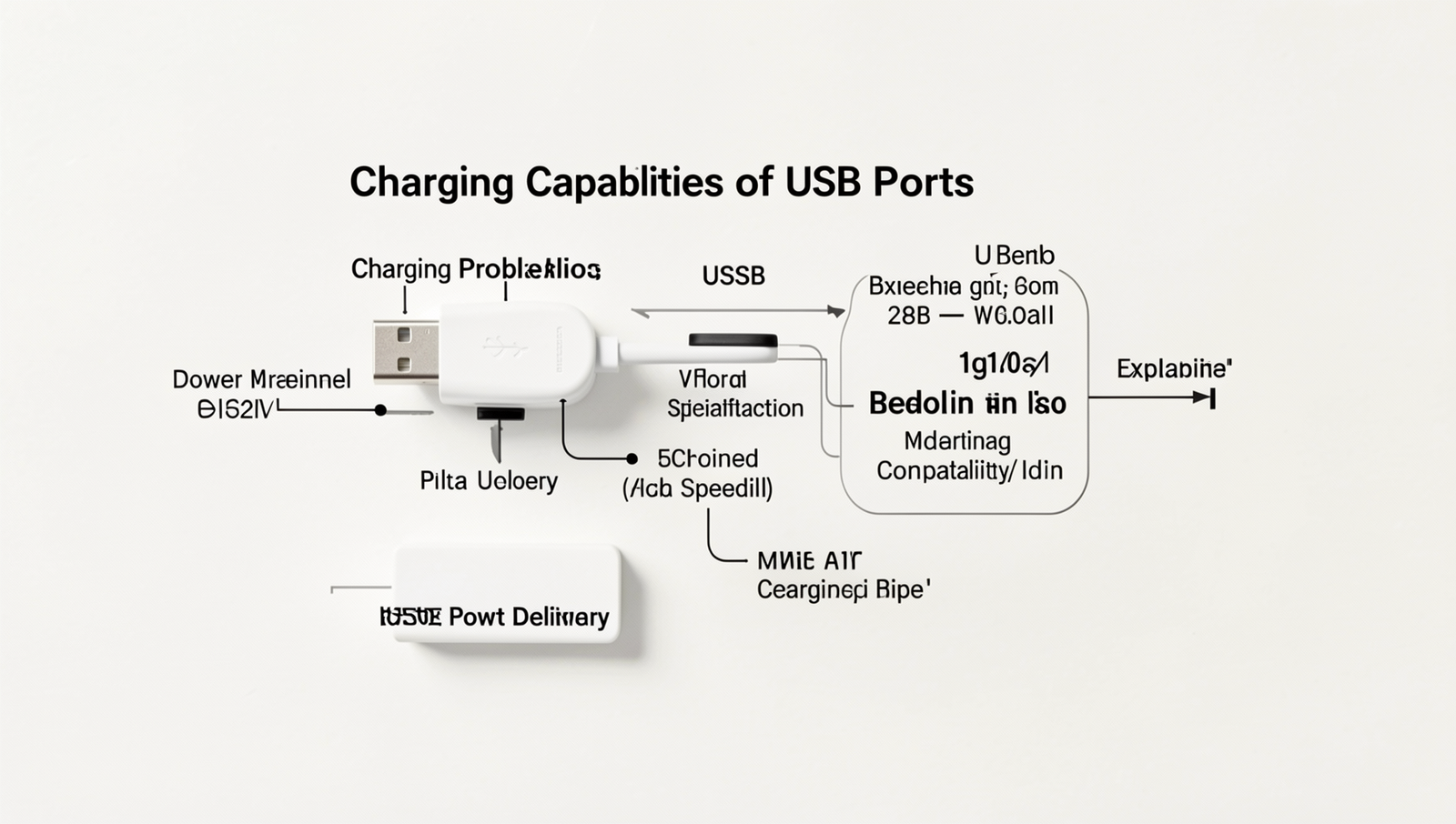
When it comes to charging devices, understanding the differences between USB Power Delivery (PD) and standard charging is crucial. USB PD is a protocol that allows for higher power transfer, enabling devices to charge faster. For instance, while a standard USB port typically provides 5V at 2.1A (10.5W), USB PD can deliver up to 20V at 5A (100W). This means that devices like laptops can charge significantly quicker compared to traditional USB ports.
Another important factor affecting charging speed is the quality of the cable used. Not all USB cables are created equal; some are designed to handle higher wattage and amperage, while others may not. Using a high-quality USB PD cable can make a substantial difference in charging efficiency. For example, a certified USB PD cable can facilitate faster charging for compatible devices, whereas a generic cable may limit the power transfer, leading to slower charging times.
Understanding wattage and amperage is also essential for effective charging. Wattage (W) is calculated by multiplying voltage (V) by amperage (A). Therefore, a charger that outputs 5V at 3A provides 15W of power. Knowing this can help users select the right charger for their devices. If a device requires 18W for optimal charging, using a charger that only provides 10W will result in slower charging.
Common issues with slow charging often stem from using incompatible chargers or cables. To resolve these problems, users should ensure they are using the correct charger for their device and consider upgrading to a higher quality cable. Additionally, checking for any debris in the USB port can also help improve connectivity and charging speed.
USB Compatibility Issues
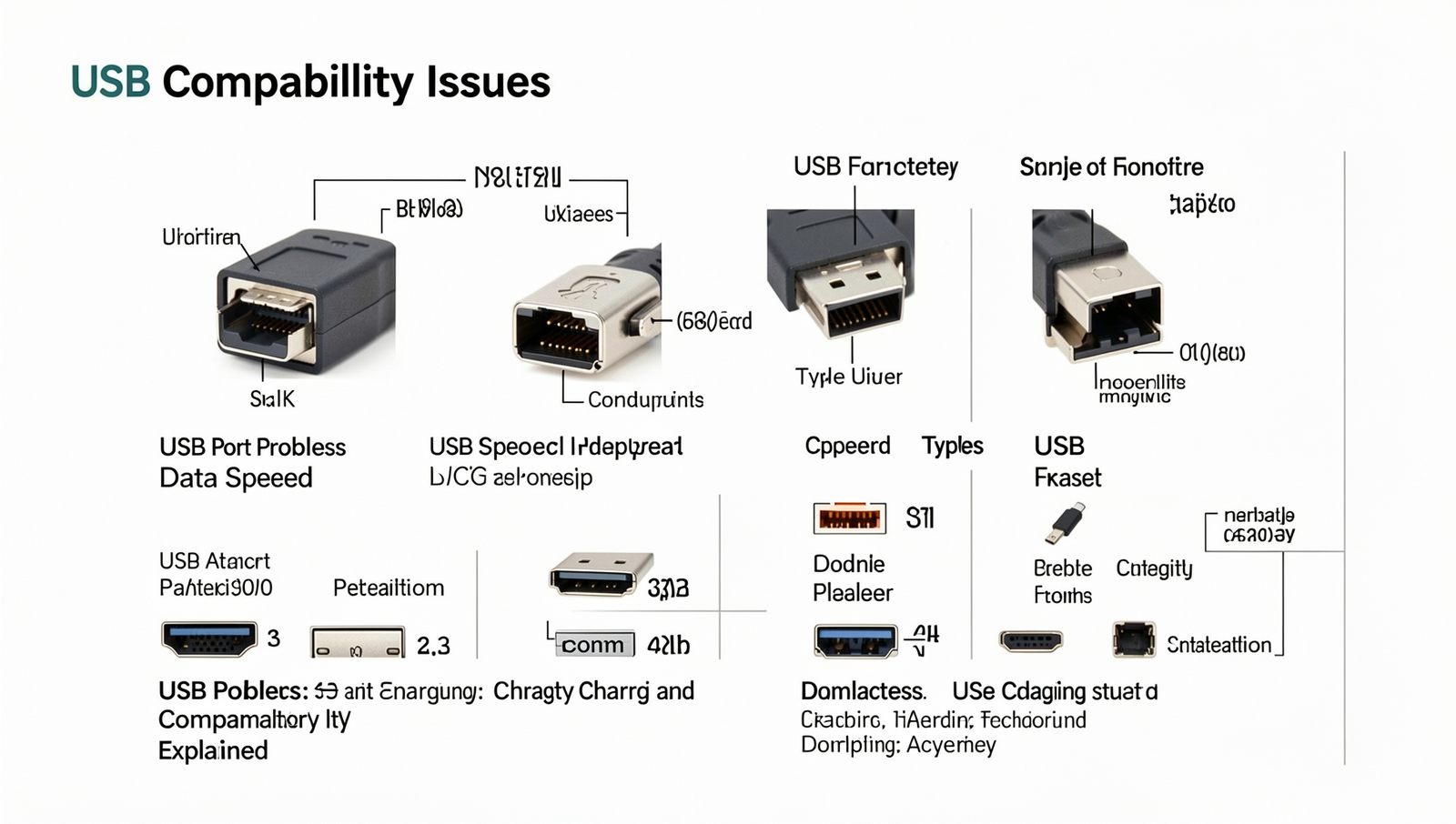
USB port problems often arise from compatibility issues between different USB connector types. The most common types include USB Type-A, Type-B, and Type-C. Each of these connectors serves distinct purposes and has varying capabilities. USB Type-A is the standard rectangular connector found on most computers and chargers. USB Type-B is typically used for larger devices like printers and external hard drives. USB Type-C, on the other hand, is a newer, reversible connector that supports faster data transfer and charging capabilities.
Common compatibility problems can occur when attempting to connect devices with different USB types. For instance, if you try to connect a USB Type-C device to a USB Type-A port, you may find that the connection is not possible without an adapter. Additionally, some devices may not support the same data transfer speeds or power delivery, leading to slower performance or inadequate charging.
- Using a USB Type-C device with a USB Type-A port may limit functionality.
- Older devices may not support the latest USB standards, causing speed discrepancies.
- Adapters may not always provide full functionality, especially with power delivery.
To resolve compatibility issues, using the right adapters is crucial. For example, a USB Type-C to Type-A adapter can bridge the gap between older and newer devices. However, it’s essential to choose high-quality adapters to ensure they support the necessary data transfer speeds and power requirements.
Looking ahead, the future of USB compatibility seems promising with emerging technologies. As USB Type-C becomes more prevalent, it is likely that many devices will adopt this standard, reducing compatibility issues. Furthermore, advancements in USB technology may lead to universal standards that simplify connections across various devices, minimizing USB port problems.
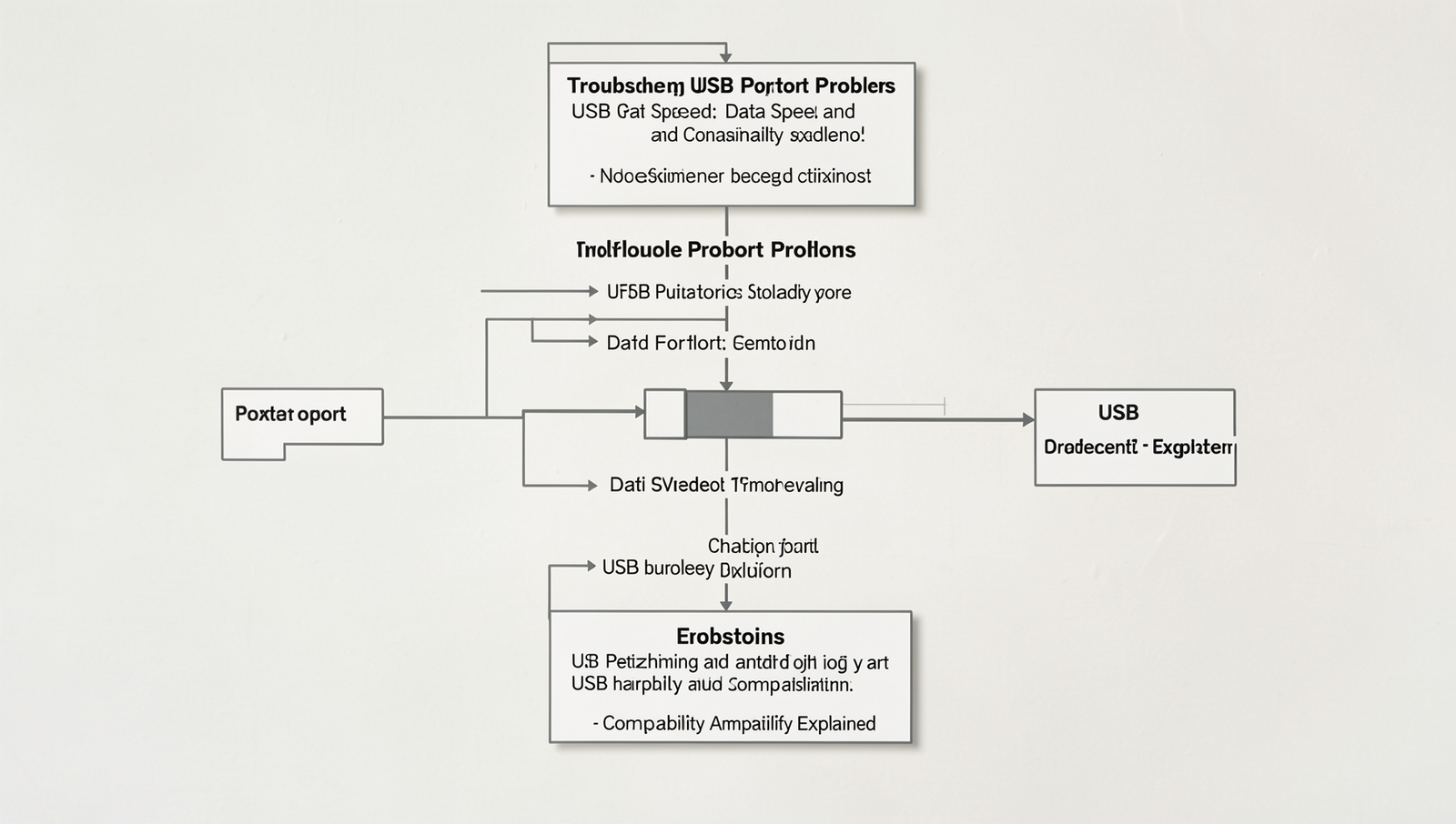
Troubleshooting USB Port Problems
USB port problems can manifest in various ways, making it crucial to identify the signs of failure early. Common indicators include devices not being recognized, slow data transfer rates, or charging issues. If you notice that your device is not charging despite being connected, or if data transfer speeds are significantly slower than expected, these could be signs of USB port failure.
To troubleshoot USB port problems, follow this step-by-step guide:
- Check the Device: Start by testing the USB device on another port or a different computer. This helps determine if the issue lies with the device or the port itself.
- Inspect the Port: Look for physical damage or debris in the USB port. Use a flashlight to check for any obstructions and clean the port gently with compressed air.
- Update Drivers: Ensure that your USB drivers are up to date. You can do this by going to the Device Manager and checking for updates.
- Test with Different Cables: Sometimes, the cable itself can be the problem. Try using a different USB cable to see if the issue persists.
For diagnosing USB problems, several tools and software can be helpful. Programs like USBDeview or HWiNFO can provide detailed information about connected USB devices and their status. Running these tools can help pinpoint issues that may not be immediately visible.
If you have tried all troubleshooting steps and the USB port problems persist, it may be time to seek professional help. Persistent issues could indicate hardware failure that requires repair or replacement. Consulting with a technician can save time and prevent further damage to your device.
Conclusion
In summary, understanding USB port problems is essential for maximizing the performance of your devices. Whether you’re dealing with data speed issues, charging inefficiencies, or compatibility challenges, recognizing the underlying causes can help you make informed decisions. USB ports have evolved significantly, and knowing the differences between USB types and versions can prevent frustration and enhance your user experience. By ensuring that your cables and devices are compatible, you can avoid many common pitfalls associated with USB technology.
To address USB port problems effectively, consider investing in high-quality cables and chargers that meet the latest standards. Regularly updating your device’s firmware can also resolve compatibility issues. If problems persist, consulting with a professional or seeking technical support may be necessary. By taking these steps, you can ensure that your devices operate at their best, allowing you to enjoy seamless data transfer and efficient charging without the hassle of USB-related issues.
Frequently Asked Questions
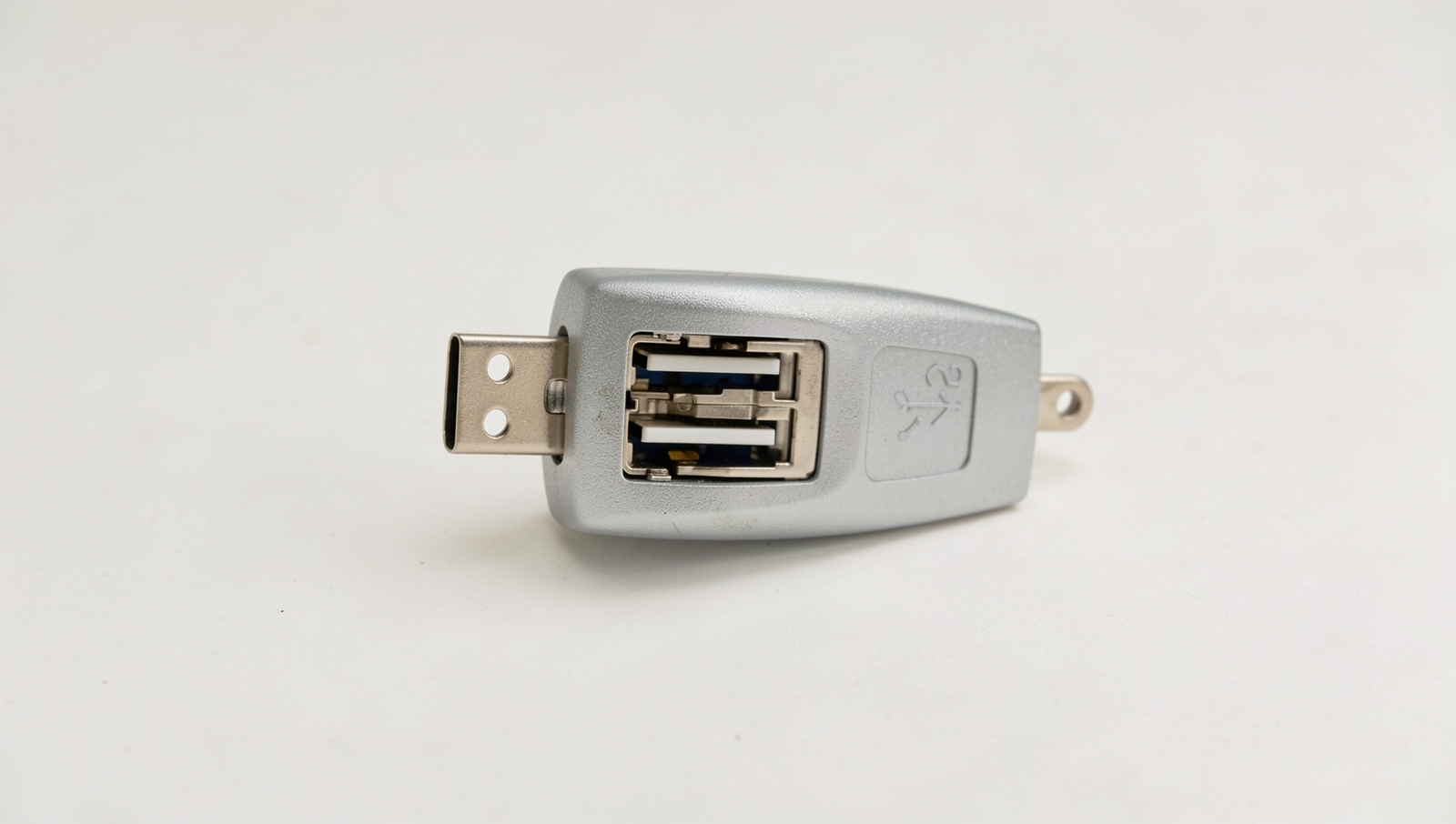
What factors affect USB data transfer speeds?
USB data transfer speeds can be influenced by several factors, including the version of the USB standard being used (e.g., USB 2.0 vs. USB 3.0), the quality of the cable, and the capabilities of both the host device and the connected peripheral. Additionally, system performance and background tasks can also impact speeds.
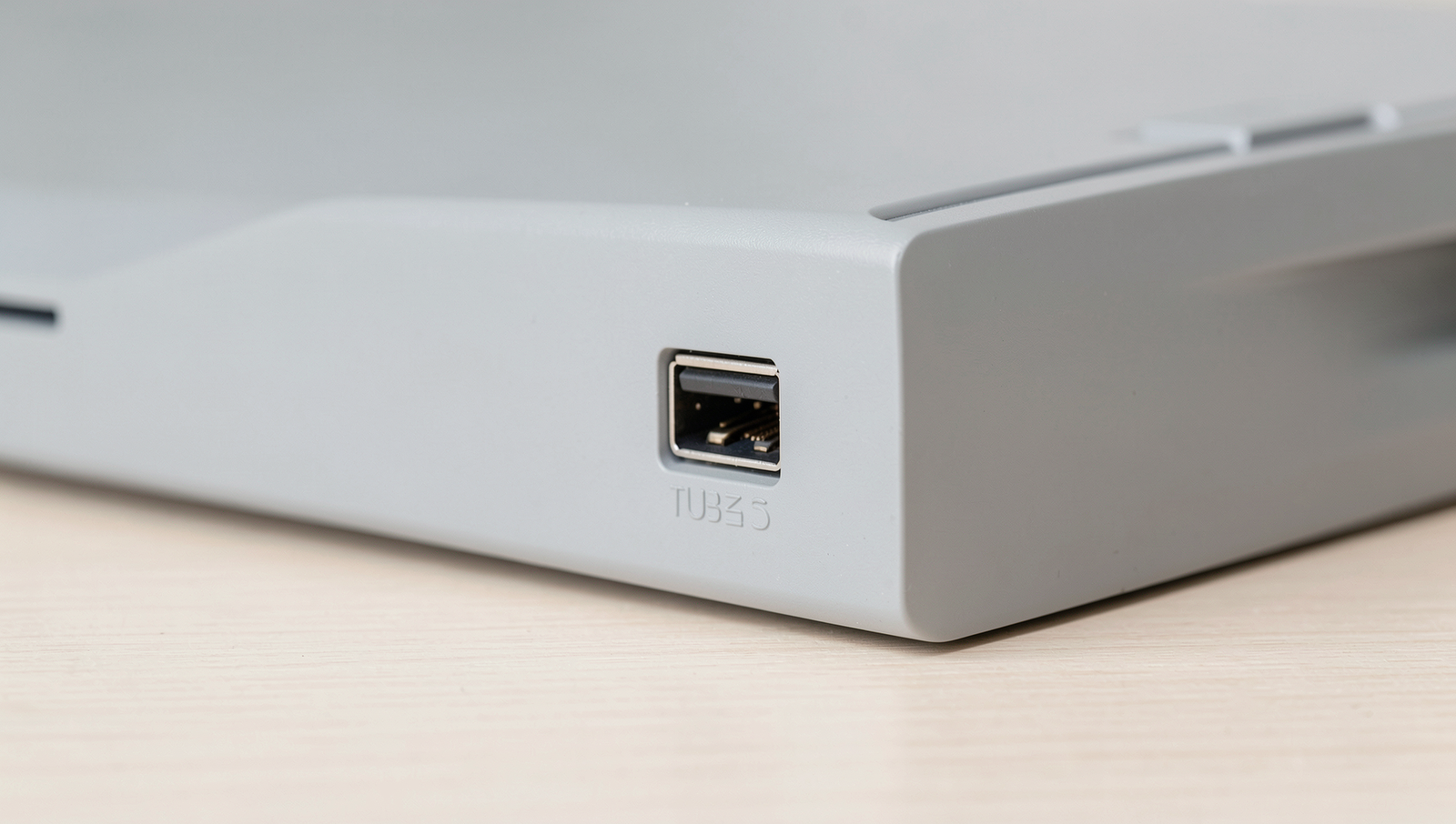
Can I charge my device using a USB port on my computer?
Yes, you can charge your device using a USB port on your computer. However, the charging speed may vary depending on the USB version of the port, the power output of the computer, and the device’s charging requirements. USB 3.0 ports generally provide faster charging than USB 2.0.
Why is my device not recognized when connected via USB?
There are several reasons why a device may not be recognized when connected via USB. These can include faulty cables, outdated drivers, or issues with the device itself. Additionally, the USB port may not be functioning properly or may require a restart of the computer.
Are all USB ports compatible with all devices?
No, not all USB ports are compatible with all devices. Different USB versions (e.g., USB-A, USB-C) and protocols may limit compatibility. It’s essential to check both