DNS Explained: The PC Setting That Can Affect Web Speed
techpcalex@gmail.com September 1, 2026 0
Understanding DNS settings for better web speed
7 min read • 1,515 words
Table of Contents
ToggleDNS Explained: The PC Setting That Can Affect Web Speed
In the digital age, understanding DNS settings is crucial for anyone looking to optimize their internet experience. DNS, or Domain Name System, serves as the backbone of the internet by translating user-friendly domain names into machine-readable IP addresses. This process is essential for browsers to load websites and access online resources efficiently. However, not all DNS servers are created equal, and using a faster DNS server can significantly reduce the time it takes to resolve these domain names, ultimately enhancing your web speed.
This article will delve into the importance of DNS settings and how they can impact your online experience. Readers will learn about the benefits of switching to public DNS services like Google DNS and Cloudflare DNS, which often outperform traditional ISP-provided DNS. Additionally, we will explore how changing your DNS settings can improve privacy and security while discussing the role of DNS caching in speeding up web browsing.
Understanding DNS and Its Role in Web Speed
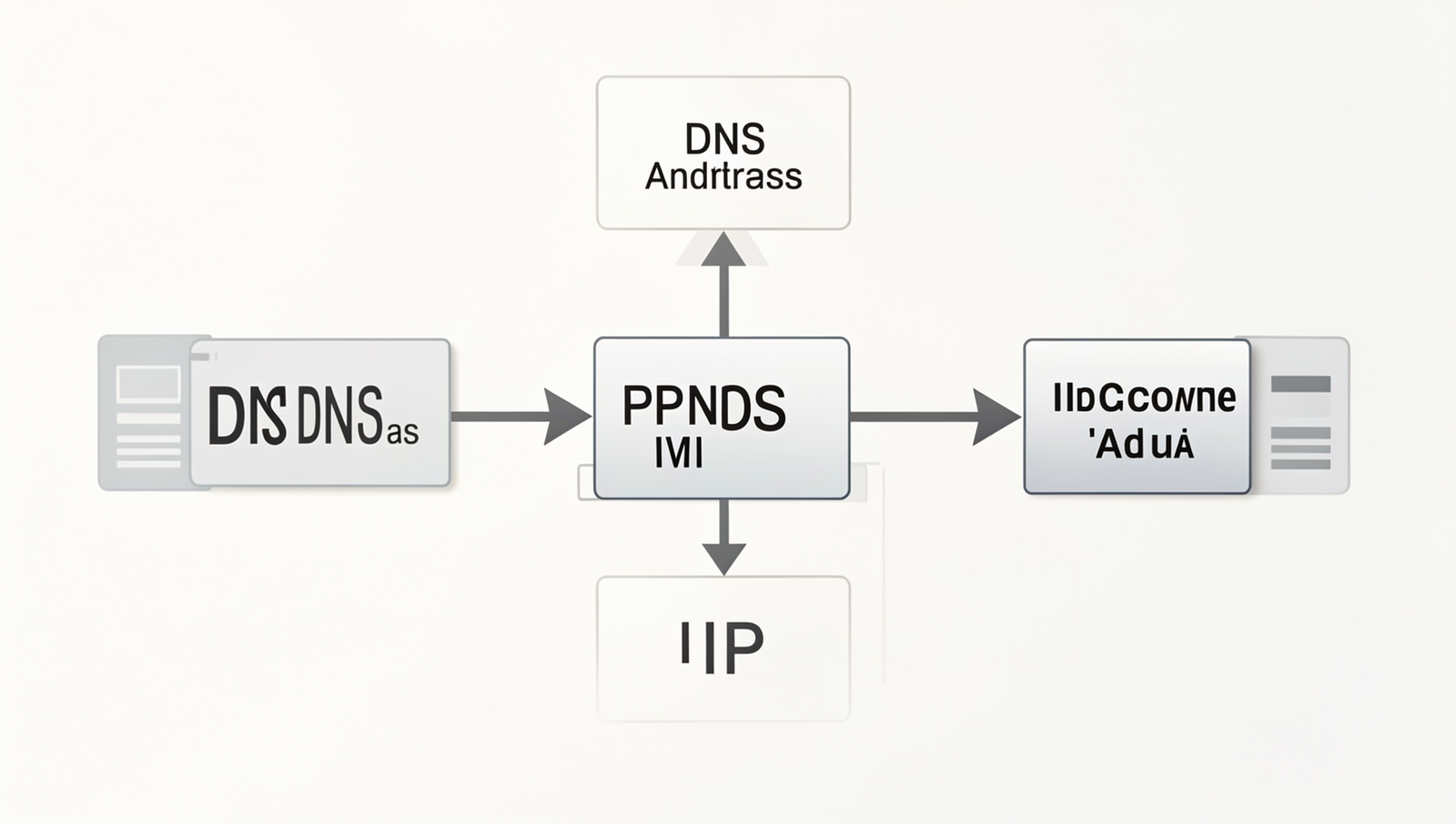
Domain Name System (DNS) is a fundamental component of the internet that translates human-friendly domain names, like www.example.com, into machine-readable IP addresses, such as 192.0.2.1. This translation is essential because computers communicate using IP addresses, while users prefer to remember easy-to-read domain names. Without DNS, navigating the web would be cumbersome and inefficient, requiring users to memorize numerical addresses for every website.
The process of DNS resolution involves several steps. When you enter a domain name in your browser, a DNS query is sent to a DNS server, which looks up the corresponding IP address. This process can take time, and the duration of DNS resolution directly impacts web speed. If the DNS server is slow or unresponsive, users may experience delays when trying to access websites.
Several factors can affect DNS resolution time, including:
- Distance to the DNS server: The further away the server is, the longer it may take to respond.
- Server load: High traffic on a DNS server can slow down response times.
- Configuration issues: Incorrect DNS settings can lead to failed queries or prolonged resolution times.
Common DNS-related issues that can slow down browsing include:
- Using a slow or unreliable DNS server.
- DNS cache corruption, which can lead to outdated or incorrect IP address resolutions.
- Network congestion affecting the communication with the DNS server.
By optimizing DNS settings, users can significantly enhance their browsing experience, reducing load times and improving overall web speed.
Types of DNS Servers
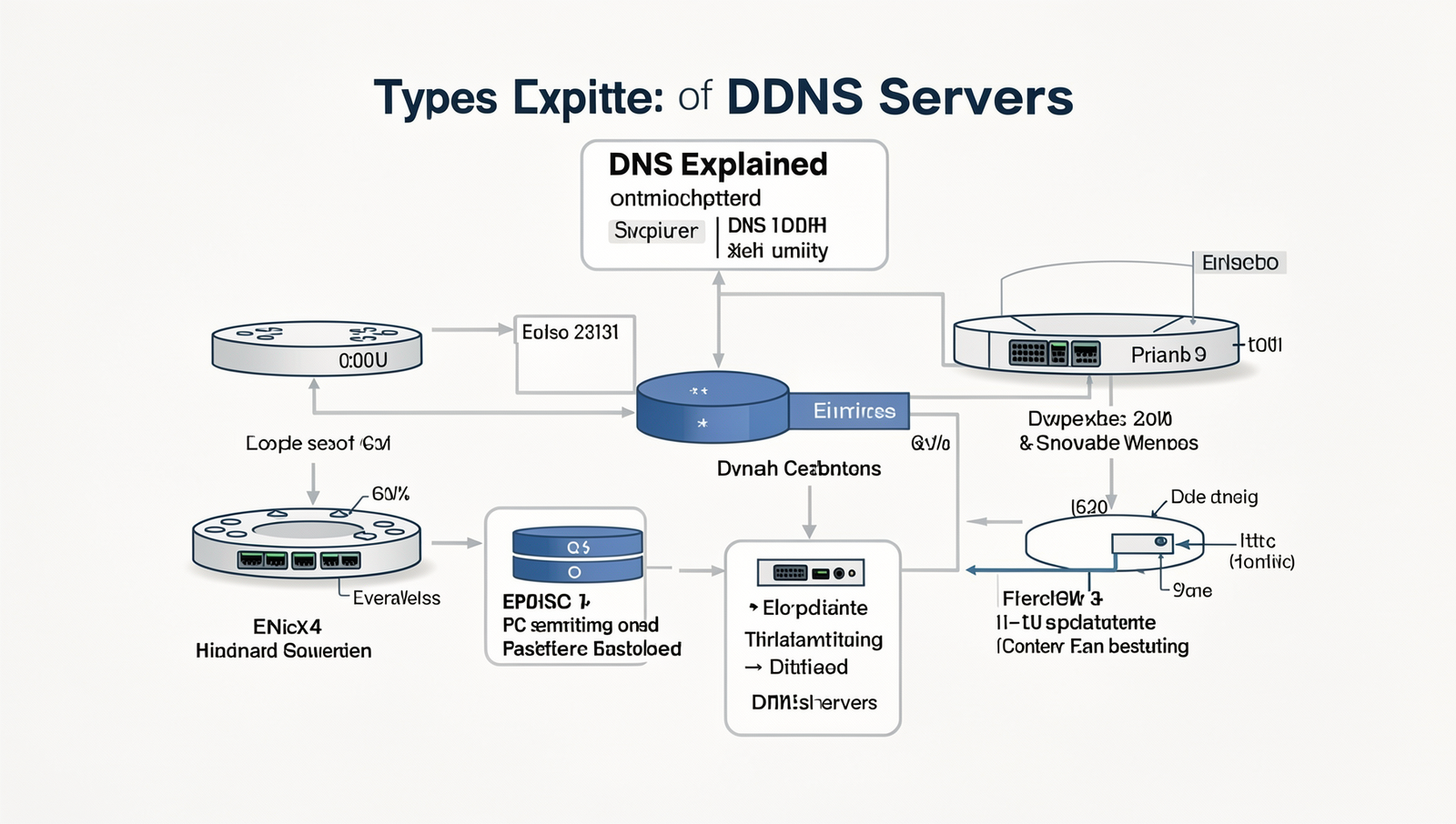
Understanding the different types of DNS servers is crucial for optimizing web speed and performance. There are primarily two main types of DNS servers: recursive and authoritative. Each serves a distinct purpose in the DNS resolution process.
Recursive DNS servers act as intermediaries between the user and the authoritative DNS servers. When a user requests a domain name, the recursive server takes on the task of finding the corresponding IP address. It queries various authoritative servers until it retrieves the necessary information. This type of server is essential for users as it simplifies the process of DNS resolution.
On the other hand, authoritative DNS servers hold the actual DNS records for a domain. They provide the definitive answers to queries about the domains they manage. For example, if you own a website, your domain’s authoritative DNS server will store the IP address associated with your domain name.
- Public DNS Servers: These are available for anyone to use and include services like Google DNS and Cloudflare. They are known for their speed and reliability.
- Private DNS Servers: Typically used by organizations, these servers are configured for internal networks and are not accessible from the public internet.
Using third-party DNS services like Google DNS or Cloudflare can offer several benefits. These services often provide faster resolution times, enhanced security features, and improved privacy compared to many ISP-provided DNS servers. Additionally, they may offer features like DNS over HTTPS, which encrypts DNS queries for added security.
However, when changing your DNS settings, it’s essential to consider factors such as reliability, speed, and privacy. Testing different DNS servers can help you find the best fit for your needs, ultimately improving your web browsing experience.
Configuring DNS Settings on Your PC
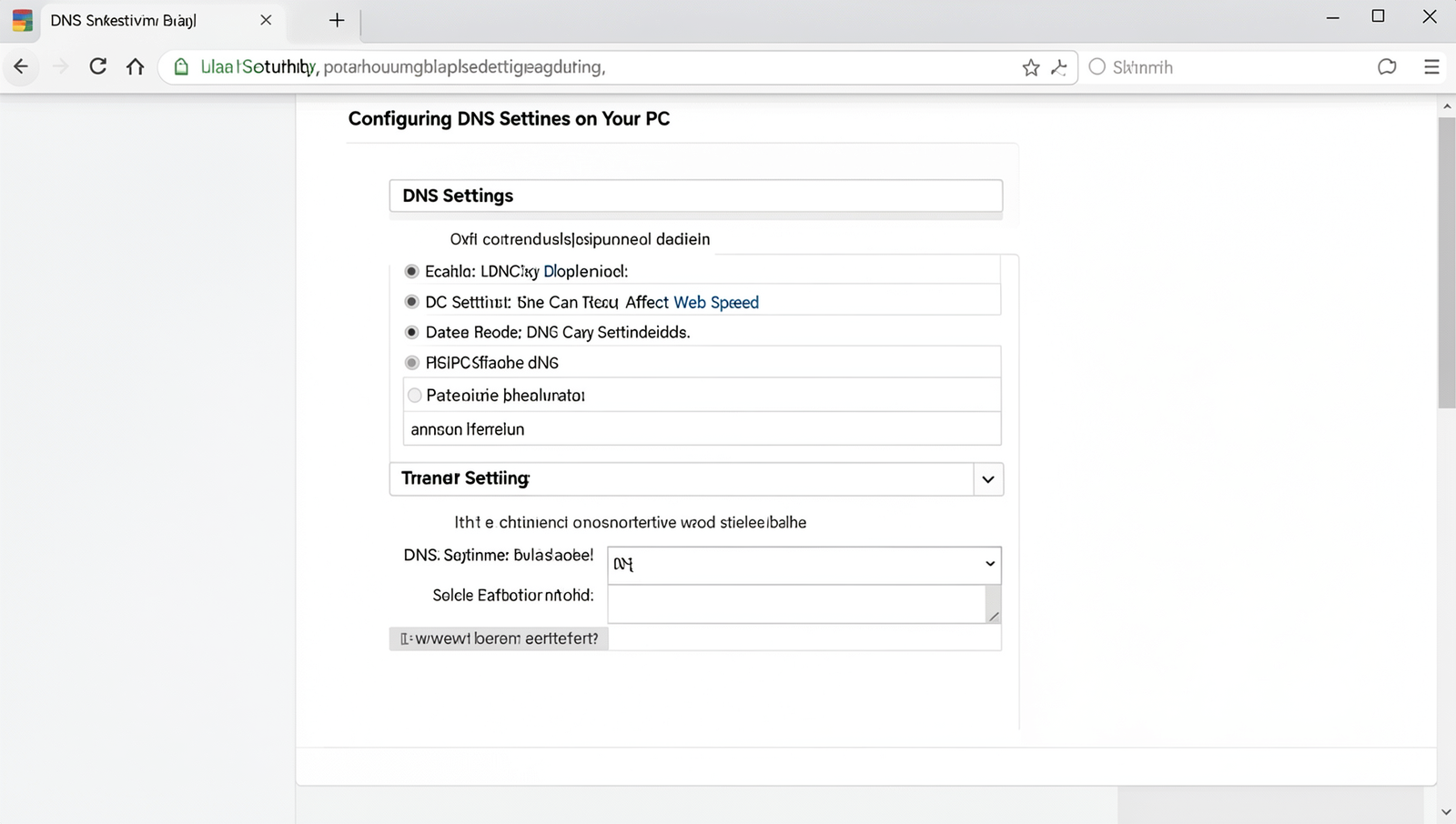
Configuring DNS settings on your PC can significantly enhance your web browsing speed. This section provides a step-by-step guide for accessing and modifying DNS settings across different operating systems, along with practical examples to help you through the process.
To change your DNS settings, follow these steps based on your operating system:
Windows
- Open the Control Panel.
- Select “Network and Internet,” then “Network and Sharing Center.”
- Click on “Change adapter settings.”
- Right-click on your active network connection and select “Properties.”
- Highlight “Internet Protocol Version 4 (TCP/IPv4)” and click “Properties.”
- Select “Use the following DNS server addresses” and enter your preferred DNS servers.
macOS
- Open “System Preferences.”
- Click on “Network.”
- Select your active network connection and click “Advanced.”
- Go to the “DNS” tab.
- Click the “+” button to add new DNS server addresses.
Linux
- Open a terminal window.
- Edit the resolv.conf file using the command:
sudo nano /etc/resolv.conf.
- Add your preferred DNS servers in the format:
nameserver 8.8.8.8.
After changing your DNS settings, it’s essential to test the changes to ensure they are effective. You can use command line tools like nslookup and ping to verify your new DNS settings:
nslookup example.comping example.comBe cautious of common pitfalls, such as entering incorrect DNS addresses or failing to save your changes. Always double-check your entries to avoid connectivity issues.
Measuring and Optimizing DNS Performance
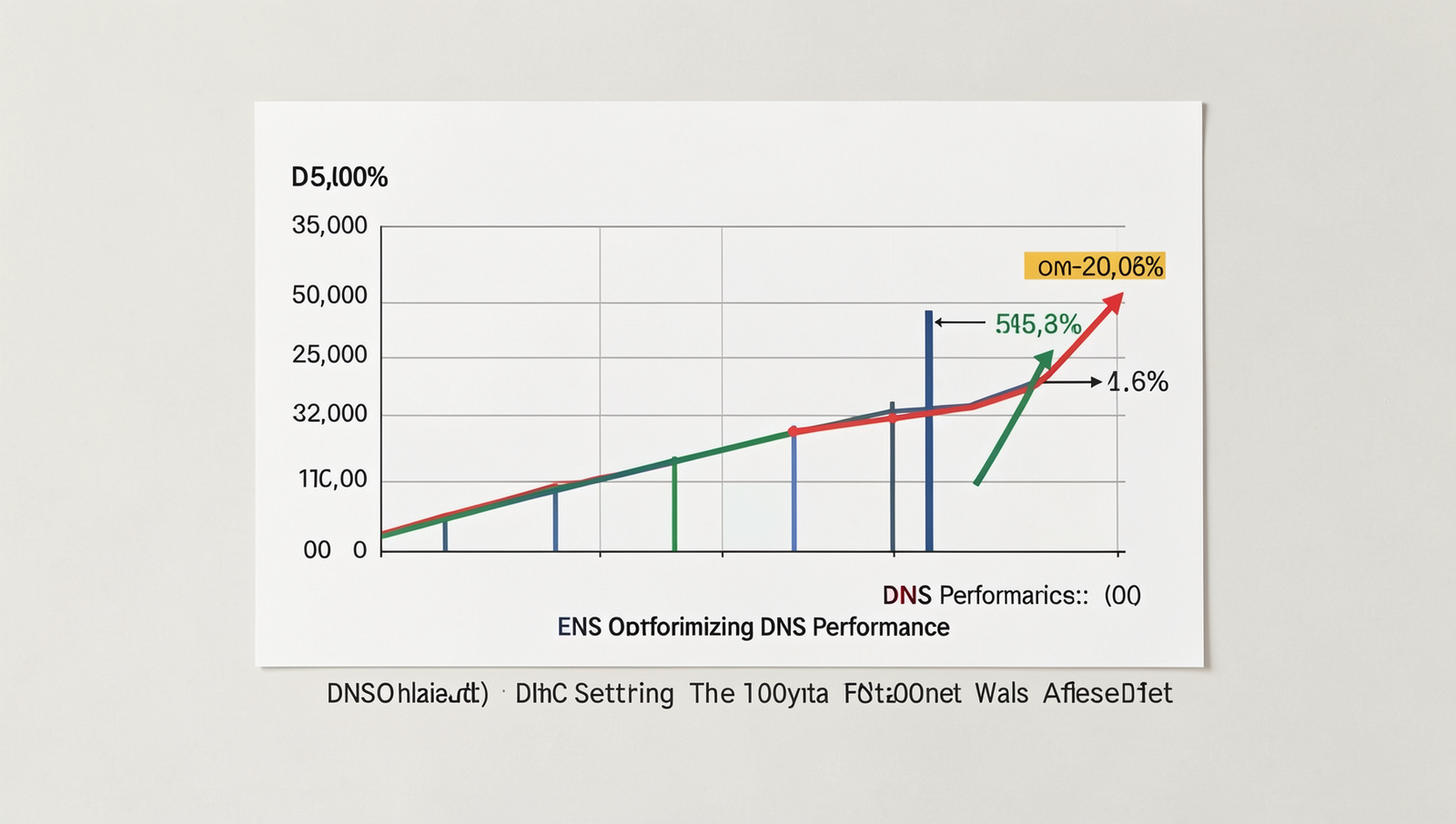
To enhance your web browsing experience, understanding how to measure and optimize DNS performance is crucial. There are several tools available that can help you assess DNS lookup times effectively. Popular options include:
- DNSPerf: This tool provides real-time performance metrics for various DNS providers.
- dig: A command-line utility that allows users to query DNS records and measure response times.
- Pingdom: A web-based service that can monitor DNS response times and overall website performance.
Once you have gathered data using these tools, analyzing the performance metrics is the next step. Look for patterns in the response times and identify any inconsistencies. For instance, if a particular DNS server consistently shows higher latency, it may be worth considering a switch to a more reliable provider.
To optimize your DNS settings for faster web browsing, consider the following tips:
- Choose a reputable DNS provider known for speed and reliability.
- Utilize DNS caching to store previously resolved addresses, reducing lookup times for frequently visited sites.
- Configure your router to use custom DNS settings that may offer better performance than your ISP’s default options.
DNS caching plays a significant role in improving speed. When a DNS query is made, the result is stored temporarily, allowing subsequent requests for the same domain to be resolved much faster. This reduces the need for repeated lookups, which can significantly enhance your browsing experience.
Conclusion
In summary, understanding DNS settings is crucial for optimizing your internet experience. DNS, or Domain Name System, acts as the phonebook of the internet, translating user-friendly domain names into IP addresses that computers can understand. By adjusting your DNS settings, you can potentially enhance your web speed, improve security, and gain access to content that may be restricted in your region. Choosing a reliable DNS provider can lead to faster page load times and a more efficient browsing experience.
As you consider making changes to your DNS settings, it’s essential to evaluate different DNS providers and their respective benefits. Popular options like Google Public DNS and Cloudflare offer improved performance and security features. To implement these changes, access your network settings and input the new DNS addresses. By taking these steps, you can ensure a smoother and more responsive online experience, ultimately making your internet usage more enjoyable and efficient.
Frequently Asked Questions
What is DNS?
DNS, or Domain Name System, is a hierarchical system that translates human-friendly domain names into IP addresses. This process allows browsers to locate and access websites. Essentially, DNS acts as the internet’s phonebook, enabling users to navigate the web easily.
How does DNS affect web speed?
DNS can significantly impact web speed because it determines how quickly a browser can resolve a domain name into an IP address. Faster DNS servers can reduce the time it takes to connect to a website, leading to quicker loading times and a better user experience.
Can I change my DNS settings?
Yes, you can change your DNS settings on most devices. By accessing your network settings, you can specify a different DNS server. This can enhance your browsing speed and security, depending on the DNS provider you choose to use.
What are some popular DNS servers?
Some popular DNS servers include Google Public DNS (8.8.8.8 and 8.8.4.4), Cloudflare DNS (1.1.1.1), and OpenDNS (208.67.222.222 and 208.67.220.220). These servers are known for their reliability, speed, and additional security features.