PC Performance Secrets Hidden Inside Windows
8 min read • 1,639 words
Table of Contents
TogglePC Performance Secrets Hidden Inside Windows
In today’s fast-paced digital world, optimizing your computer’s performance is essential for both productivity and leisure. The article “PC Performance Secrets Hidden Inside Windows” delves into the often-overlooked features and settings within Windows that can significantly enhance your system’s efficiency. Whether you’re a gamer looking to maximize your experience or a professional needing a reliable workstation, understanding these secrets can make a substantial difference.
This article will guide you through various strategies, such as utilizing Windows 10’s built-in Game Mode to optimize system resources for gaming, disabling unnecessary startup programs to improve boot time, and using the Performance Monitor to track your system’s health over time. Additionally, you’ll learn how adjusting visual effects and regularly updating drivers can free up resources and enhance stability, ensuring your PC runs smoothly and efficiently.
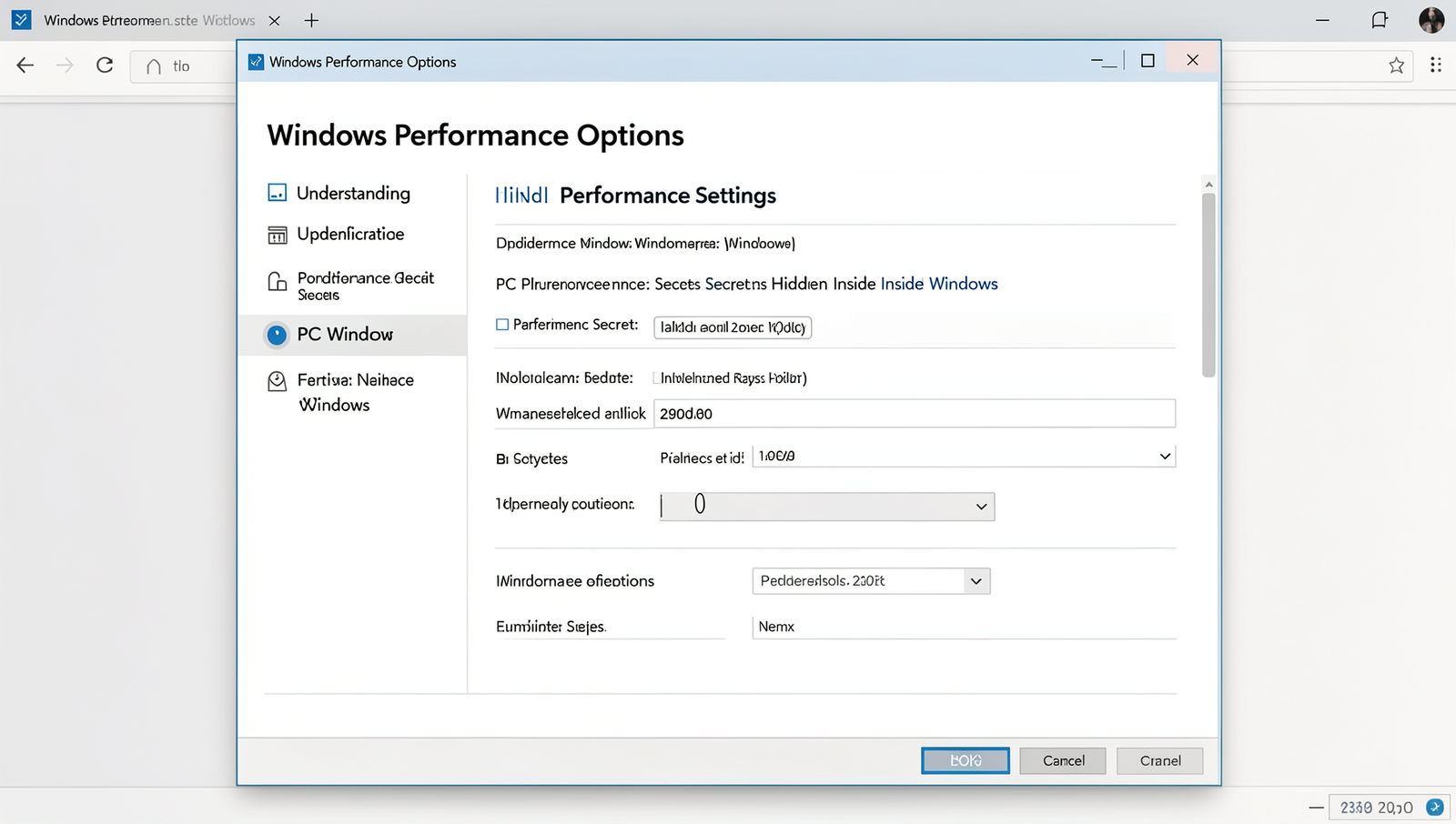
Understanding Windows Performance Settings
One of the most effective ways to enhance your computer’s performance is by diving into the Performance Options menu within Windows. This menu provides a variety of settings that can significantly impact how your PC operates. To access it, right-click on “This PC” or “My Computer,” select “Properties,” and then click on “Advanced system settings.” In the System Properties window, navigate to the “Performance” section and click on “Settings.”
Within the Performance Options menu, you will find several tabs, each offering unique settings that can optimize your PC’s performance. One of the first areas to explore is the “Visual Effects” tab. Windows comes with many visual features that can consume valuable system resources. By selecting “Adjust for best performance,” you can disable all visual effects, or you can manually choose which effects to keep. This adjustment can lead to noticeable improvements, especially on older hardware.
- Disable animations and shadows.
- Turn off transparency effects.
- Limit the use of thumbnails.
Another critical aspect of performance is processor scheduling. Under the “Advanced” tab, you can manage how your CPU allocates resources. By selecting “Background services,” you can ensure that background applications receive more processing power, which is particularly useful for servers or systems running multiple applications simultaneously. To implement this, go to the “Advanced” tab and select the appropriate option under “Processor scheduling.”
Lastly, the Advanced tab also allows you to adjust virtual memory settings. Windows uses virtual memory to supplement physical RAM, and configuring it properly can enhance performance. To change these settings, click on “Change” under the Virtual Memory section. You can set a custom size for your paging file or allow Windows to manage it automatically.
By exploring these settings, you can uncover essential PC performance secrets hidden inside Windows, leading to a smoother and more efficient computing experience.
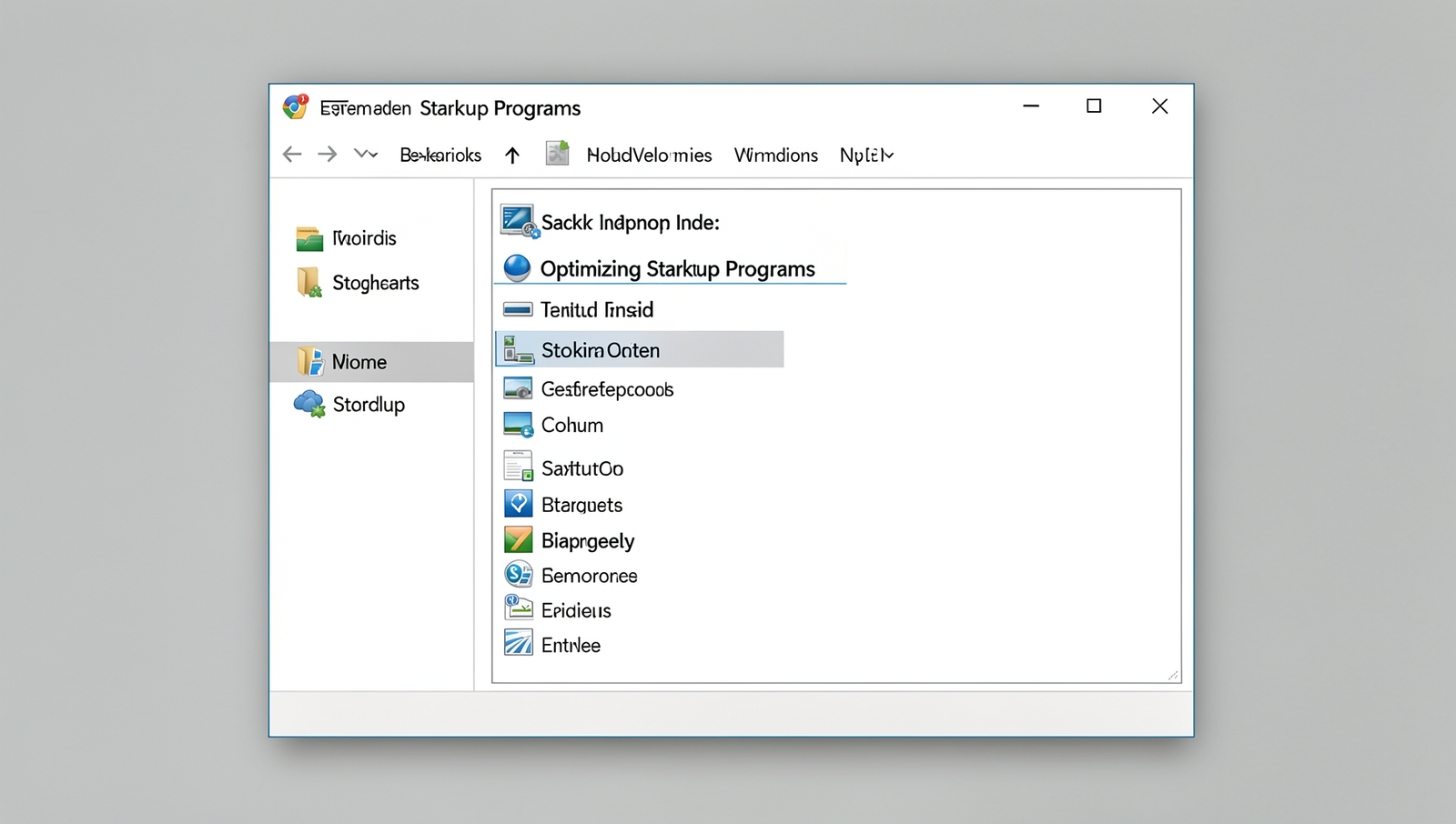
Optimizing Startup Programs
One of the most effective ways to enhance your PC’s performance is by optimizing startup programs. Many applications automatically launch when you start your computer, consuming valuable resources and extending boot time. By identifying and disabling unnecessary startup applications, you can significantly improve your system’s responsiveness.
To manage startup items effectively, you can use the built-in Task Manager in Windows. Here’s how:
1. Press Ctrl + Shift + Esc to open Task Manager.
2. Click on the "Startup" tab.
3. Review the list of applications that start with your computer.
4. Right-click on any application you deem unnecessary and select "Disable."
Understanding the impact of startup programs on boot time is crucial. Each program that loads at startup can add seconds to your boot time. For instance, if you have five applications that each take 5 seconds to load, that’s an additional 25 seconds before you can start using your PC. Reducing this load can lead to a much quicker startup experience.
For users looking for more advanced management options, third-party tools can provide additional features. Here are some popular options:
- Autoruns: This tool gives you a comprehensive view of all startup programs and services, allowing you to disable or delete them easily.
- CCleaner: Known for cleaning up unnecessary files, CCleaner also includes a startup manager that helps you control which applications run at startup.
- Startup Delayer: This tool allows you to delay the startup of certain applications, giving your system time to load essential services first.
By taking these steps to optimize your startup programs, you can unlock significant PC performance secrets hidden inside Windows, leading to a smoother and faster computing experience.
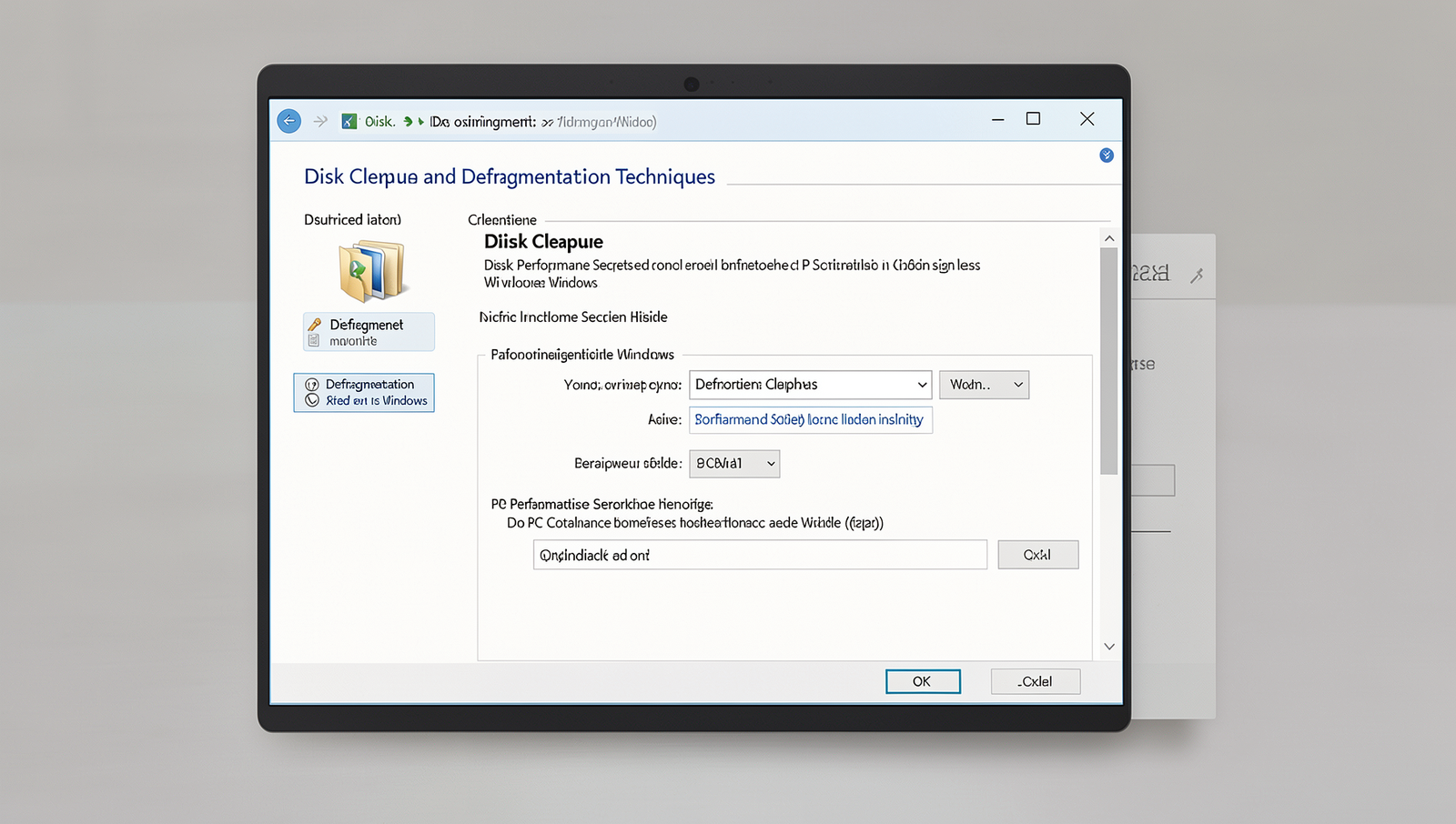
Disk Cleanup and Defragmentation Techniques
One of the most effective ways to enhance your PC’s performance is through regular disk cleanup and defragmentation. Windows provides built-in tools that can help you reclaim valuable disk space and optimize your hard drive’s efficiency. Utilizing these tools is essential for maintaining a smooth and responsive computing experience.
To begin, you can use the built-in Disk Cleanup tool to free up space on your hard drive. This tool scans your system for unnecessary files, such as temporary files, system cache, and old Windows installations. To access it, follow these steps:
1. Press the Windows key and type "Disk Cleanup".2. Select the drive you want to clean (usually C:).3. Check the boxes next to the file types you wish to delete.4. Click "OK" to initiate the cleanup.Regularly scheduling disk cleanup can help keep your system running smoothly. Additionally, if you are using a traditional Hard Disk Drive (HDD), it is crucial to schedule regular defragmentation. Defragmentation reorganizes fragmented data on the disk, which can significantly improve read and write speeds. You can set up a schedule for defragmentation by following these steps:
1. Press the Windows key and type "Defragment and Optimize Drives".2. Select your HDD and click on "Change settings".3. Choose a frequency (daily, weekly, or monthly) and click "OK".However, it’s important to understand that Solid State Drives (SSDs) do not require defragmentation. In fact, defragmenting an SSD can reduce its lifespan. Instead, SSDs benefit from a process called TRIM, which helps manage unused data blocks more efficiently.
For those seeking deeper cleaning options, consider exploring third-party cleanup tools. These applications often provide more advanced features, such as registry cleaning and duplicate file removal, which can further enhance your PC’s performance.
Monitoring System Performance with Built-in Tools
To unlock the full potential of your computer, understanding how to monitor its performance is crucial. Windows offers a variety of built-in tools that can help you keep an eye on system metrics and identify potential bottlenecks. These tools are essential for anyone looking to optimize their PC performance secrets hidden inside Windows.
One of the most powerful tools at your disposal is the Resource Monitor. This utility provides a comprehensive view of your system’s resource usage, including CPU, memory, and disk activity. To access Resource Monitor, you can use the following command:
resmonOnce open, you can track which processes are consuming the most resources, allowing you to make informed decisions about which applications to close or optimize. This is particularly useful when you notice your system slowing down during intensive tasks.
For a more detailed analysis, the Performance Monitor is invaluable. This tool allows you to create custom data sets and track various performance counters over time. To launch Performance Monitor, use:
perfmonWith Performance Monitor, you can visualize data in real-time and generate reports that help you understand long-term trends in your system’s performance.
Setting up Performance Alerts is another proactive approach to monitoring your PC. By configuring alerts for specific performance thresholds, you can receive notifications when your system is under stress. This can be done through the Performance Monitor by adding alerts to your data collector sets.
Lastly, the Task Manager is a handy tool for real-time performance monitoring. You can quickly check CPU, memory, disk, and network usage by pressing Ctrl + Shift + Esc. The Task Manager provides a straightforward interface to identify resource-hungry applications and processes, enabling you to manage your system effectively.
By utilizing these built-in tools, you can uncover the PC performance secrets hidden inside Windows and ensure your system runs smoothly and efficiently.
Conclusion
In summary, uncovering the PC performance secrets hidden inside Windows can significantly enhance your computing experience. By utilizing built-in tools such as Disk Cleanup, Task Manager, and Resource Monitor, users can identify and eliminate unnecessary files and processes that slow down their systems. Additionally, optimizing startup programs and adjusting visual effects can lead to noticeable improvements in speed and responsiveness. These adjustments not only enhance performance but also extend the lifespan of your hardware by reducing strain on system resources.
As you explore these PC performance secrets hidden inside Windows, consider implementing these strategies regularly to maintain optimal performance. Regular updates and system checks can prevent future slowdowns, ensuring your PC runs smoothly. For those looking to delve deeper, exploring third-party optimization tools may also provide additional benefits. By taking these steps, you can enjoy a more efficient and productive computing environment, making the most out of your Windows experience.
Frequently Asked Questions
What is the best way to optimize my PC’s performance in Windows?
To optimize your PC’s performance, regularly update your operating system and drivers. Disable unnecessary startup programs, adjust visual effects for best performance, and utilize the built-in Disk Cleanup tool to remove temporary files. Consider upgrading your hardware if needed.
How can I free up disk space on my Windows PC?
Freeing up disk space can be achieved by using the Disk Cleanup utility to delete temporary files, uninstalling unused applications, and moving large files to an external drive. Additionally, consider using cloud storage for documents and media files.
What settings can I adjust for better gaming performance?
For improved gaming performance, lower the graphics settings in your games, disable background applications, and
Related Posts

USB Port Problems: Data Speed, Charging and Compatibility Explained
Modern PC Problems That Look Like Hardware Failures
Windows Startup Cleanup: Programs That Quietly Slow Your PC
About The Author
