Windows 11 Features Most PC Users Never Discover
8 min read • 1,633 words
Table of Contents
ToggleWindows 11 Features Most PC Users Never Discover
Windows 11 is packed with innovative features that can significantly enhance your computing experience, yet many users remain unaware of their existence. Understanding these Windows 11 features is crucial for maximizing productivity and enjoying a more streamlined workflow. In this article, we will explore some of the hidden gems within Windows 11 that can transform how you interact with your PC.
From the built-in screen recorder via the Xbox Game Bar to customizable virtual desktops that allow for personalized wallpapers, Windows 11 offers tools that cater to both casual users and gamers alike. Additionally, features like Snap Layouts make organizing open windows a breeze, while the new Widgets feature delivers tailored news and information right to your desktop. Finally, with DirectStorage technology, loading times in games are significantly reduced, ensuring a smoother gaming experience. Join us as we delve into these features and more.
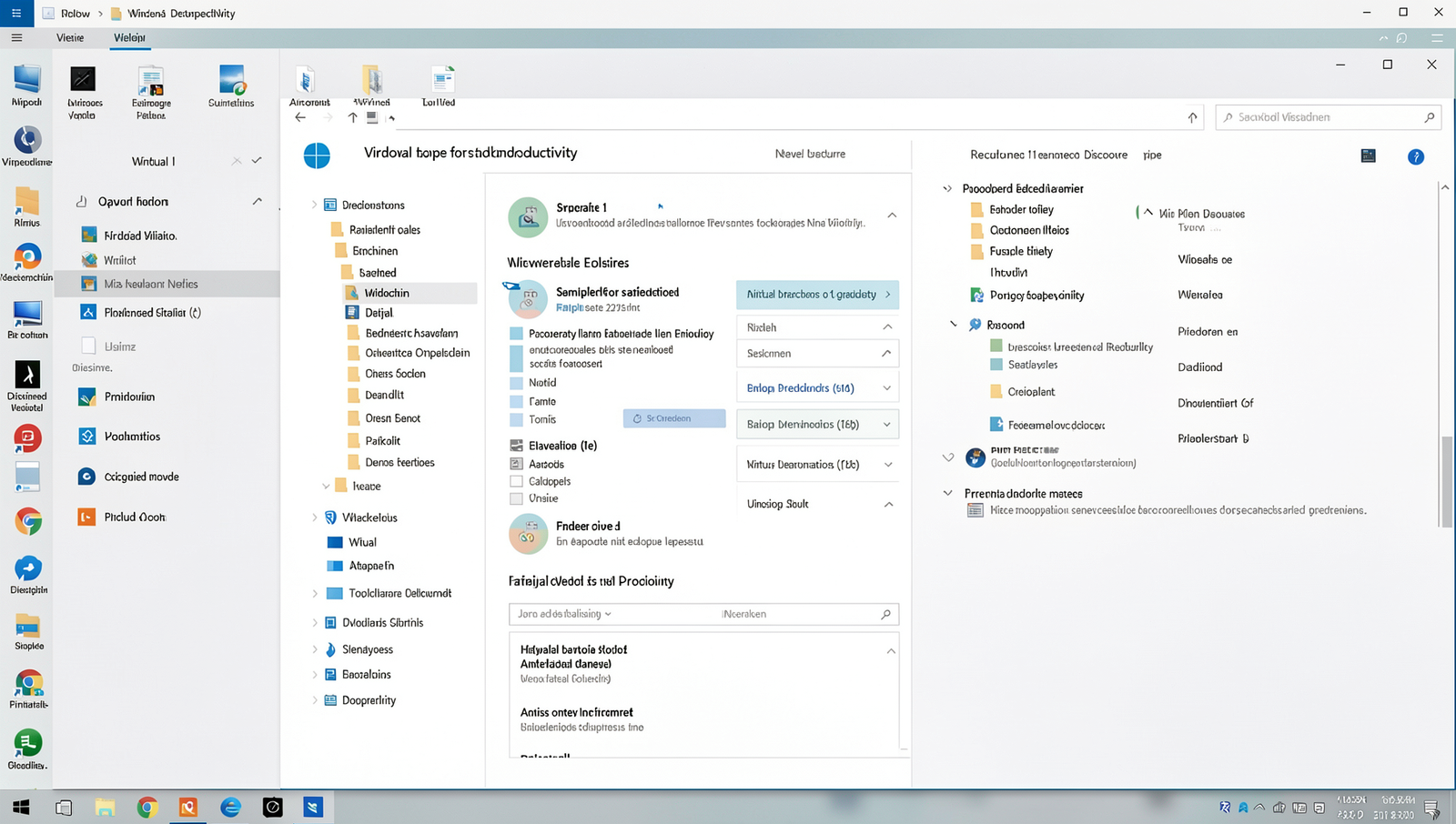
Virtual Desktops for Enhanced Productivity
One of the standout Windows 11 features that many users overlook is the ability to create and manage multiple virtual desktops. This functionality can significantly enhance productivity by allowing users to organize their workspaces according to different tasks or projects. For instance, you might have one desktop dedicated to work-related applications, another for personal tasks, and yet another for creative projects.
Creating a new virtual desktop is straightforward. Simply open the Task View by clicking on the Task View icon on the taskbar or by using the keyboard shortcut
Windows + Tab. From there, you can easily add a new desktop by selecting the “New Desktop” option. This feature allows you to have a clean slate for each project, minimizing distractions and helping you focus on the task at hand.
Switching between these desktops is just as easy. You can return to the Task View and click on the desktop you want to access, or you can use the keyboard shortcut
Windows + Ctrl + Left/Right Arrowto cycle through your desktops quickly. This seamless transition helps maintain your workflow without the clutter of multiple windows on a single desktop.
Another useful aspect of virtual desktops is the ability to customize each one with different wallpapers. This not only adds a personal touch but also helps visually differentiate between your various workspaces. You can set unique backgrounds by right-clicking on the desktop, selecting “Personalize,” and choosing a wallpaper for each desktop.
By organizing applications and windows by desktop, users can create a more focused environment. For example, if you are working on a report, you can have all related applications open on one desktop while keeping your personal browsing activities on another. This organization can lead to increased efficiency and a more enjoyable computing experience.
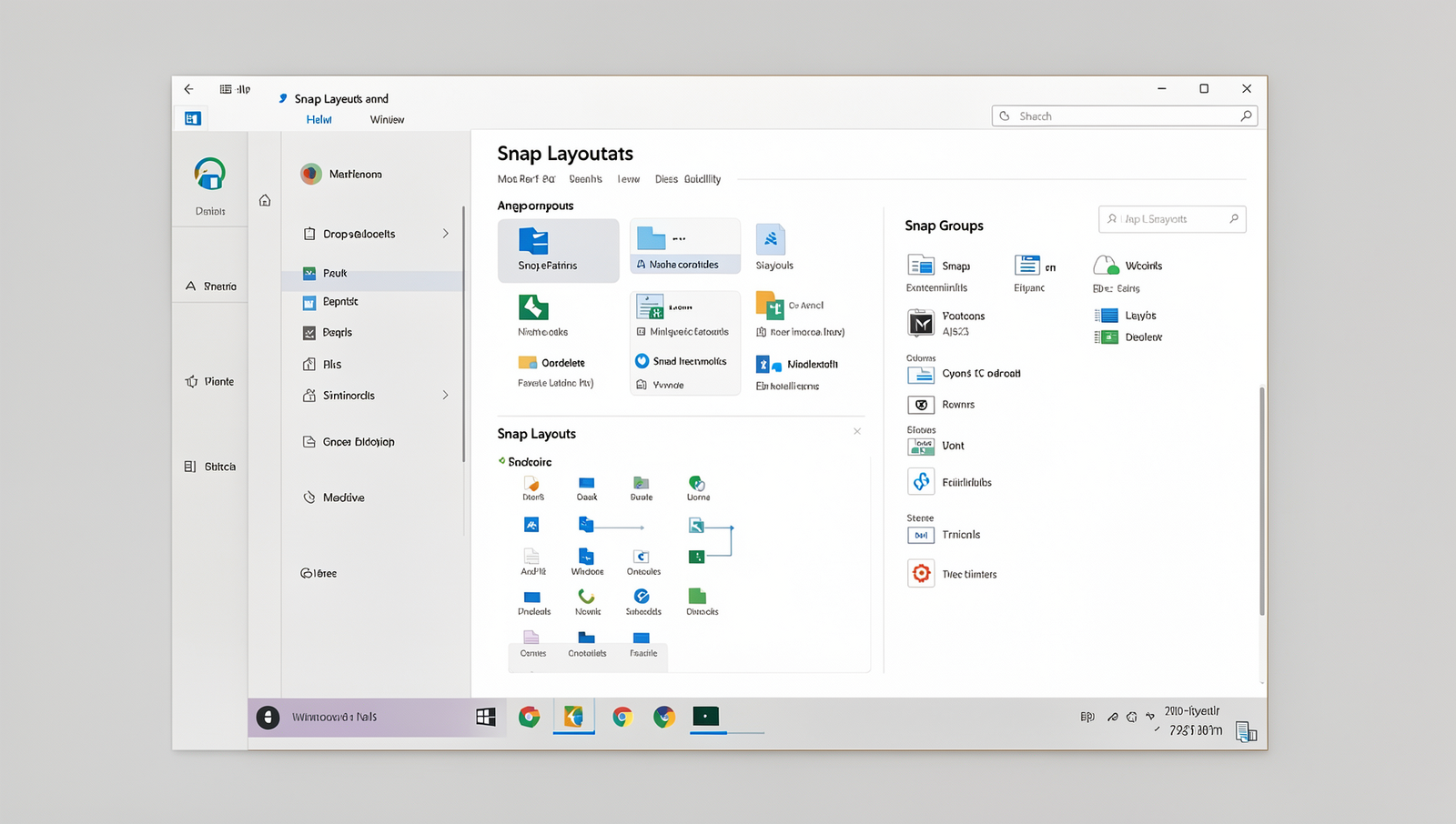
Snap Layouts and Snap Groups
One of the standout Windows 11 features that many users overlook is the Snap Layouts and Snap Groups functionality. This powerful tool allows you to organize your open windows efficiently, making multitasking simpler and more intuitive. With Snap Layouts, you can quickly arrange your applications on the screen in a way that maximizes your workspace and enhances productivity.
To use Snap Layouts, simply hover your mouse over the maximize button of any open window. A small menu will appear, showcasing various layout options. You can choose from different configurations, such as side-by-side, stacked, or quadrant arrangements. This feature is particularly useful for users who often work with multiple applications simultaneously, such as comparing documents or referencing information while writing.
- Example 1: If you are writing a report and need to reference a web page, you can snap your word processor to one side of the screen and the browser to the other, allowing for easy access to both.
- Example 2: For those who attend virtual meetings while taking notes, you can snap the video conferencing app on one side and your notes application on the other.
Another impressive aspect of Snap Layouts is the Snap Groups feature. Once you have arranged your windows, Windows 11 remembers this configuration as a Snap Group. This allows you to quickly return to your previously snapped apps with just a click on the taskbar. No more searching for open windows or rearranging them every time you switch tasks.
To further customize your experience, you can drag and drop windows to the edges of your screen for instant snapping. This intuitive gesture makes it even easier to organize your workspace without relying solely on the mouse. Overall, Snap Layouts and Snap Groups are essential tools that enhance the user experience in Windows 11, allowing for a more organized and efficient workflow.
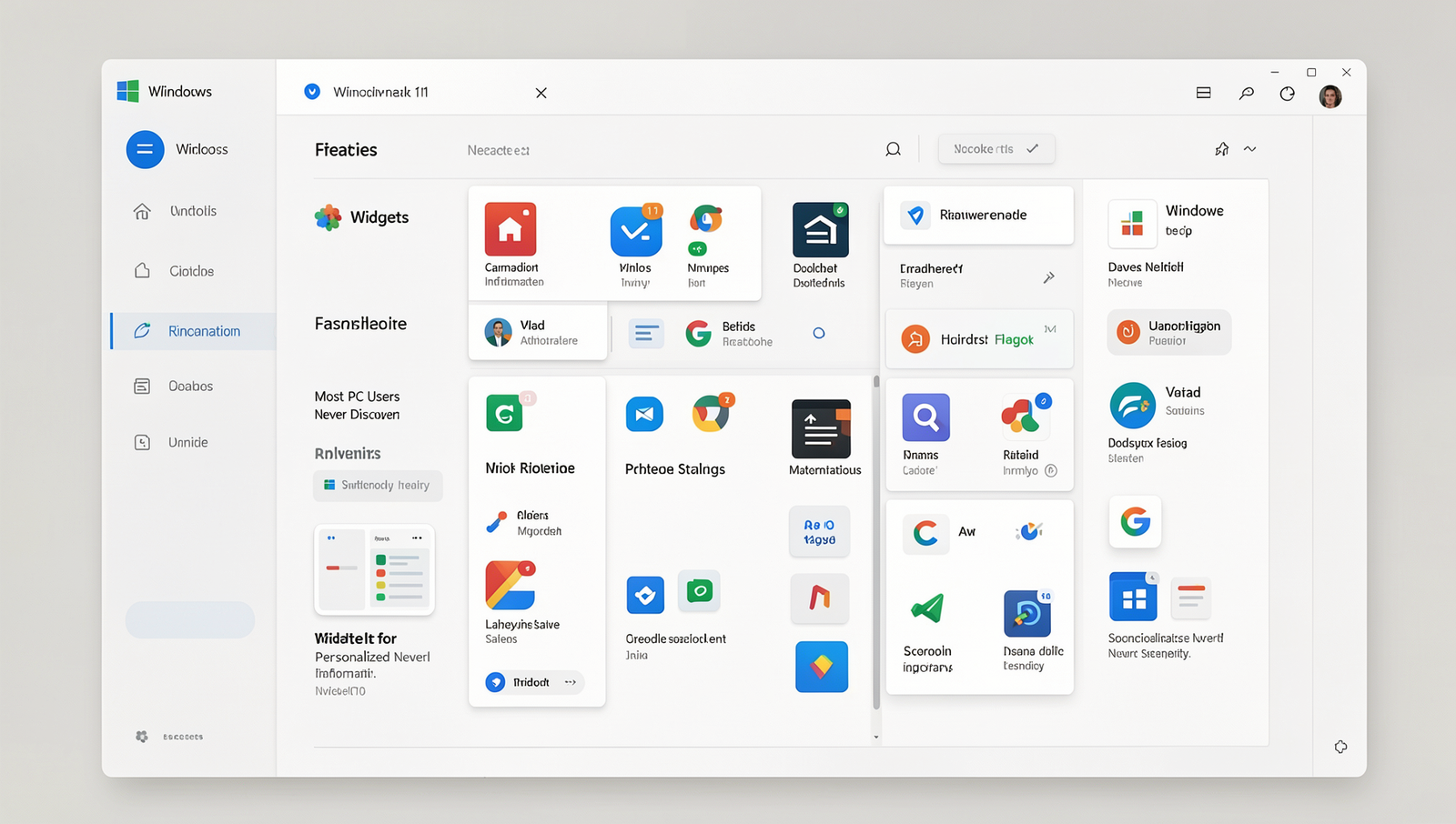
Widgets for Personalized Information
One of the standout Windows 11 features that many users overlook is the Widgets panel, which offers a streamlined way to access real-time information tailored to your interests. This feature allows you to stay updated on various topics without needing to open multiple applications or websites. With just a click, you can view essential information such as weather updates, news headlines, and your calendar events all in one place.
The Widgets panel is highly customizable, enabling you to curate the content that matters most to you. You can easily add or remove widgets based on your preferences, ensuring that your panel reflects your interests. For instance, if you are a sports enthusiast, you can add a widget that provides live scores and updates from your favorite teams. Alternatively, if you prefer to stay informed about global news, you can include a news widget that aggregates articles from various sources.
- Access real-time information: Get instant updates on weather, news, and calendar events.
- Customize your panel: Tailor the widget panel to showcase content that you find most relevant.
- Add or remove widgets: Easily modify your panel to reflect changing interests.
- Interact with widgets: Click on widgets for quick updates or deeper insights into the information presented.
To access the Widgets panel, simply click on the Widgets icon located on the taskbar. From there, you can explore the available widgets and make selections that enhance your daily workflow. This feature not only improves productivity but also keeps you informed in a visually appealing format. By leveraging the Widgets panel, you can make the most of your Windows 11 experience.
DirectStorage for Faster Game Loading
One of the standout Windows 11 features that many PC users may not fully appreciate is DirectStorage technology. This innovative feature is designed to significantly enhance the gaming experience by drastically reducing load times. With DirectStorage, games can load assets directly from the storage device to the graphics card, bypassing the CPU. This results in a more efficient data transfer process and allows for quicker load times, which is especially noticeable in large, open-world games.
To take full advantage of DirectStorage, it is essential to utilize NVMe SSDs. These solid-state drives are designed for high-speed data transfer, making them the ideal choice for gamers looking to improve their system’s performance. Traditional hard drives simply cannot match the speed of NVMe SSDs, which can lead to longer load times and a less enjoyable gaming experience.
- Experience quicker load times: Games that utilize DirectStorage can load in seconds instead of minutes.
- Reduce stutter: By allowing the GPU to access data more directly, players can experience smoother gameplay.
- Improve frame rates: With less time spent loading assets, the overall frame rate can see a significant boost.
For example, in a game like “Microsoft Flight Simulator,” which is known for its vast landscapes and detailed graphics, players can notice a marked improvement in load times when using an NVMe SSD with DirectStorage enabled. This means less waiting and more time enjoying the immersive experience that modern games offer.
In summary, DirectStorage is a game-changer for PC gamers using Windows 11. By leveraging the speed of NVMe SSDs, players can enjoy a more seamless and enjoyable gaming experience, making it one of the most valuable features of the operating system.
Conclusion
In summary, Windows 11 features a plethora of hidden gems that can significantly enhance the user experience. From the revamped Start Menu and Snap Layouts to the integrated Microsoft Teams and Widgets, these functionalities are designed to improve productivity and streamline workflows. Many users may overlook these features, but taking the time to explore them can lead to a more efficient and enjoyable computing experience. The modern interface and enhanced performance capabilities also contribute to a smoother operation, making Windows 11 a compelling upgrade for both casual and power users.
To fully leverage the advantages of Windows 11 features, users should dedicate some time to familiarize themselves with the operating system’s offerings. Engaging with tutorials, exploring settings, and experimenting with various tools can unveil new ways to optimize daily tasks. As you dive deeper into Windows 11, you may discover that these features not only simplify your computing tasks but also enhance your overall digital lifestyle.
Frequently Asked Questions
What is Snap Layouts in Windows 11?
Snap Layouts is a feature in Windows 11 that allows users to organize multiple open windows on their desktop efficiently. By hovering over the maximize button, users can choose from various layout options to arrange their applications, enhancing multitasking and productivity.
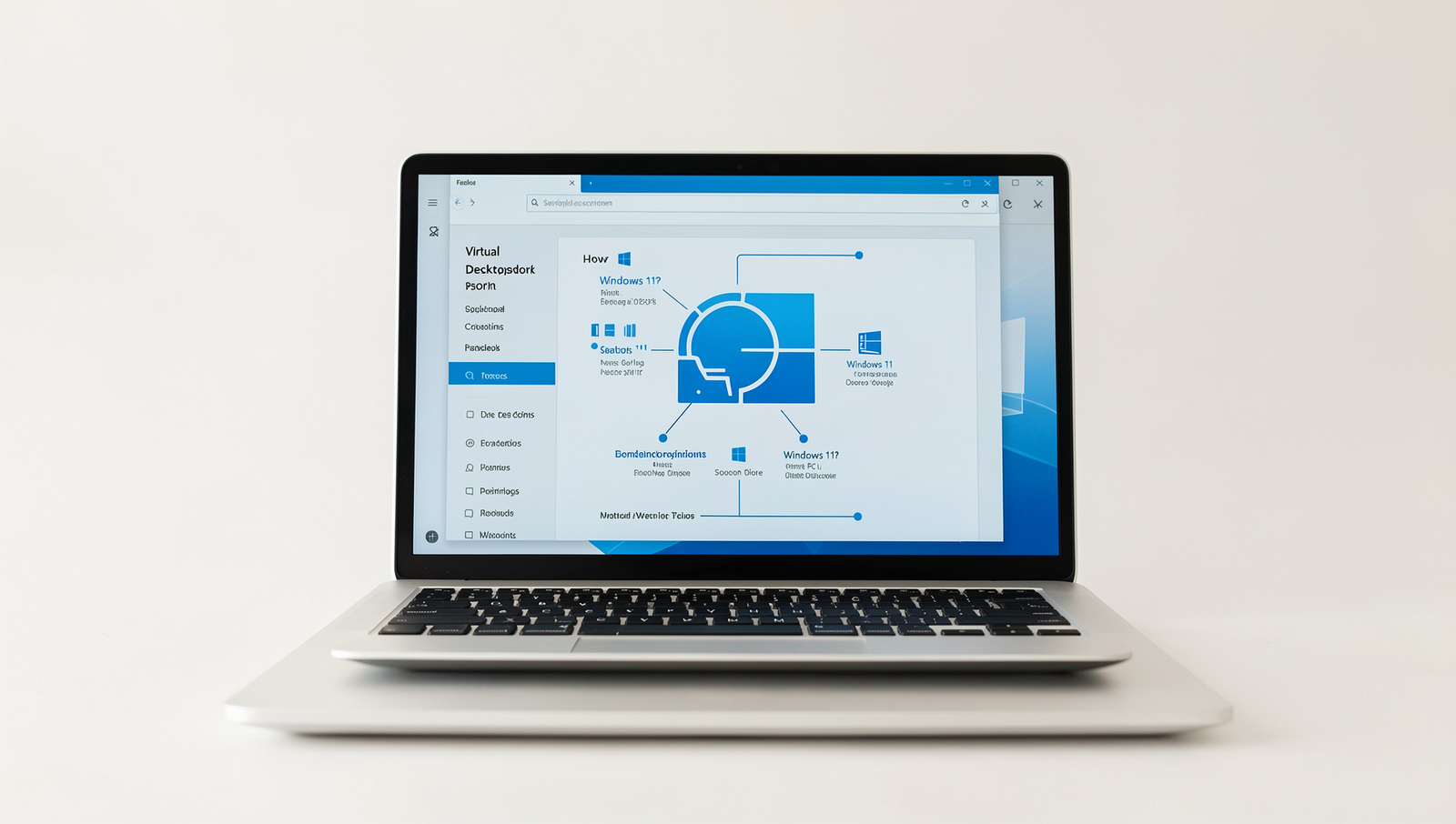
How does Virtual Desktops work in Windows 11?
Virtual Desktops in Windows 11 enable users to create separate desktop environments for different tasks or projects. Each desktop can host its own set of applications and windows, allowing for better organization and focus without cluttering the main workspace.
What is the Widgets feature?
The Widgets feature in Windows 11 provides personalized, glanceable information such as news, weather, calendar events, and more. Accessible from the taskbar, it offers a customizable
Related Posts
Modern PC Problems That Look Like Hardware Failures
The Hidden Hardware Limits of Budget PCs
PC Bottlenecks Explained: CPU, GPU, RAM or Storage?
About The Author
