Windows Performance: Settings Worth Changing on Every PC
8 min read • 1,633 words
Table of Contents
ToggleWindows Performance: Settings Worth Changing on Every PC
In today’s fast-paced digital world, optimizing your computer’s performance is essential for a seamless user experience. Many users are unaware that simple adjustments to their windows performance settings can lead to significant improvements in speed and efficiency. This article will guide you through essential settings that can enhance your PC’s performance, ensuring that you get the most out of your hardware.
By disabling unnecessary startup programs, you can drastically reduce boot times and improve overall system responsiveness. Additionally, adjusting visual effects for optimal performance can free up valuable system resources. Enabling Storage Sense helps manage disk space automatically, while setting power options to High Performance can make your system feel more responsive. Finally, regularly updating drivers is crucial for preventing performance issues and maintaining stability. By implementing these changes, you can transform your Windows experience and enjoy a faster, more efficient computer.
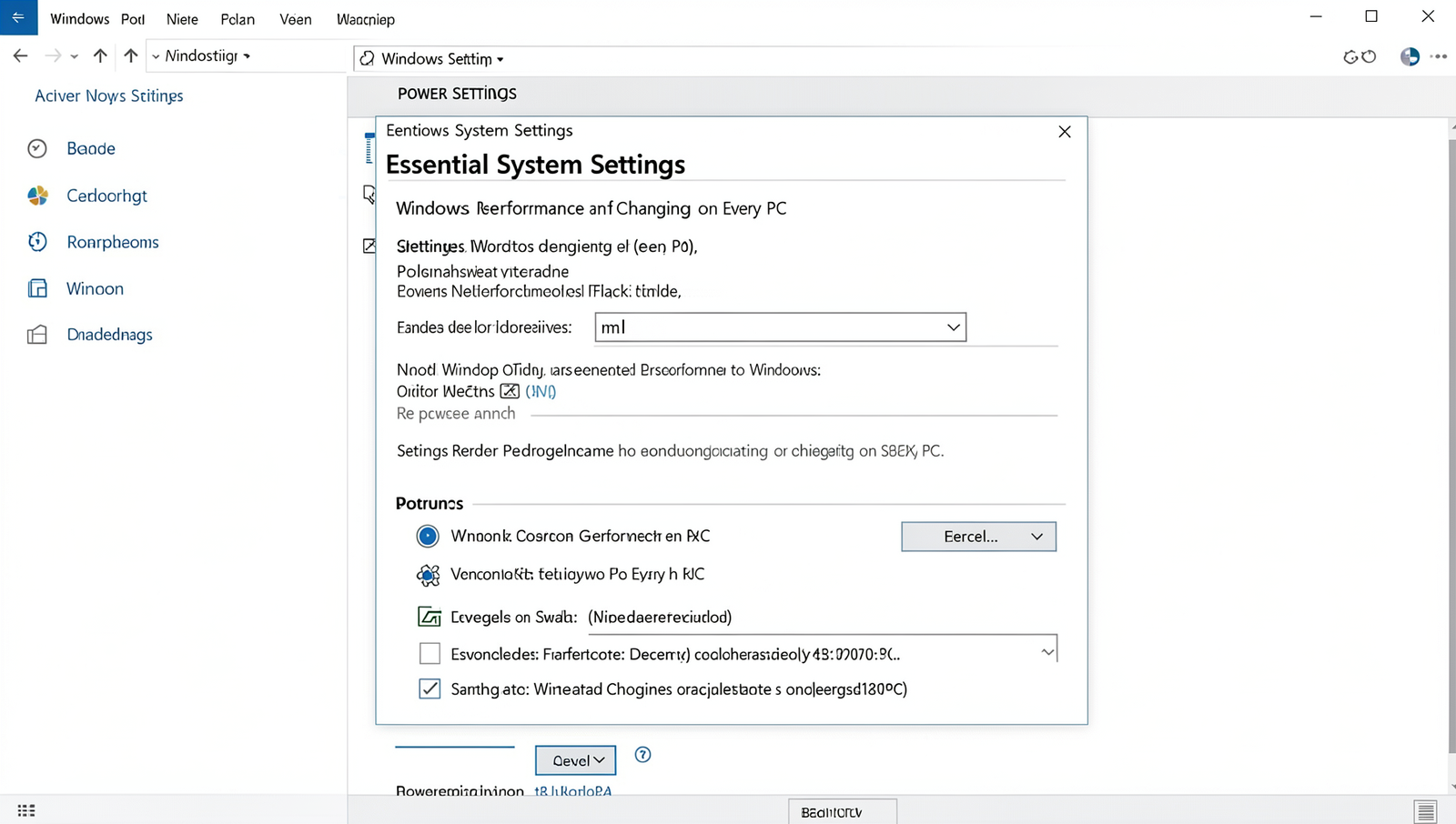
Essential System Settings
To enhance your Windows performance, there are several critical system settings that can be adjusted. These changes can lead to a more responsive and efficient computing experience. Below are some essential settings worth considering.
Adjusting Power Settings for Optimal Performance
Windows offers various power plans, and selecting the right one can significantly impact performance. For optimal performance, switch to the “High Performance” power plan. You can do this by navigating to the Control Panel:
Control Panel > Hardware and Sound > Power OptionsFrom there, select “High Performance.” This setting ensures that your CPU runs at maximum capacity, especially during demanding tasks.
Configuring Visual Effects for Better Responsiveness
Windows comes with numerous visual effects that can consume resources. To improve responsiveness, you can adjust these effects:
System Properties > Advanced > Performance SettingsIn the Performance Options window, select “Adjust for best performance” or manually choose which effects to disable. Reducing animations and shadows can lead to a snappier experience.
Managing Startup Programs to Speed Up Boot Time
Many applications set themselves to launch at startup, which can slow down your boot time. To manage these programs, access the Task Manager:
Ctrl + Shift + EscGo to the “Startup” tab and disable any unnecessary applications. This simple step can significantly reduce startup time.
Setting Up Virtual Memory for Improved Multitasking
Virtual memory allows your computer to use hard drive space as additional RAM, which is beneficial for multitasking. To configure virtual memory:
System Properties > Advanced > Performance Settings > Advanced > Virtual MemoryHere, you can adjust the size of your paging file. Increasing it can help improve performance when running multiple applications simultaneously.
By implementing these Windows performance settings, you can ensure that your PC runs more efficiently, providing a smoother user experience.
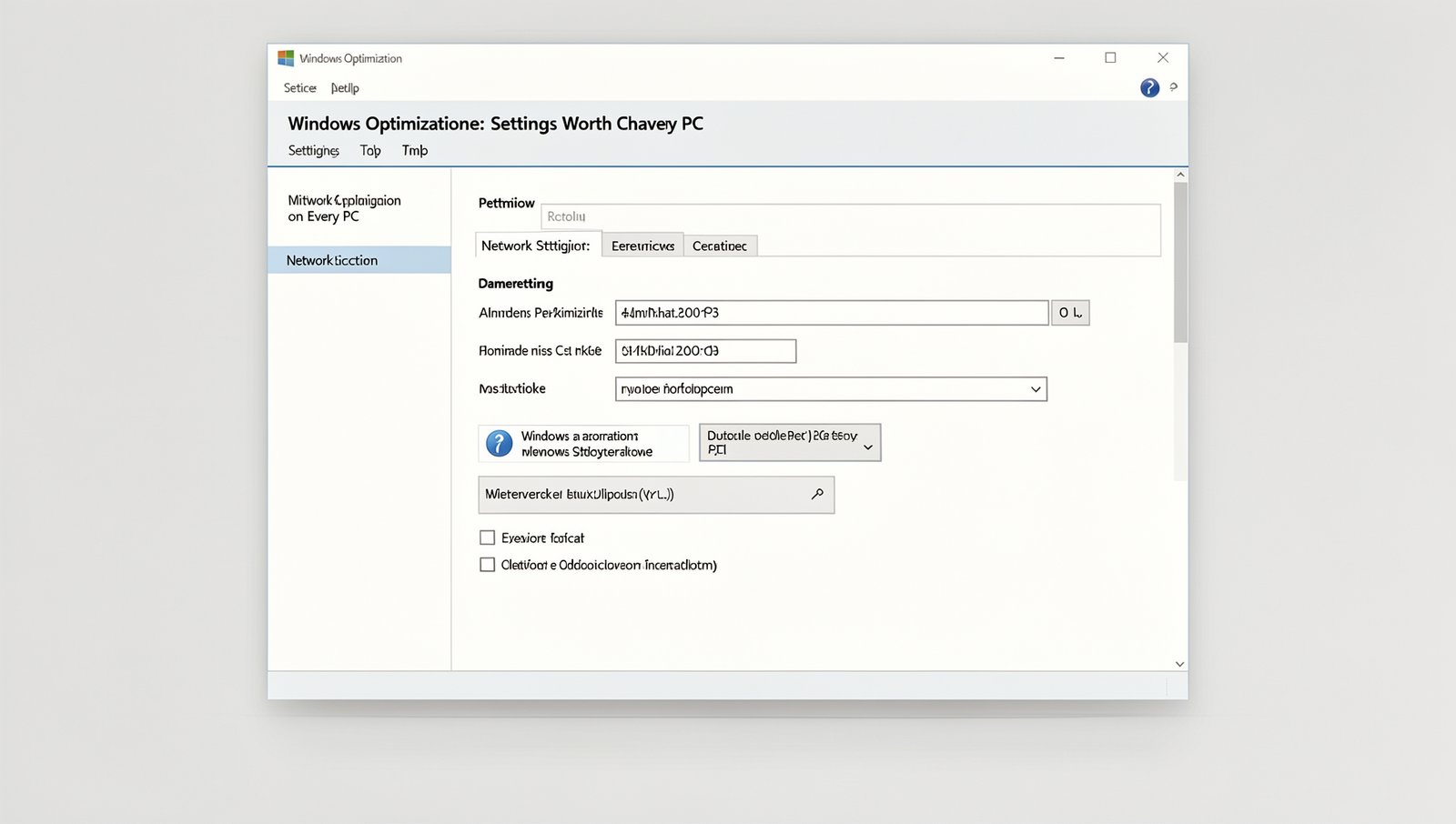
Network Optimization
When it comes to enhancing Windows performance settings, optimizing your network can lead to significant improvements in speed and efficiency. Here are some key adjustments you can make to ensure your PC runs at its best when connected to the internet.
One of the first steps you can take is to change your DNS settings. By default, your Internet Service Provider (ISP) assigns a DNS server, which may not be the fastest option available. Switching to a public DNS service like Google DNS or Cloudflare can improve your browsing speed. To change your DNS settings, follow these steps:
1. Open Control Panel.
2. Click on Network and Internet.
3. Select Network and Sharing Center.
4. Click on Change adapter settings.
5. Right-click on your active network connection and select Properties.
6. Select Internet Protocol Version 4 (TCP/IPv4) and click Properties.
7. Choose "Use the following DNS server addresses" and enter:
   - Preferred: 8.8.8.8 (Google)
   - Alternate: 8.8.4.4 (Google)
   - Or use 1.1.1.1 (Cloudflare)
8. Click OK to save changes.
Another effective method to optimize your network is by disabling background apps that consume bandwidth. Many applications run in the background and can slow down your internet speed. To disable these apps:
1. Open Settings.
2. Go to Privacy.
3. Click on Background apps.
4. Toggle off the apps you don’t need running in the background.
Additionally, configuring your network adapter settings can yield better performance. You can adjust settings like speed and duplex mode to ensure optimal performance. Access these settings through the same network adapter properties window mentioned earlier.
Lastly, utilizing Quality of Service (QoS) can help prioritize important traffic. This is particularly useful for gaming or video streaming. You can enable QoS through your router settings, allowing you to allocate bandwidth effectively.
By implementing these network optimization strategies, you can significantly enhance your Windows performance settings and enjoy a smoother online experience.
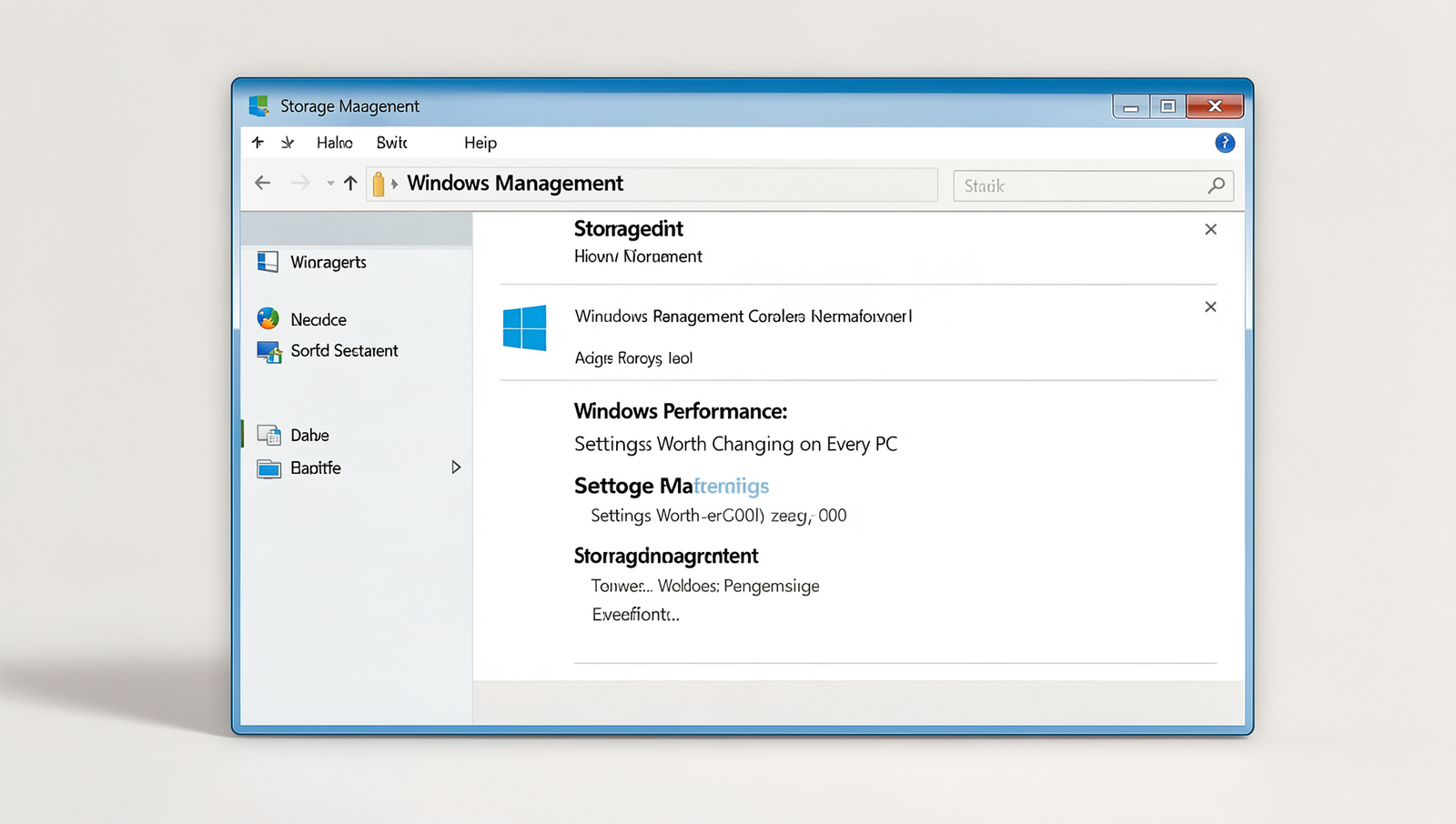
Storage Management
Optimizing storage management is crucial for enhancing overall windows performance settings. By making a few adjustments, you can ensure your PC runs smoothly and efficiently. Here are some essential settings worth changing.
First, enabling Storage Sense can significantly improve your system’s performance by automating the cleanup process. Storage Sense helps remove unnecessary files, such as temporary files and items in the Recycle Bin. To enable this feature, follow these steps:
- Open the Settings app.
- Navigate to System > Storage.
- Toggle on the Storage Sense option.
Next, configuring disk defragmentation and optimization is vital for maintaining your hard drive’s performance. Regular defragmentation can help improve read and write speeds. To set this up, use the following command in the search bar:
defrag C:This command will analyze and optimize your primary drive. You can also schedule regular defragmentation by accessing the Optimize Drives option in the same settings menu.
Utilizing OneDrive for file management can also enhance your storage efficiency. By storing files in the cloud, you free up local disk space while ensuring your data is accessible from any device. To set up OneDrive, simply download the app and sign in with your Microsoft account.
Lastly, setting up external drives for backup and performance is a smart strategy. Regularly backing up your data to an external drive not only secures your files but also helps maintain your PC’s speed. You can use the following command to initiate a backup:
robocopy C:\Users\YourUsername\Documents E:\Backup\Documents /EBy implementing these storage management techniques, you can significantly enhance your Windows performance settings and ensure your PC remains responsive and efficient.
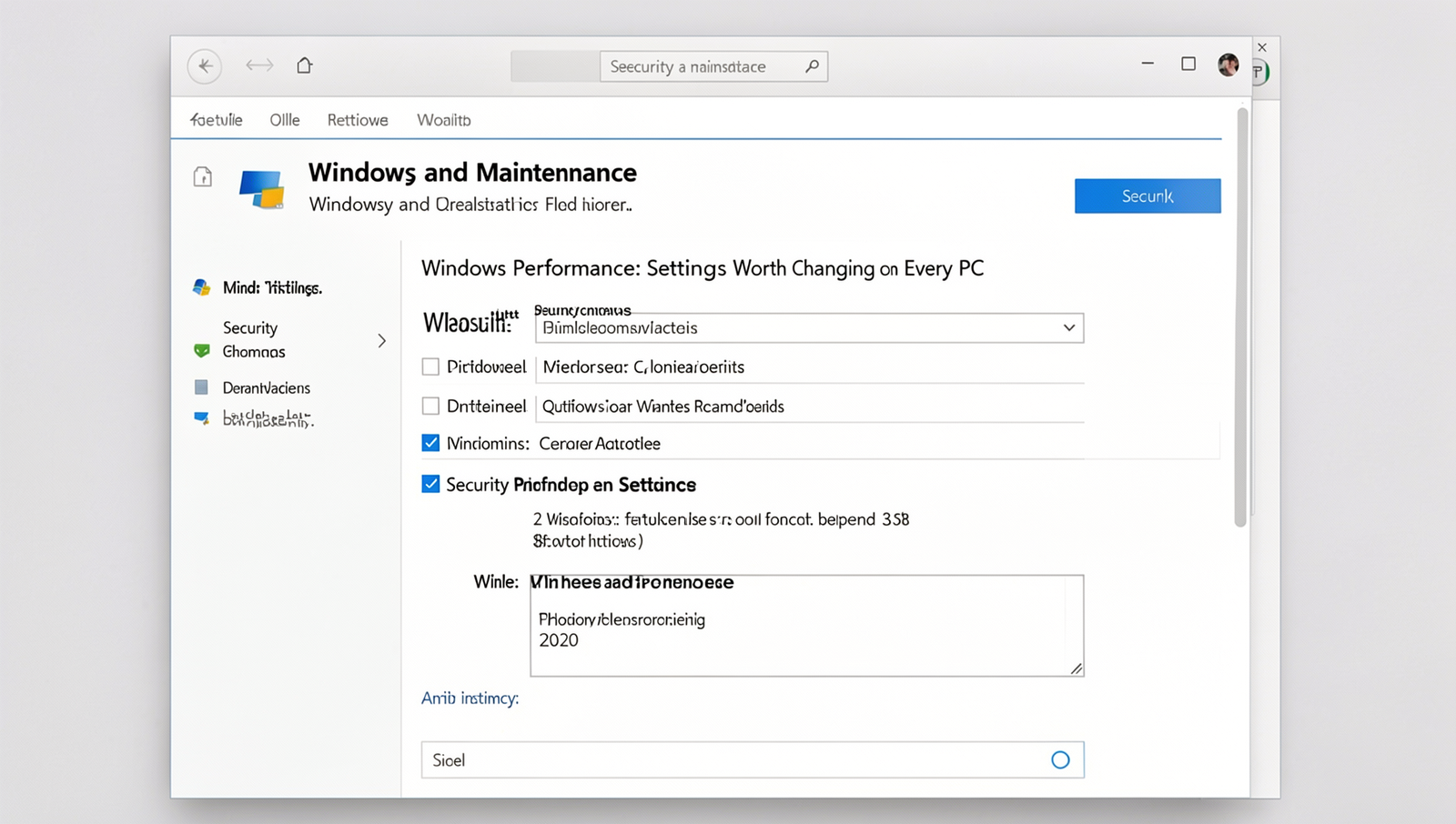
Security and Maintenance
When it comes to optimizing windows performance settings, security and maintenance play a crucial role. Ensuring that your system is secure and well-maintained not only protects your data but also enhances overall performance. Here are some essential adjustments you should consider making.
First, adjusting Windows Update settings is vital for receiving timely patches and updates. Keeping your system updated helps protect against vulnerabilities. To configure Windows Update, follow these steps:
- Open the Start menu and go to Settings.
- Select Update & Security.
- Click on Windows Update and then Advanced options.
- Choose your preferred update schedule and ensure that automatic updates are enabled.
Next, configuring Windows Defender is essential for optimal protection against malware and other threats. To ensure Windows Defender is set up correctly, check the following:
- Open Windows Security from the Start menu.
- Navigate to Virus & threat protection.
- Ensure that real-time protection is turned on.
- Consider enabling cloud-delivered protection for enhanced security.
Setting up User Account Control (UAC) is another important step. UAC helps prevent unauthorized changes to your system. To adjust UAC settings, use the following:
Control Panel > User Accounts > Change User Account Control settingsLastly, regularly checking system health and performance metrics can help you identify potential issues before they become serious problems. Use the built-in Performance Monitor tool by entering the following command in the Run dialog:
perfmonBy implementing these windows performance settings, you can significantly enhance your PC’s security and maintenance, leading to better overall performance.
Conclusion
Optimizing Windows performance settings is essential for ensuring that your PC runs smoothly and efficiently. By adjusting settings such as visual effects, power options, and startup programs, users can significantly enhance their system’s responsiveness and speed. These changes not only improve day-to-day tasks but also extend the lifespan of your hardware by reducing unnecessary strain. Implementing these adjustments can lead to a more enjoyable computing experience, whether for gaming, work, or general use.
As you consider these Windows performance settings, take the time to evaluate which adjustments best suit your needs. Start with the most impactful changes, such as disabling unnecessary startup programs and adjusting power settings for optimal performance. Regularly revisiting these settings can help maintain your PC’s efficiency over time. By prioritizing these adjustments, you can ensure that your Windows experience remains fast and reliable, allowing you to focus on what truly matters.
Frequently Asked Questions
What are some essential performance settings to change on Windows?
To enhance performance on Windows, consider disabling unnecessary startup programs, adjusting visual effects for best performance, and ensuring that Windows is regularly updated. Additionally, turning off background apps can free up system resources for more critical tasks.
How can I improve boot time on my PC?
Improving boot time can be achieved by disabling unnecessary startup programs through the Task Manager, enabling Fast Startup in the Power Options, and ensuring that your hard drive is defragmented or upgraded to an SSD for faster access times.
Is it beneficial to adjust virtual memory settings?
Adjusting virtual memory can be beneficial, especially if your system frequently runs out of RAM. Setting a custom size for the paging file can help optimize performance, but it’s generally best to let Windows manage it unless you have specific needs.
What power settings should I use for better performance?
For improved performance, switch to the High Performance power plan in
Related Posts

PC Storage Guide: NVMe, SATA SSD and HDD Compared

USB Port Problems: Data Speed, Charging and Compatibility Explained
Old PC Revival: Hardware Upgrades That Still Make Sense
About The Author
