Windows Storage Mystery: Where Did Your Disk Space Go?
techpcalex@gmail.com September 1, 2026 0
Unraveling the mystery of disappearing disk space.
8 min read • 1,615 words
Table of Contents
ToggleWindows Storage Mystery: Where Did Your Disk Space Go?
Have you ever wondered why your Windows computer seems to be running low on disk space despite your efforts to manage it? This phenomenon, often referred to as the “Windows Storage Mystery,” can leave users puzzled and frustrated. Understanding where your disk space has gone is crucial, as it can affect your system’s performance and your ability to store important files. In this article, we will delve into the common culprits that consume disk space on Windows systems.
From system restore points that reserve significant amounts of space to the accumulation of temporary files and cached data, there are many factors at play. Additionally, unused applications can take up valuable disk space, and Windows updates may leave behind residual files that clutter your storage. Even the Recycle Bin can contribute to the problem by holding onto deleted files. By the end of this article, you’ll have a clearer understanding of these issues and practical solutions to reclaim your disk space.
Understanding Disk Space Usage
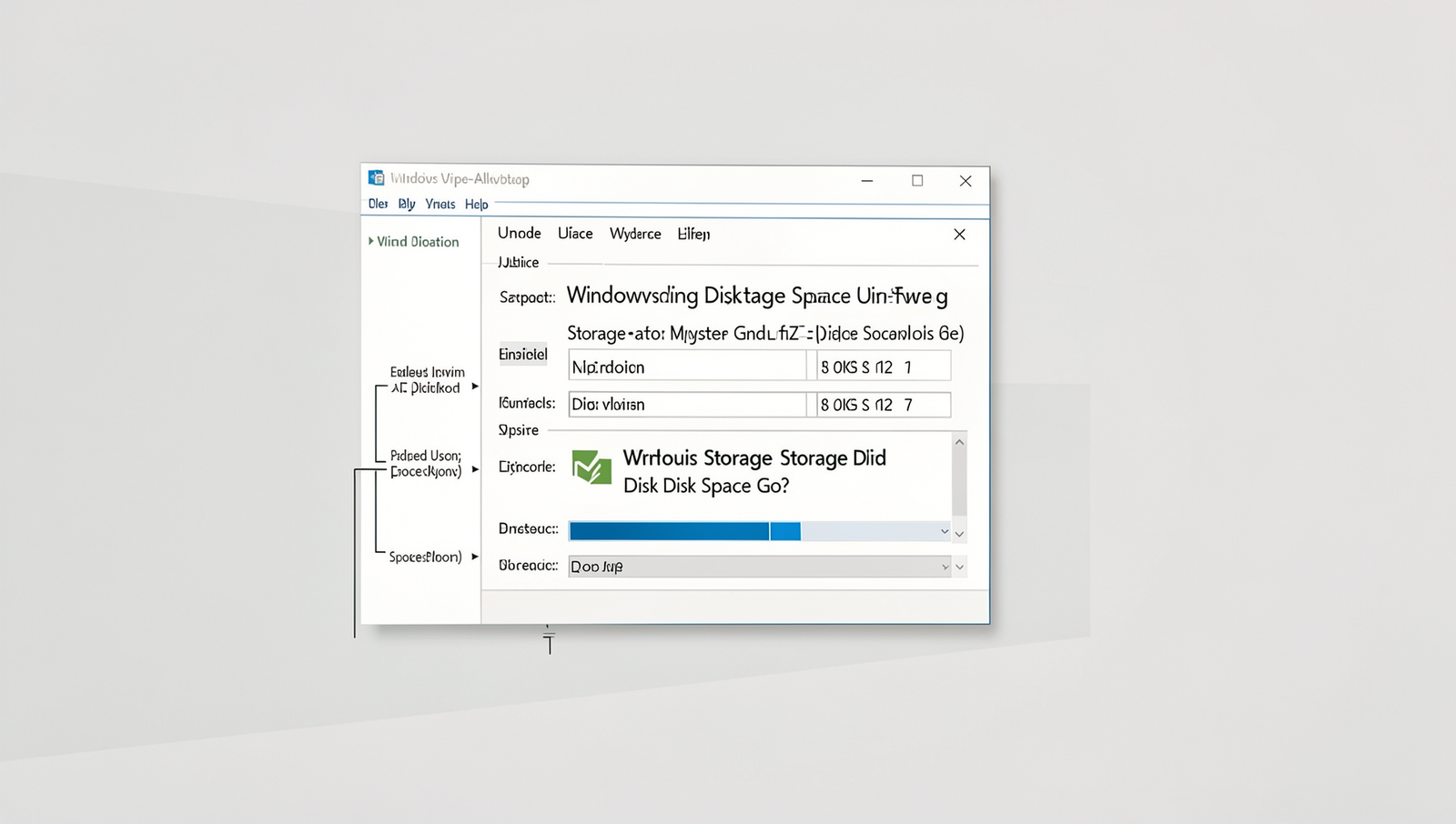
In the realm of the Windows Storage Mystery, understanding how disk space is allocated and consumed is crucial for effective management of your system’s resources. Windows operating systems utilize a file allocation table to track how space on the disk is used. This includes not only the files you create but also system files, temporary files, and hidden files that may not be immediately visible to the user.
Common reasons for disk space consumption include:
- Installed Applications: Programs and games can take up significant space, especially those with large data files.
- System Updates: Windows frequently downloads updates that can occupy substantial disk space.
- Temporary Files: Browsers and applications often create temporary files that can accumulate over time.
- System Restore Points: Windows creates restore points that can consume a considerable amount of disk space.
- Duplicate Files: Unintentional duplication of files can lead to unnecessary consumption of space.
Windows calculates used and free space by scanning the file system and summing the sizes of all files and directories. The operating system maintains a record of both used and available space, which can sometimes lead to discrepancies due to hidden files or system reserved space.
To visualize disk space usage, several tools are available:
- Disk Cleanup: This built-in tool helps remove unnecessary files.
- Storage Sense: A feature in Windows that automatically frees up space by deleting unneeded files.
- WinDirStat: A third-party application that provides a graphical representation of disk usage.
For a quick overview of disk usage via the command line, you can use:
diror to check disk space:
wmic logicaldisk get size,freespace,captionUnderstanding these aspects can help demystify the Windows Storage Mystery and empower users to manage their disk space more effectively.
Identifying Hidden Files and Folders
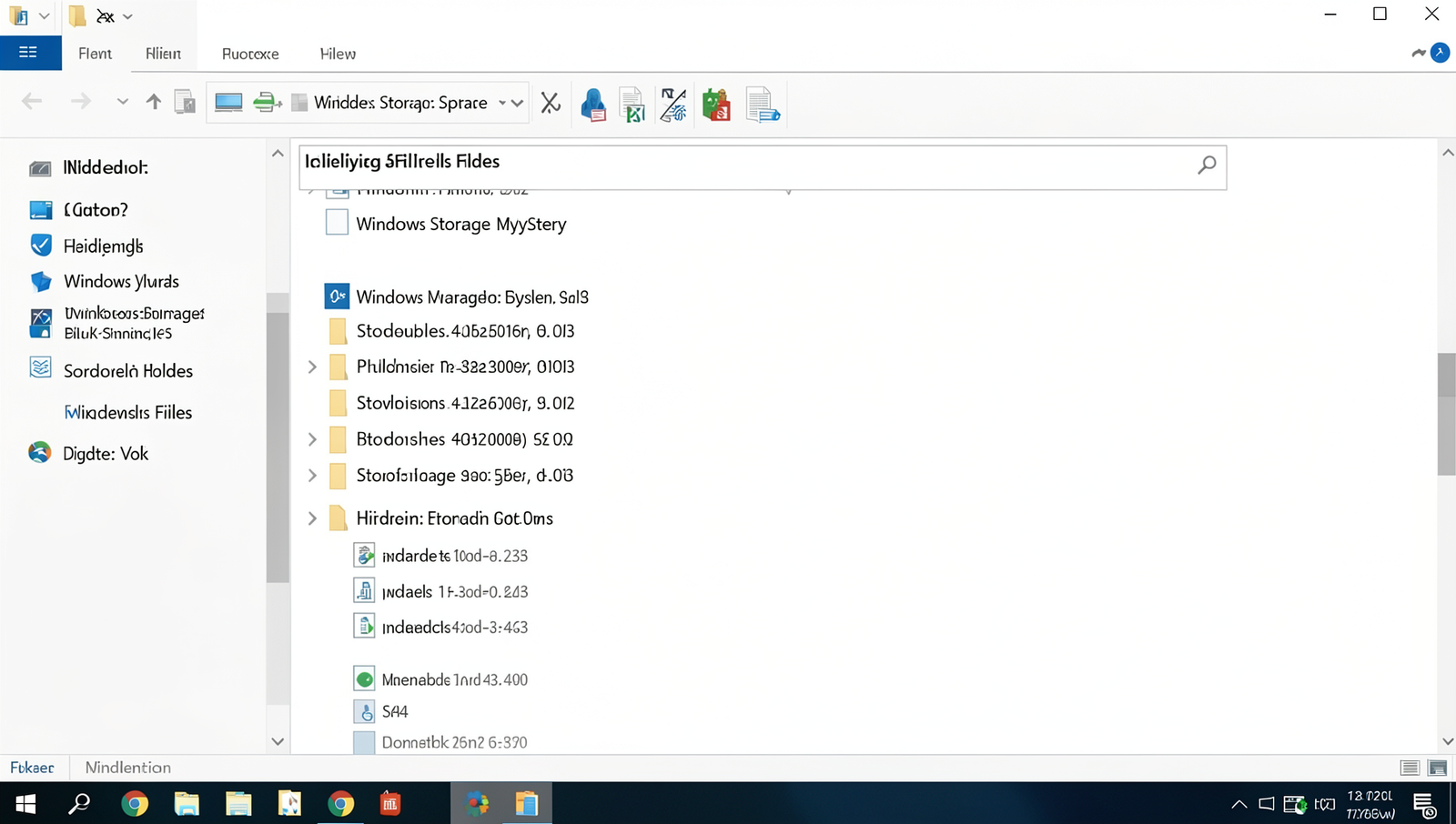
One of the first steps in solving the Windows Storage Mystery is to identify hidden files and folders that may be consuming disk space. By default, Windows Explorer hides certain files to protect system integrity, but these files can take up significant space. To reveal them, follow these steps:
- Open Windows Explorer.
- Click on the “View” tab in the ribbon.
- Check the box labeled “Hidden items.”
Once you enable this option, you will be able to see files and folders that were previously hidden. This can include system files, application data, and other files that may be taking up valuable disk space.
Understanding system files is crucial as they can significantly impact your disk space. Files such as pagefile.sys and hiberfil.sys are essential for system operations but can occupy several gigabytes. If you find these files consuming too much space, consider adjusting your system settings, such as reducing the size of the page file or disabling hibernation if it is not needed.
For a more detailed analysis of disk usage, you can use command line tools. The dir command can help you find large files. Use it as follows:
dir C:\ /s /o:-sThis command lists all files in the C: drive, sorted by size, allowing you to identify large files quickly. Additionally, third-party tools like WinDirStat or TreeSize can provide a graphical representation of disk usage, making it easier to spot hidden files and folders that are consuming space.
Managing System Restore and Shadow Copies
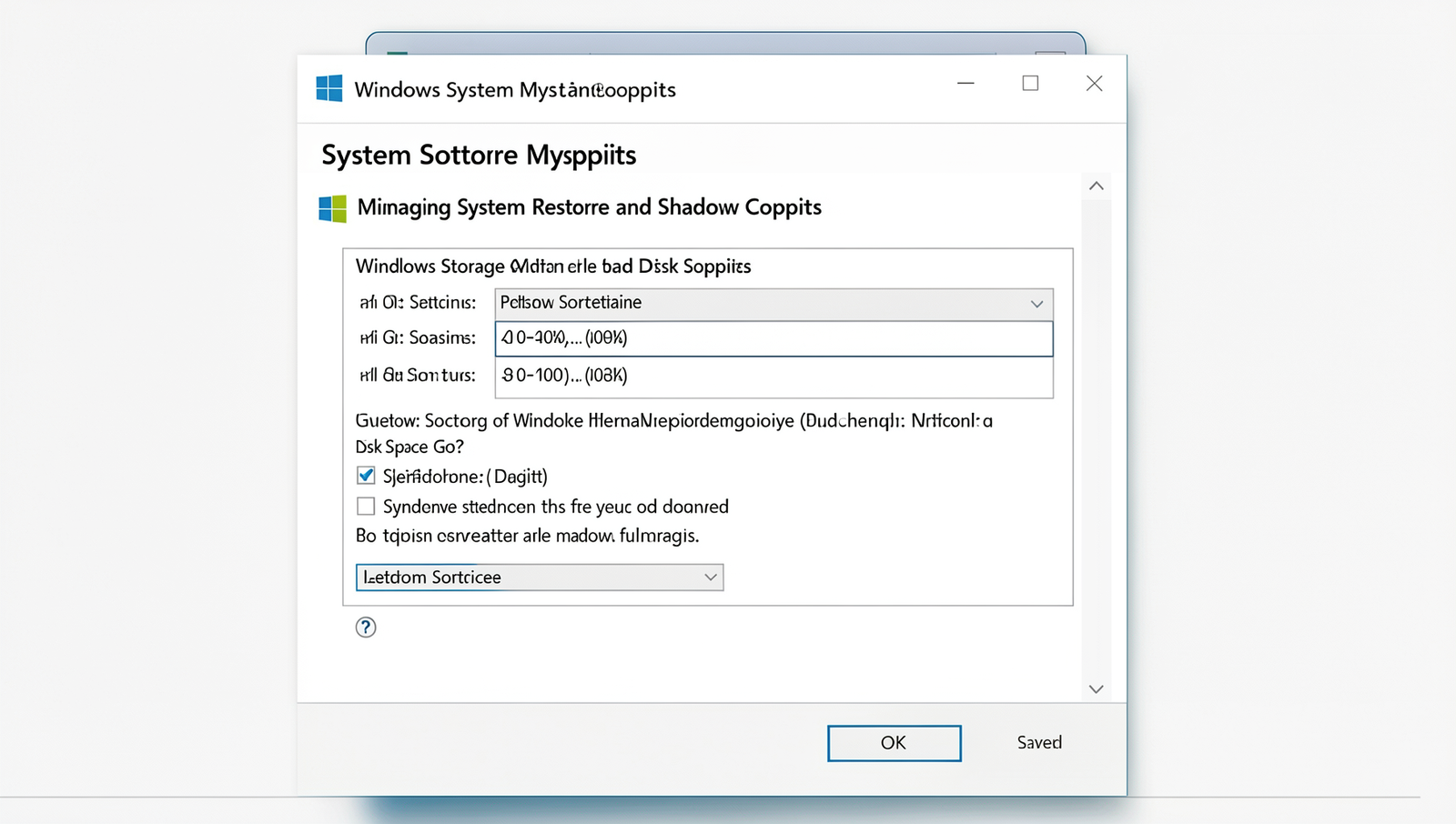
System Restore is a feature in Windows that allows users to revert their computer’s state to a previous point in time. This can be particularly useful when troubleshooting issues or recovering from unwanted changes. However, each System Restore point consumes disk space, which can lead to the Windows Storage Mystery of disappearing disk space. By default, Windows allocates a portion of your disk for these restore points, and if not managed properly, this can quickly add up.
To configure System Restore settings, follow these steps:
- Right-click on “This PC” and select “Properties.”
- Click on “System Protection” on the left sidebar.
- Select the drive you want to configure and click on “Configure.”
- Here, you can adjust the maximum disk space used for restore points.
Understanding Shadow Copies is also crucial. Shadow Copies are snapshots of files and folders at a specific point in time, allowing users to recover previous versions. Like System Restore points, they can consume significant disk space. To check the space used by Shadow Copies, you can navigate to the same “System Protection” settings mentioned earlier.
If you find that old restore points are taking up too much space, you can delete them safely by following these steps:
- Open the “System Protection” settings.
- Select the drive and click on “Configure.”
- Click on “Delete” to remove all restore points for that drive.
Alternatively, you can use the command line to delete old restore points:
vssadmin delete shadows /allBy managing System Restore and Shadow Copies effectively, you can reclaim valuable disk space and solve the Windows Storage Mystery.
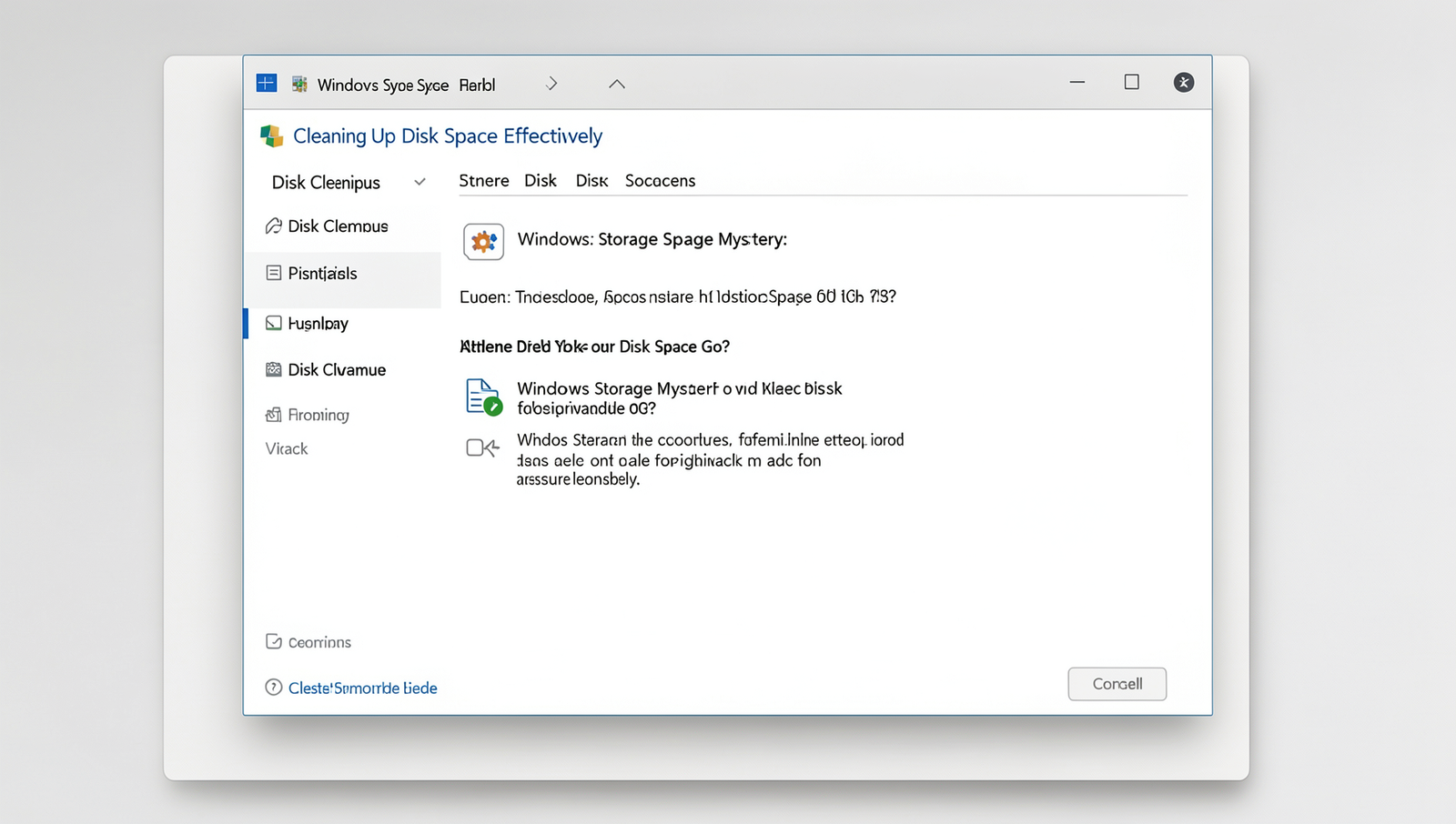
Cleaning Up Disk Space Effectively
When faced with the Windows Storage Mystery of disappearing disk space, it’s crucial to take proactive steps to reclaim that space. One of the most effective tools at your disposal is the Disk Cleanup utility. This built-in feature allows users to free up space by removing unnecessary files. To access it, simply type Disk Cleanup in the Start menu search bar, select the drive you wish to clean, and follow the prompts to delete temporary files, system files, and more.
Another powerful option is Storage Sense, which automates disk space management. By enabling Storage Sense, you can set your system to automatically delete temporary files and manage content in your Recycle Bin. To activate it, navigate to Settings > System > Storage, and toggle on Storage Sense. You can customize how frequently it runs and what it cleans up, ensuring that your disk space is consistently optimized without manual intervention.
Uninstalling applications that you no longer use is another best practice for managing disk space. To do this effectively, go to Settings > Apps > Apps & features. Review the list of installed applications and remove any that are unnecessary. This not only frees up space but also can improve system performance.
Lastly, managing temporary files and caches is essential. Many applications store temporary files that can accumulate over time. Regularly check folders like C:\Windows\Temp and C:\Users\YourUsername\AppData\Local\Temp. You can delete the contents of these folders to recover space. Use the command
del /q/f/s %TEMP%\*to clear out temporary files quickly.
Conclusion
In summary, the Windows Storage Mystery can often leave users perplexed as they struggle to understand where their disk space has disappeared. By exploring various factors such as hidden files, system restore points, and temporary files, users can gain insight into the underlying causes of disk space depletion. Utilizing built-in tools like Disk Cleanup and Storage Sense can significantly aid in reclaiming valuable storage space, ensuring that your system runs smoothly and efficiently.
To tackle the Windows Storage Mystery effectively, it is essential to regularly monitor disk usage and perform routine maintenance. Users should consider implementing a strategy that includes periodic checks for large files, uninstalling unused applications, and managing system restore settings. By taking these proactive steps, you can maintain optimal disk space and enhance your overall computing experience, allowing you to focus on what truly matters without the frustration of storage issues.
Frequently Asked Questions
What is taking up space on my Windows disk?
To determine what is consuming space on your Windows disk, you can use the built-in Disk Cleanup tool or third-party software. These tools analyze your storage and provide insights into large files, temporary files, and system files that may be using significant disk space.
How can I find large files on my Windows PC?
You can find large files by using the File Explorer search feature. Simply open File Explorer, navigate to the drive you want to search, and use the search box with the query “size:>1GB” to filter and display files larger than 1GB, or adjust the size as needed.
Why is my disk space decreasing even when I delete files?
Your disk space may still decrease due to hidden files, system restore points, or temporary files that are not removed automatically. Additionally, some applications may retain cached data, which can contribute to the ongoing consumption of disk space.
How can I recover lost disk space?
To recover lost disk space, consider using the Disk Cleanup tool to remove unnecessary files. You can also uninstall unused applications, delete temporary files, and empty the Recycle Bin. Regular maintenance helps ensure optimal disk space management.