Windows Startup Cleanup: Programs That Quietly Slow Your PC
techpcalex@gmail.com September 1, 2026 0
Optimize your PC's startup for better performance.
7 min read • 1,527 words
Table of Contents
ToggleWindows Startup Cleanup: Programs That Quietly Slow Your PC
In today’s fast-paced digital world, having a responsive and efficient computer is essential. One often-overlooked aspect of maintaining optimal system performance is the Windows Startup Cleanup. Many programs automatically launch when your computer boots up, running silently in the background and consuming valuable RAM and CPU resources. This can lead to slower boot times and a sluggish overall experience. Understanding which programs are necessary and which can be disabled is crucial for enhancing your PC’s performance.
In this article, you will learn how to identify and manage startup programs using Windows Task Manager. We will explore common culprits, such as Adobe Reader and Spotify, that often set themselves to launch at startup. By regularly reviewing and disabling unnecessary startup applications, you can significantly improve your boot time and maintain a smoother, more efficient computing experience.
Cleaning Up Unnecessary Startup Programs
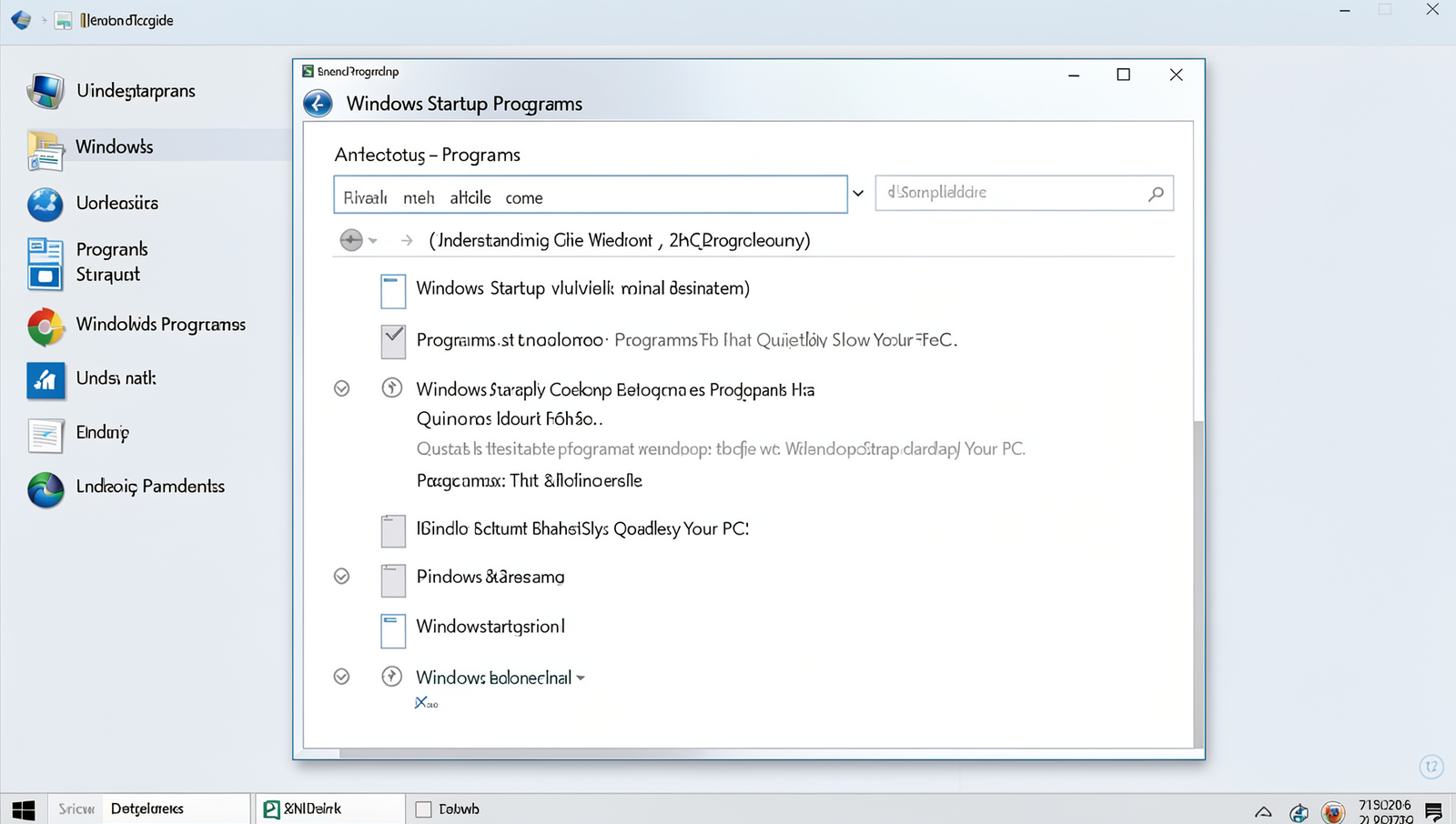
When you turn on your Windows PC, several programs may automatically launch, consuming valuable system resources and slowing down your startup time. This phenomenon is often referred to as “Windows Startup Cleanup.” To enhance your computer’s performance, it’s essential to identify and disable unnecessary startup programs.
One of the simplest ways to manage startup programs is through the Task Manager. To access it, right-click on the taskbar and select Task Manager. Once open, navigate to the Startup tab. Here, you’ll see a list of programs that run at startup, along with their impact on boot time. To disable a program, simply right-click on it and choose Disable. This action prevents the program from launching during the startup process, allowing your system to boot faster.
Another effective method for managing startup items is using the System Configuration tool, also known as msconfig. To access it, press Windows + R, type msconfig, and hit Enter. In the Startup tab, you can see a more detailed list of startup items. Uncheck any programs you don’t need at startup and click OK to apply the changes.
For those looking for a more comprehensive solution, consider third-party software like CCleaner or Autoruns. These tools provide advanced options for managing startup programs, including the ability to remove entries that may not appear in the Task Manager.
Regular maintenance is crucial for optimal performance. Make it a habit to review your startup programs every few months. Monitoring your system’s performance can help you identify any new programs that may have added themselves to the startup list without your consent.
Enhancing Overall System Performance
To achieve optimal performance in your Windows system, it’s essential to recognize the role of system updates and drivers. Regular updates not only introduce new features but also fix bugs and security vulnerabilities that can slow down your PC. Keeping your drivers up to date ensures that your hardware components communicate effectively with the operating system, which can significantly enhance performance. You can check for updates by navigating to Settings > Update & Security > Windows Update and clicking on Check for updates.
In addition to updates, there are several practical tips you can implement to improve boot time and overall responsiveness. First, consider disabling unnecessary startup programs that launch automatically when your computer boots. You can manage these by pressing Ctrl + Shift + Esc to open Task Manager, then navigating to the Startup tab. Here, you can disable programs that you do not need at startup.
- Utilize the built-in Disk Cleanup tool to remove temporary files and system cache.
- Perform disk defragmentation regularly to optimize file storage on your hard drive. Use the command
defrag C:for your primary drive.
- Consider upgrading your hardware, such as adding more RAM or switching to a Solid State Drive (SSD), which can drastically improve boot times.
Regular system maintenance is crucial for maintaining performance. Schedule routine checks for disk cleanup and defragmentation to keep your system running smoothly. You can also monitor system performance using the Performance Monitor tool. Access it by typing perfmon in the Run dialog (press Windows + R to open it). This tool allows you to track various performance metrics and identify any bottlenecks in your system.
By implementing these strategies, you can significantly enhance the overall performance of your Windows system, ensuring a faster and more responsive computing experience.
Conclusion
In summary, conducting a Windows Startup Cleanup is essential for maintaining optimal system performance. Many programs automatically launch at startup, consuming valuable resources and slowing down your PC. By identifying and disabling unnecessary startup applications, you can significantly enhance your computer’s boot time and overall responsiveness. This process not only frees up memory and processing power but also reduces the clutter that can lead to system errors and crashes.
As a next step, consider regularly reviewing your startup programs and utilizing built-in tools like Task Manager or third-party software for a more comprehensive cleanup. By making Windows Startup Cleanup a routine part of your maintenance, you ensure that your PC runs smoothly and efficiently. Ultimately, taking these proactive measures will lead to a more enjoyable computing experience, allowing you to focus on what truly matters without the frustration of a sluggish system.
Real-World Examples
When it comes to optimizing your PC’s performance, one of the most effective strategies is conducting a thorough Windows Startup Cleanup. This process involves identifying and disabling unnecessary programs that launch automatically when your computer starts. Many users may not realize how much these programs can slow down their system. Here are some real-world examples that illustrate the impact of Windows Startup Cleanup.
Consider a typical user who has installed a variety of software over the years. Programs like Adobe Reader, Spotify, and even certain printer software often set themselves to launch at startup. While these applications may be useful, they can significantly delay the boot time of a computer. For instance, a user with a mid-range laptop might experience a startup time of over two minutes due to these unnecessary applications. By performing a Windows Startup Cleanup, this user could reduce their startup time to under 30 seconds simply by disabling programs that are not essential for immediate use.
Another example can be seen in the case of gamers. Many gaming platforms, such as Steam or Epic Games Launcher, often add themselves to the startup list. While these applications are crucial for launching games, they do not need to run in the background when the user is not gaming. A gamer might find that their system runs significantly smoother and loads games faster after removing these launchers from the startup list. This not only improves the gaming experience but also enhances overall system performance.
In a corporate environment, the impact of Windows Startup Cleanup can be even more pronounced. Employees often have various tools and applications installed, such as VPN clients, collaboration tools, and office suites. If all these applications are set to launch at startup, it can lead to frustrating delays, affecting productivity. For example, if an employee’s computer takes five minutes to boot up due to multiple startup programs, it can lead to lost time and decreased efficiency. By implementing a Windows Startup Cleanup, companies can ensure that their employees’ computers are ready to use almost immediately, allowing for a more productive work environment.
To conduct a Windows Startup Cleanup, users can utilize the built-in Task Manager. By pressing Ctrl + Shift + Esc, they can navigate to the ‘Startup’ tab and view a list of all programs set to launch at startup. From there, users can disable any non-essential applications. Additionally, third-party tools like CCleaner can provide a more comprehensive analysis of startup programs, helping users make informed decisions about what to keep and what to disable.
In summary, the benefits of Windows Startup Cleanup are evident in various scenarios, from everyday users to corporate settings. By taking the time to streamline startup processes, users can enjoy a faster, more responsive computing experience.
Frequently Asked Questions
What is Windows Startup Cleanup?
Windows Startup Cleanup refers to the process of managing and optimizing the programs that automatically launch when your computer starts. By cleaning up these startup items, you can enhance your PC’s boot time and overall performance, ensuring a smoother user experience.
How can I identify programs that slow down my PC?
To identify programs that may be slowing down your PC, you can use the Task Manager in Windows. By checking the “Startup” tab, you can view the list of applications that run at startup and their impact on boot time, helping you make informed decisions.
Is it safe to disable startup programs?
Generally, it is safe to disable startup programs that you do not use frequently. However, be cautious with essential system applications or security software. Disabling unnecessary programs can improve boot times without affecting your system’s functionality.
How do I disable startup programs in Windows?
To disable startup programs in Windows, open Task Manager by right-clicking the taskbar and selecting it. Navigate to the “Startup” tab, right-click on the program you wish to disable, and select “Disable.” This will prevent it from launching at startup.