Browser Extensions That Can Secretly Affect PC Performance
techpcalex@gmail.com September 1, 2026 0
Explore how browser extensions impact your PC's performance.
8 min read • 1,630 words
Table of Contents
ToggleBrowser Extensions That Can Secretly Affect PC Performance
In today’s digital landscape, browser extensions have become essential tools for enhancing productivity and personalizing user experience. However, many users remain unaware of how these seemingly harmless add-ons can significantly impact their PC’s performance. Understanding the relationship between browser extensions performance is crucial, as it can help users make informed decisions about which extensions to install and maintain.
This article will delve into the hidden effects of browser extensions on your computer’s speed and efficiency. You will learn how certain extensions can consume substantial CPU resources, leading to slower performance and increased memory usage that hampers multitasking. Additionally, we will explore the risks posed by malicious extensions that introduce bloatware, as well as the implications of extensions that track user behavior, which can lead to increased network usage and slower internet speeds. By the end, you’ll be equipped with the knowledge to optimize your browsing experience without compromising your PC’s performance.
Common Types of Resource-Heavy Extensions
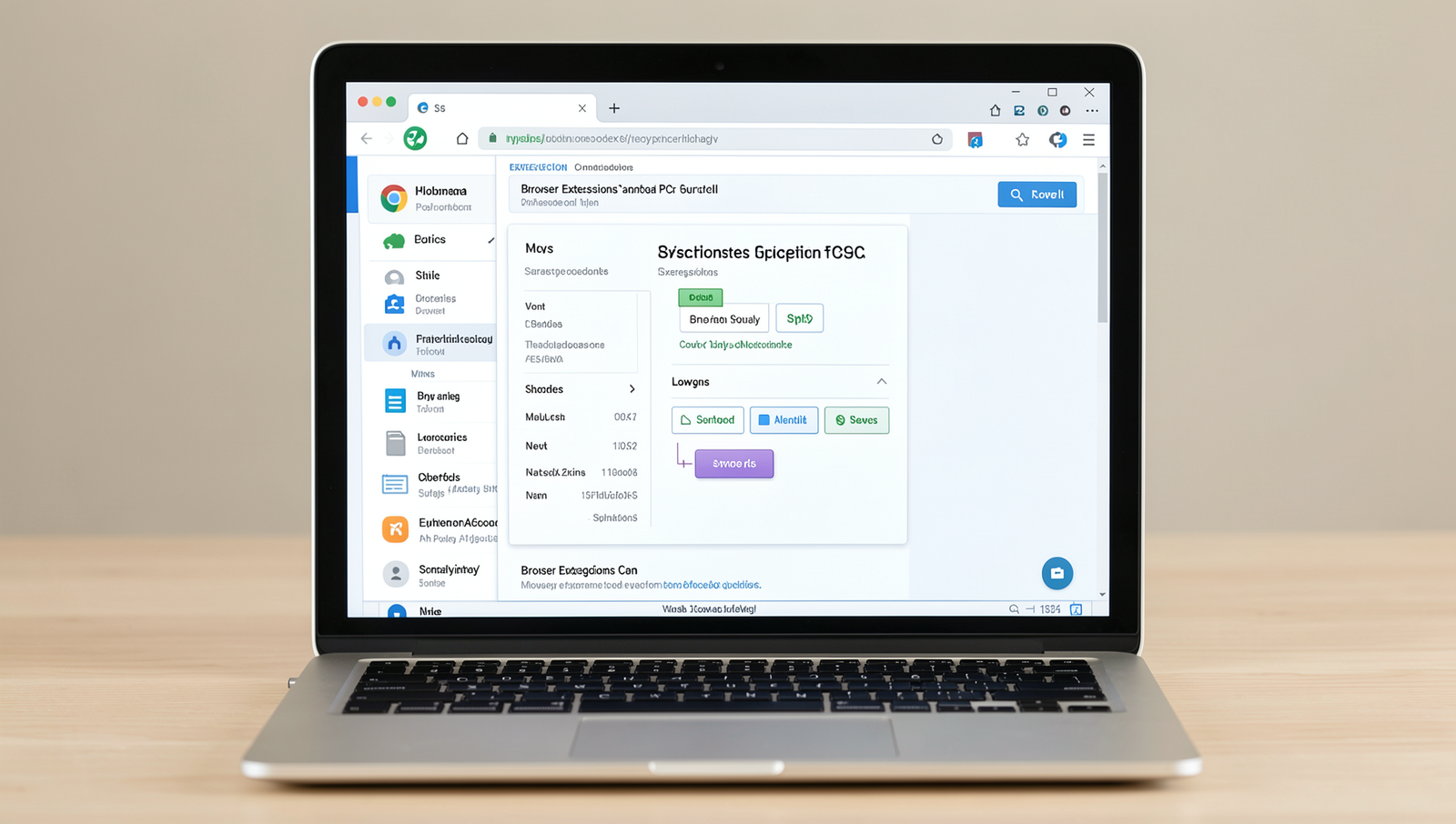
Browser extensions can significantly enhance user experience by adding functionality, but some can also have a detrimental effect on PC performance. Understanding the common types of resource-heavy extensions is crucial for maintaining optimal system efficiency. Here are several categories that often impact performance negatively:
- Ad Blockers: While ad blockers are popular for improving browsing speed and reducing unwanted ads, they can also consume considerable CPU resources. This is particularly true when they constantly scan web pages for ads and track scripts. For instance, an ad blocker that uses complex filtering rules may slow down page loading times, especially on resource-intensive sites.
- Video Downloaders: Extensions that allow users to download videos from various platforms often require substantial memory. These tools may run background processes to monitor video playback and initiate downloads, which can lead to increased memory consumption. For example, a video downloader that operates continuously in the background can slow down other applications, especially if multiple downloads are initiated simultaneously.
- Social Media Extensions: Many users install extensions to enhance their social media experience, such as those that notify them of new messages or updates. However, these extensions often run background processes that can consume CPU and memory resources. For instance, an extension that checks for notifications every few seconds can lead to noticeable performance degradation, particularly on older systems.
- Productivity Tools: Extensions designed to boost productivity, such as task managers or time trackers, often run continuously and can be resource-intensive. These tools may sync data with cloud services or perform real-time updates, which can lead to increased CPU usage. An example is a time-tracking extension that logs activity in real-time, which can impact overall system performance if not managed properly.
By being aware of these common types of resource-heavy extensions, users can make informed decisions about which tools to keep installed. Regularly reviewing and managing installed extensions can help maintain optimal browser performance and overall system efficiency.
Identifying Performance Issues Caused by Extensions
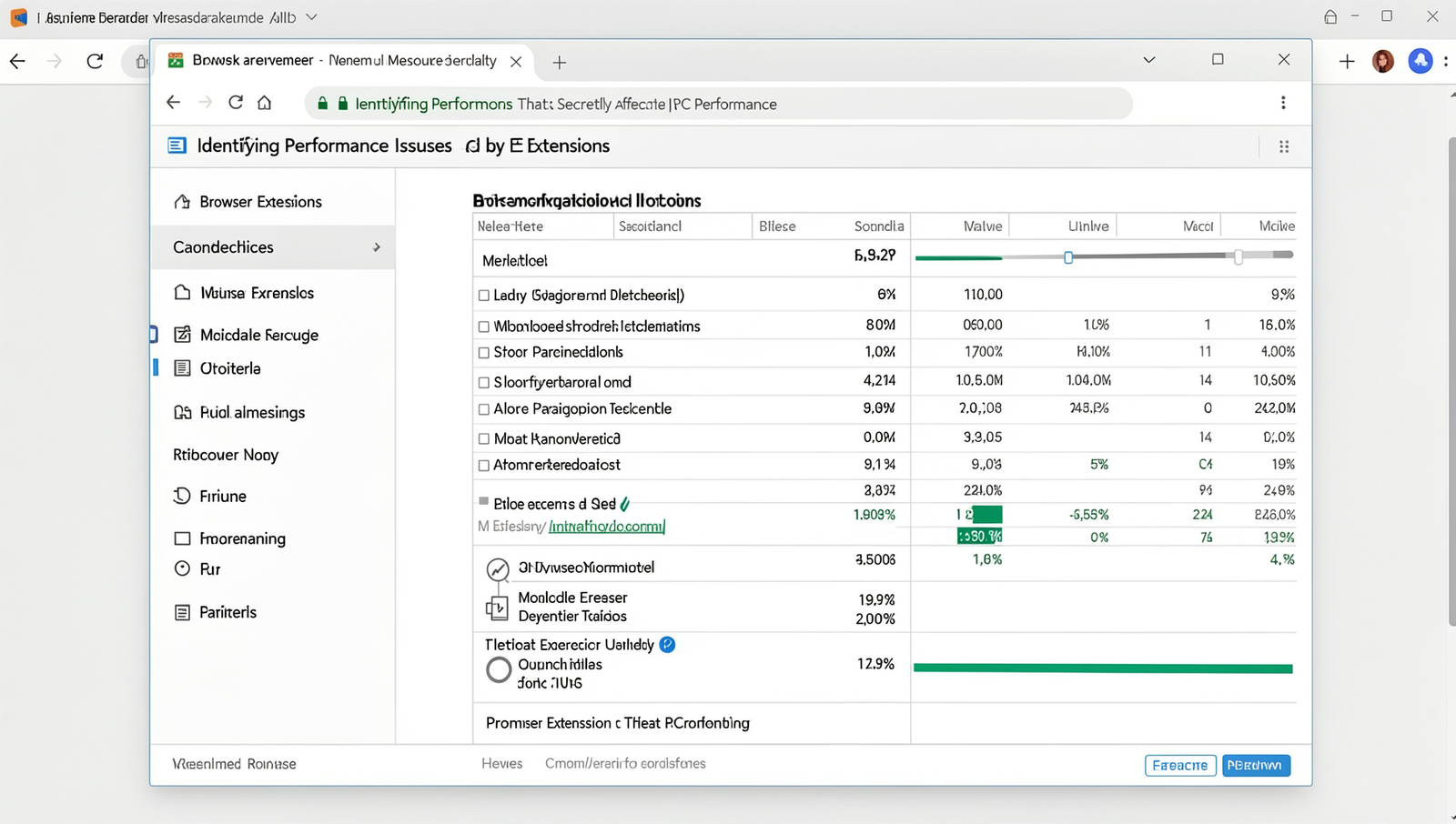
Browser extensions can enhance your online experience, but they can also lead to significant performance issues. If you notice signs of slow browsing or lagging performance, it may be time to investigate the extensions you have installed. Common indicators of these issues include delayed page loading, unresponsive tabs, and frequent browser crashes. If your browser feels sluggish, it could be due to one or more extensions consuming excessive resources.
To pinpoint which extensions might be causing performance problems, you can utilize the Task Manager on your computer. For Windows users, you can open the Task Manager by pressing
Ctrl + Shift + Escor
Ctrl + Alt + Deleteand selecting Task Manager. Once open, navigate to the “Processes” tab and look for your browser. By right-clicking on it and selecting “Expand,” you can view the individual extensions and their resource usage. High CPU or memory usage by any extension can indicate a performance issue.
In addition to the Task Manager, there are various tools available that can help analyze the impact of extensions on browser performance. For instance, Chrome users can utilize the built-in “Task Manager” by pressing
Shift + Escwhile in the browser. This will show you the resource usage of each extension and tab, allowing you to identify any problematic extensions quickly.
If you suspect an extension is affecting your browser’s performance, a practical approach is to disable it temporarily. In Chrome, you can do this by navigating to chrome://extensions in your address bar. From there, you can toggle off any extension you want to test. In Firefox, you can access the extensions by going to about:addons. Disabling extensions one by one can help you determine which one is causing the slowdown.
By monitoring resource usage and utilizing the right tools, you can effectively identify and manage browser extensions that may be negatively impacting your PC’s performance.
Best Practices for Managing Browser Extensions
Browser extensions can significantly enhance your online experience, but they can also impact your PC’s performance if not managed properly. To ensure that your browser extensions are working for you rather than against you, it’s essential to adopt some best practices. Here are several strategies to help you maintain optimal browser extensions performance.
First and foremost, regularly reviewing and removing unused extensions is crucial. Many users install extensions for specific tasks but forget to uninstall them once they are no longer needed. This accumulation can slow down your browser and, consequently, your PC. To check and remove extensions, follow these steps:
1. Open your browser.
2. Go to the extensions or add-ons section.
3. Review the list of installed extensions.
4. Uninstall any that you no longer use.
Another important practice is to limit the number of active extensions. Each extension consumes system resources, and having too many running simultaneously can lead to sluggish performance. Aim to keep only the most essential extensions active. You can always enable others temporarily when needed.
Keeping your extensions updated is also vital for maintaining browser extensions performance. Developers frequently release updates to fix bugs and improve functionality. Regularly check for updates to ensure that you are using the latest versions. Most browsers will notify you of available updates, but you can also manually check:
1. Open your browser.
2. Navigate to the extensions or add-ons section.
3. Look for an option to update extensions.
Lastly, consider lightweight alternatives for heavy extensions. Some extensions can be resource-intensive, slowing down your browser. Research and find lighter alternatives that provide similar functionality without the performance hit. For example, if you use a heavy ad blocker, look for a more efficient option that still meets your needs.
By following these best practices, you can effectively manage your browser extensions and ensure that they enhance rather than hinder your PC’s performance.
Conclusion
In summary, while browser extensions can significantly enhance our online experience by adding functionality and convenience, they can also have a hidden impact on PC performance. Many users are unaware that these seemingly harmless tools can consume valuable system resources, leading to slower browsing speeds and increased memory usage. It is crucial to regularly evaluate the extensions installed on your browser and remove any that are unnecessary or outdated. By doing so, you can help maintain optimal performance and ensure a smoother user experience.
To maximize browser extensions performance, consider utilizing tools that monitor resource usage and identify extensions that may be causing slowdowns. Additionally, staying informed about the latest updates and best practices for managing extensions can further enhance your browsing experience. Taking these steps not only improves your computer’s efficiency but also allows you to enjoy the benefits of browser extensions without compromising performance.
Real-World Examples
When discussing how browser extensions can impact PC performance, it’s essential to look at tangible examples that illustrate these effects in everyday scenarios. Many users may not realize that the extensions they install can significantly alter their browsing experience and overall system performance.
One common example is the use of ad-blocking extensions. While they are designed to enhance user experience by removing intrusive advertisements, they can also lead to increased CPU usage. For instance, an ad blocker that constantly scans web pages for ads can consume a considerable amount of processing power, especially on sites with numerous ads. Users may notice their browsers slowing down or becoming unresponsive, particularly on older machines with limited resources.
Another example is the use of productivity tools, such as task managers or note-taking extensions. While these tools can be beneficial, they often run background processes that can slow down the browser. For example, an extension that syncs notes or tasks with a cloud service may frequently communicate with the internet, leading to increased data usage and slower performance.
Additionally, some extensions can conflict with one another, causing browsers to crash or freeze. A user might have a password manager and a privacy-focused extension installed simultaneously. If these extensions are not optimized for compatibility, they can lead to a degraded browsing experience.
To illustrate the impact of browser extensions on performance, consider the following list of common extensions and their potential effects:
- Ad Blockers: Can slow down page loading times due to constant scanning.
- Privacy Extensions: May lead to increased CPU usage as they analyze traffic.
- Productivity Tools: Often run background processes that can consume resources.
- Social Media Extensions: Can slow down browsers due to frequent updates and notifications.
In summary, while browser extensions can enhance functionality and improve user experience, they can also have unintended consequences on PC performance. Users should regularly evaluate the extensions they have installed and consider their impact on system resources.
Frequently Asked Questions

Can browser extensions slow down my PC?
Yes, browser