Windows Privacy Settings That Deserve a Second Look
techpcalex@gmail.com September 1, 2026 0
Explore essential Windows privacy settings.
8 min read • 1,626 words
Table of Contents
ToggleWindows Privacy Settings That Deserve a Second Look
In today’s digital age, understanding and managing your privacy settings is more crucial than ever, especially for Windows users. Windows 10 and 11 come equipped with a variety of privacy settings that allow you to control how much data is collected and shared. Many users are unaware of the extent to which their operating system collects diagnostic data, but fortunately, these settings can be adjusted to enhance your privacy. This article will delve into the essential Windows Privacy Settings that deserve your attention.
From disabling location services to managing app permissions for your camera and microphone, Windows provides numerous options to safeguard your personal information. You’ll also learn how to control app access to your contacts and calendar, as well as how to disable personalized ads based on your activity. By the end of this article, you will have a clearer understanding of how to protect your privacy while using Windows.
Location Privacy Settings
Location services in Windows are designed to enhance user experience by providing location-based features and services. These services allow applications to access your geographical location, which can be useful for maps, weather updates, and personalized content. However, this convenience comes with significant privacy considerations. Understanding how to manage these settings is crucial for protecting your personal information.
To manage location settings for apps on your Windows device, follow these steps:
1. Open the Start menu and select Settings.
2. Click on Privacy.
3. Select Location from the left sidebar.
4. Toggle the "Location service" switch to enable or disable location tracking.
Once location services are enabled, you can manage which apps have access to your location. Below are the steps to adjust app-specific location permissions:
1. In the Location settings, scroll down to "Choose which apps can access your precise location."
2. Review the list of apps and toggle the switch for each app to allow or deny access.
The impact of location tracking on privacy can be significant. When apps have access to your location, they can collect data about your movements and habits. This information can be used for targeted advertising or even shared with third parties, raising concerns about how your data is utilized. Therefore, it is essential to regularly review and adjust your location settings.
Here are some best practices for maintaining location privacy:
- Only enable location services when necessary, and disable them when not in use.
- Limit app access to your location by only allowing essential applications to track your whereabouts.
- Regularly review your location history and clear it if you have concerns about privacy.
- Consider using a VPN to mask your location when browsing online.
By taking these steps, you can better protect your privacy while still enjoying the benefits of location-based services in Windows.
Camera and Microphone Access
In today’s digital age, safeguarding your privacy is more crucial than ever, especially when it comes to the camera and microphone on your Windows device. These features can be exploited by malicious applications, leading to unauthorized access and potential breaches of your personal information. Understanding and managing your camera and microphone permissions is an essential step in enhancing your overall security.
Windows Privacy Settings allow you to control which applications can access your camera and microphone. By default, some applications may request access without you fully understanding the implications. It’s important to regularly review these permissions to ensure that only trusted applications have access.
To check which apps have access to your camera and microphone, follow these steps:
- Open the Settings app by pressing
Windows + I. - Navigate to Privacy and select Camera from the left sidebar.
- Here, you will see a list of apps that have requested camera access. You can toggle permissions on or off for each app.
- Repeat the process for Microphone to review and manage microphone access.
If you find any applications that you do not recognize or trust, it’s wise to revoke their access. To do this, simply toggle the switch next to the app off. This action will prevent the app from using your camera or microphone in the future.
Risks associated with unauthorized access to your camera and microphone can be significant. Malicious software could potentially record audio or video without your consent, leading to privacy violations and identity theft. By regularly monitoring and managing your Windows Privacy Settings, you can mitigate these risks and maintain greater control over your personal data.
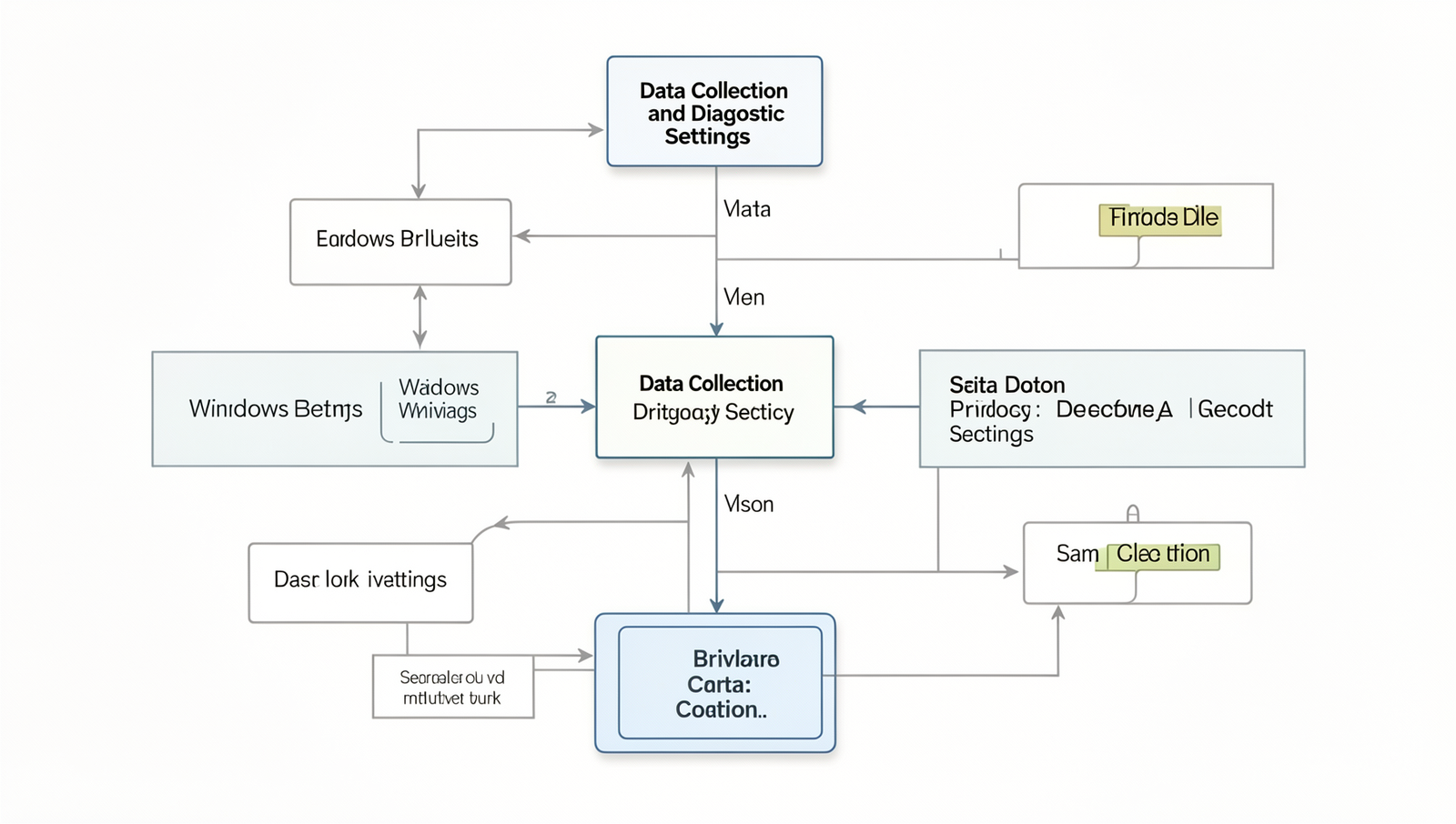
Data Collection and Diagnostic Settings
In the era of digital connectivity, understanding how operating systems handle user data is crucial for maintaining privacy. Windows 10 and 11 have extensive data collection practices that can impact user privacy significantly. Microsoft collects diagnostic data to improve user experience, but many users may not be aware of the extent of this data collection. It is essential to familiarize yourself with these settings to take control of your privacy.
To adjust your diagnostic data settings, follow these steps:
- Open the Settings app by pressing
Windows + I. - Navigate to Privacy & security.
- Select Diagnostics & feedback.
- Here, you can choose between Required diagnostic data and Optional diagnostic data.
By selecting Required diagnostic data, you limit the information sent to Microsoft to only what is necessary for the system to function correctly. This includes basic device information and performance data. On the other hand, Optional diagnostic data includes more detailed information, such as app usage and browsing habits, which can be more intrusive.
The impact of data collection on user privacy cannot be overstated. When users opt for optional data sharing, they may unknowingly expose sensitive information. This data can be used for targeted advertising and other purposes that may not align with user preferences. Therefore, it is advisable to carefully consider what level of data sharing you are comfortable with.
To minimize data sharing, consider the following recommendations:
- Regularly review and adjust your privacy settings.
- Disable features like Tailored experiences that rely on extensive data collection.
- Use local accounts instead of Microsoft accounts when possible.
- Limit app permissions to only those necessary for functionality.
By taking these steps, you can significantly enhance your privacy while using Windows. Understanding and adjusting your Windows Privacy Settings is a proactive approach to safeguarding your personal information.
Conclusion
In summary, taking a closer look at your Windows Privacy Settings can significantly enhance your overall security and personal data protection. By adjusting settings related to location tracking, camera access, and data sharing, you can regain control over your information and minimize unwanted exposure. The benefits of customizing these settings extend beyond mere privacy; they can also improve your system’s performance and user experience. Understanding the implications of each setting empowers you to make informed decisions about what data you share and with whom.
As you move forward, consider revisiting your Windows Privacy Settings regularly, especially after major updates or changes to your system. Familiarize yourself with new features and options that Microsoft may introduce, as they can further enhance your privacy. By staying proactive and informed, you can ensure that your Windows environment remains secure and aligned with your privacy preferences, ultimately leading to a more confident and enjoyable computing experience.
Real-World Examples
When it comes to Windows Privacy Settings, many users overlook the practical implications of their choices. Understanding how these settings affect daily use can significantly enhance both security and user experience. For instance, consider a small business owner who utilizes Windows for managing client data. By adjusting privacy settings, they can ensure that sensitive information remains protected from unauthorized access.
One practical example involves the use of location services. A user might not realize that Windows can track their location, which can be useful for applications like maps but poses a risk for privacy. By navigating to Settings > Privacy > Location, users can disable location tracking entirely or customize which apps have access. This is particularly important for professionals who handle confidential client information or operate in sensitive industries.
Another critical area is the management of app permissions. Many applications request access to features such as the microphone, camera, or contacts. Users should regularly review these permissions to ensure that only necessary apps have access. For example, a user might find that a game app has access to their camera, which is not required for gameplay. By going to Settings > Privacy > Camera and Settings > Privacy > Microphone, they can revoke permissions for apps that don’t need them.
- Location Services: Disable or customize settings to protect your whereabouts.
- App Permissions: Regularly review and adjust permissions for apps accessing sensitive features.
- Advertising ID: Consider turning off the advertising ID to limit targeted ads based on your usage.
Moreover, users should be aware of the data collected by Microsoft itself. Under Settings > Privacy > Diagnostics & feedback, there are options to limit the amount of diagnostic data sent to Microsoft. By selecting the minimal data option, users can maintain a level of privacy while still benefiting from updates and improvements. This is particularly relevant for those who are concerned about how their data is used for product development and marketing.
In summary, Windows Privacy Settings offer a range of options that can significantly impact user privacy and security. By taking the time to explore and adjust these settings, users can create a more secure computing environment that aligns with their personal and professional needs.
Frequently Asked Questions
What are Windows privacy settings?
Windows privacy settings are a collection of options that allow users to control how their personal data is collected, used, and shared by the operating system and