PC Cooling Guide: The Hidden Causes of High Temperatures
techpcalex@gmail.com September 1, 2026 0
Explore the essentials of PC cooling.
8 min read • 1,623 words
Table of Contents
TogglePC Cooling Guide: The Hidden Causes of High Temperatures
In the world of PC building and maintenance, understanding the intricacies of cooling is essential for optimal performance. This PC Cooling Guide delves into the often-overlooked factors that contribute to high temperatures within your system. High temperatures can lead to hardware damage, reduced performance, and even system failures, making it crucial for every PC enthusiast to be aware of these hidden causes.
Throughout this guide, you will learn about the impact of dust buildup on airflow, the importance of proper thermal paste application, and how inadequate case ventilation can trap heat. Additionally, we will explore the risks associated with overclocking components without sufficient cooling and the consequences of faulty fans. By the end of this article, you will be equipped with the knowledge to keep your PC running cool and efficiently.
Understanding PC Temperature Basics
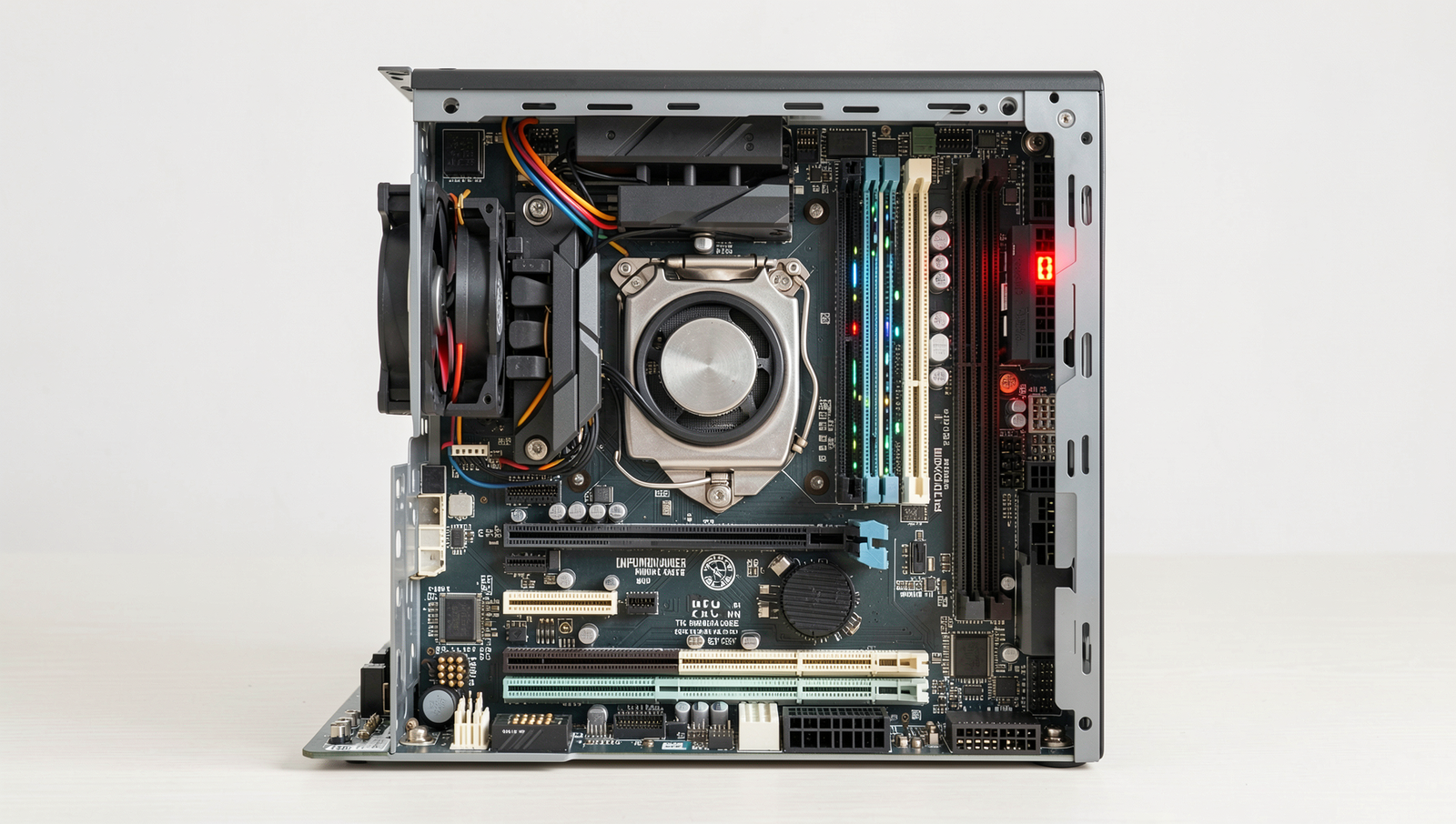
In the realm of computing, the term “PC temperature” refers to the heat generated by various components within a computer system, including the CPU, GPU, and power supply. Monitoring and maintaining optimal temperatures is crucial for ensuring system stability, performance, and longevity. Excessive heat can lead to hardware failures, reduced efficiency, and ultimately, a shorter lifespan for your components. Therefore, understanding the temperature dynamics of your PC is a vital aspect of any PC cooling guide.
Different components of a PC have varying temperature thresholds. For instance, a typical CPU operates efficiently within a temperature range of 30°C to 80°C, while GPUs can generally handle temperatures between 30°C and 90°C. Power supplies usually maintain a safe operating temperature below 70°C. Keeping these components within their recommended ranges is essential for optimal performance.
Temperature not only affects performance but also has significant implications for the longevity of your hardware. When components operate at high temperatures, they may experience thermal throttling, a protective mechanism that reduces performance to prevent overheating. This can lead to slower processing speeds and decreased frame rates in gaming scenarios. Over time, consistently high temperatures can also result in permanent damage to sensitive components, leading to costly repairs or replacements.
Thermal throttling is a critical concept to understand in the context of PC cooling. When a CPU or GPU reaches a certain temperature threshold, it automatically reduces its clock speed to lower heat output. While this mechanism protects the hardware, it can severely impact performance during demanding tasks such as gaming or video editing. For example, if a gaming GPU throttles down from 1600 MHz to 1200 MHz due to overheating, players may experience lag and stuttering, diminishing their overall experience.
In summary, understanding PC temperature basics is essential for any PC builder or enthusiast. By monitoring temperatures and implementing effective cooling solutions, you can ensure your system runs smoothly and lasts longer.
Effective Cooling Solutions
When it comes to maintaining optimal temperatures in your PC, understanding the different types of cooling systems is crucial. The two primary categories are air cooling and liquid cooling. Air cooling utilizes heatsinks and fans to dissipate heat away from components, making it a more straightforward and cost-effective solution. On the other hand, liquid cooling employs a closed-loop system where coolant circulates through a radiator and water blocks, providing superior heat dissipation. This method is particularly beneficial for high-performance builds that generate significant heat.
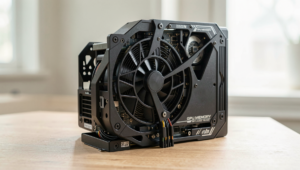
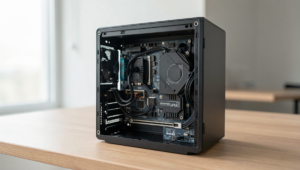
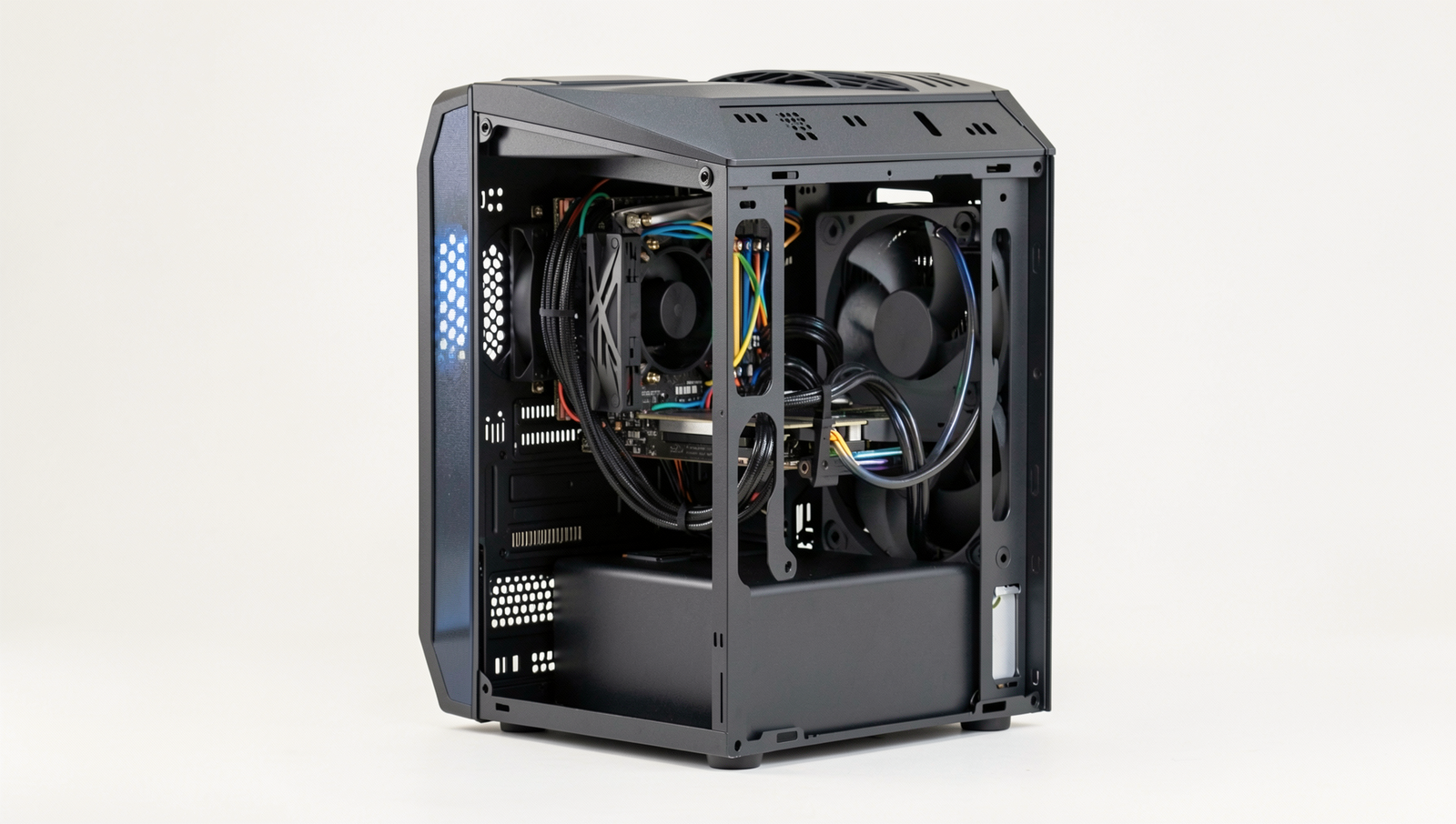
Another essential aspect of effective cooling is the strategic placement of case fans. Case fans help to create airflow within the chassis, which is vital for keeping temperatures down. Ideally, you should have a balanced airflow setup, with intake fans at the front and exhaust fans at the rear and top. This configuration ensures that cool air enters the case while hot air is expelled efficiently. It is also important to consider fan sizes and RPMs; larger fans can move more air at lower speeds, resulting in quieter operation.
Upgrading your CPU and GPU coolers can also lead to significant improvements in thermal performance. Stock coolers often fall short, especially under heavy loads. Aftermarket coolers, such as larger heatsinks or all-in-one liquid coolers, can provide better thermal management. For instance, a high-performance air cooler can reduce CPU temperatures by as much as 20 degrees Celsius compared to stock options.
Finally, utilizing fan curves and software can optimize your cooling setup further. Most motherboards come with BIOS settings that allow you to adjust fan speeds based on temperature readings. You can create custom fan curves to ensure that your fans ramp up only when necessary, reducing noise levels during light usage. Additionally, software like MSI Afterburner can help you monitor temperatures and adjust fan speeds in real-time, ensuring your system remains cool under pressure.
Maintaining Optimal Temperatures
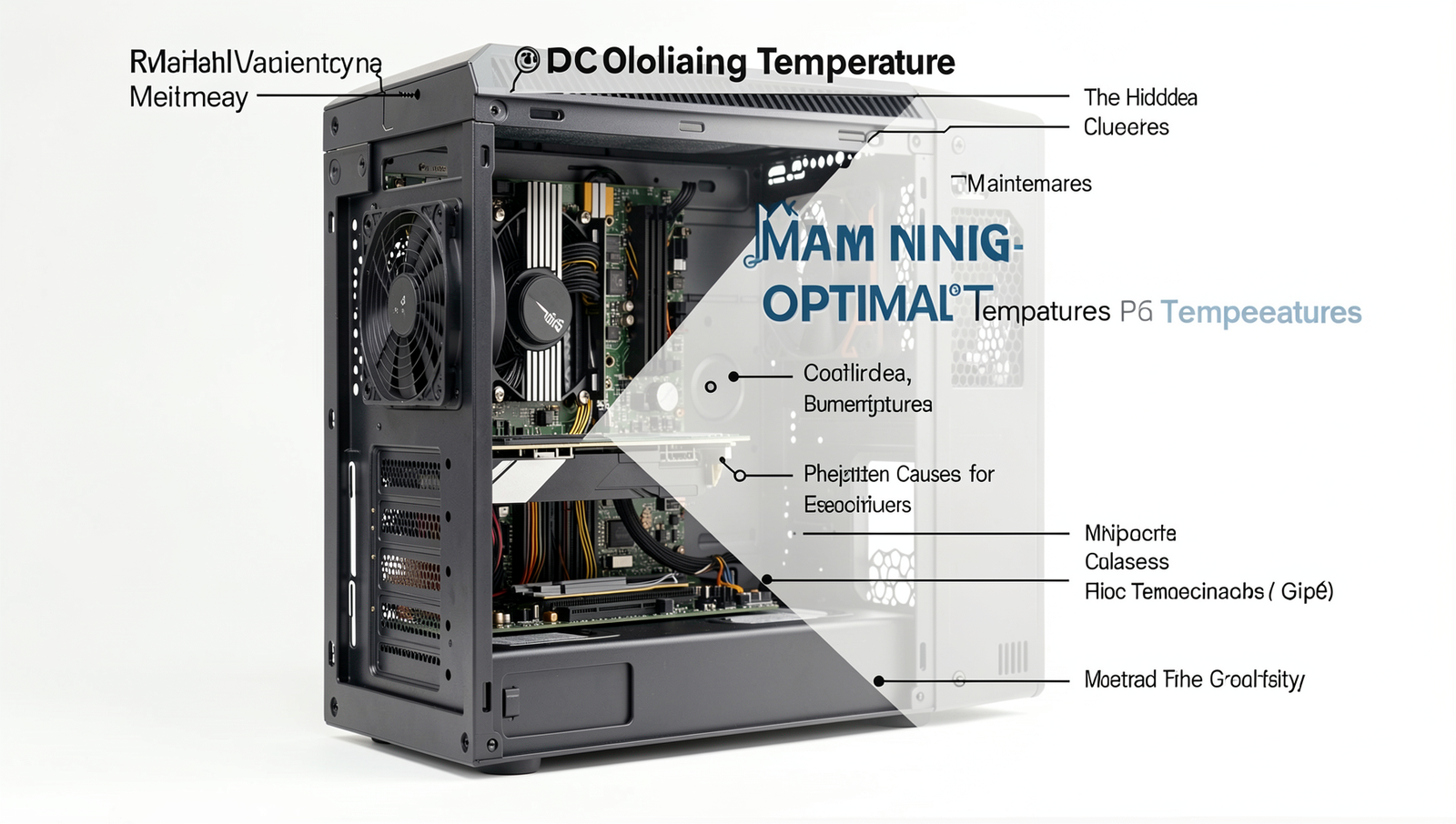
Maintaining optimal temperatures is crucial for the longevity and performance of your PC. High temperatures can lead to hardware failure and reduced efficiency. Here are some effective strategies to keep your system cool.
First and foremost, regular cleaning and maintenance schedules are essential. Dust accumulation can obstruct airflow and trap heat. To prevent this, aim to clean your PC every few months. Use compressed air to blow out dust from fans, heatsinks, and filters. Additionally, check for any signs of wear or damage on cooling components, such as fans and thermal paste, and replace them as necessary.
Monitoring temperatures using software tools is another vital practice. Programs like HWMonitor, Core Temp, or MSI Afterburner can provide real-time temperature readings for your CPU, GPU, and other components. Set alerts for when temperatures exceed safe thresholds, allowing you to take immediate action before damage occurs.
Effective cable management can also significantly enhance cooling efficiency. When cables are tangled and obstructing airflow, they can create hotspots within your case. Here are some best practices for cable management:
- Use zip ties or Velcro straps to bundle cables neatly.
- Route cables behind the motherboard tray if possible.
- Keep power cables away from fans and airflow paths.
Lastly, optimizing room conditions can greatly impact your PC’s cooling performance. Ensure that your PC is placed in a well-ventilated area, away from heat sources like radiators or direct sunlight. Consider using air conditioning or fans to maintain a cooler ambient temperature. Additionally, avoid carpeted surfaces that can trap heat; instead, place your PC on a hard, flat surface to promote better airflow.
By following these guidelines from this PC Cooling Guide, you can ensure that your system remains cool and performs at its best, ultimately extending its lifespan and reliability.
Conclusion
In this PC Cooling Guide, we have explored the hidden causes of high temperatures that can affect your computer’s performance and longevity. Understanding factors such as dust accumulation, inadequate airflow, and poor thermal paste application is crucial for maintaining optimal operating temperatures. By addressing these issues, you can significantly improve your system’s efficiency and prevent potential hardware damage due to overheating.
Moving forward, it is essential to implement regular maintenance practices, such as cleaning your PC components and ensuring proper airflow within your case. Investing in quality cooling solutions, such as aftermarket CPU coolers or additional case fans, can also enhance your system’s thermal management. By following the insights provided in this PC Cooling Guide, you can create a more stable and reliable computing environment, ensuring your hardware performs at its best for years to come.
Real-World Examples
Understanding the hidden causes of high temperatures in PCs can be crucial for maintaining optimal performance and longevity. Here are some real-world examples that illustrate common issues and their solutions.
One user, Alex, experienced frequent overheating while gaming. After monitoring his system, he discovered that his CPU cooler was not seated properly. The thermal paste had dried out, leading to poor heat transfer. By reapplying high-quality thermal paste and ensuring the cooler was securely attached, Alex saw a significant drop in temperatures, allowing him to game for hours without throttling.
Another case involved Sarah, who noticed her laptop was running hot and the fan was constantly spinning at high speeds. Upon inspection, she found that dust had accumulated in the vents and fans, obstructing airflow. By using compressed air to clean the vents, Sarah improved airflow dramatically, resulting in quieter operation and lower temperatures.
- Example 1: A PC build for video editing required efficient cooling. The user opted for a liquid cooling solution, which not only reduced temperatures but also minimized noise levels compared to traditional air coolers.
- Example 2: A gamer upgraded to a high-performance GPU without considering the case airflow. After experiencing thermal throttling, they added additional case fans and reorganized cables to improve airflow, leading to better cooling performance.
These examples highlight the importance of regular maintenance and thoughtful upgrades in preventing overheating. By being proactive and addressing potential issues, users can ensure their systems remain cool and efficient.
Frequently Asked Questions
What are common causes of high PC temperatures?
High PC temperatures can be caused by several factors, including inadequate airflow, dust buildup in fans and vents, failing cooling components, and overclocking. Additionally, high ambient temperatures and poor thermal paste application can contribute to overheating issues.
How can I improve my PC’s cooling?
To enhance your PC’s cooling, ensure proper airflow by organizing cables and removing obstructions. Upgrade to more efficient cooling solutions, like aftermarket CPU coolers or additional case fans. Regularly clean dust from components and consider using thermal paste to improve heat transfer.
What temperature is too high for a CPU?
Generally, a CPU temperature exceeding 80°C under load is considered too high. Most CPUs operate safely between 30°C to 70°C. It’s crucial to monitor temperatures, especially during intensive tasks, to prevent thermal throttling or permanent damage.
How often should I clean my PC for optimal cooling?
For optimal cooling, it’s